Basic Service Documentation. Copyright General Electric Company.
Object ID: 00000018WHA30D1A4GYZ
Topic ID: id_2001778 Version: 1.38
Date: Jun 2, 2020 12:09:07 PM
Installing the host computer
Install the host computer in the GOC after it has been serviced or replaced.
Prerequisites
Personnel requirements
Required persons
Preliminary requirements
Procedure
Finalization
1
-
30 minutes
-
Tools and test equipment
Item
Quantity
Part number
Manufacturer
Screwdriver
1
-
-
ESD Strap
1
-
-
Consumables
Item
Quantity
Part number
Manufacturer
GE Equipment Maintenance Sticker
Note: Not needed for hard drive or DVD replacement procedures.
1
5661793
-
Replacement parts
Item
Quantity
Part Number
Manufacture
Dell T5820 MR Global Host W-2123 64GB Nvidia SSD
1
8780011-02
-
GOC Dust Filter for T5820
2
5793940
-
Adhesive-Backed Velcro, 2 x 4 inches
1
46-317475P2
-
Procedure
Carefully put the computer back inside the GOC brackets. Secure the brackets as needed.
Attach and tighten the strap(s) to secure the computer.
Connect the computer cables and make sure all connections to the GOC and host computer are secure.
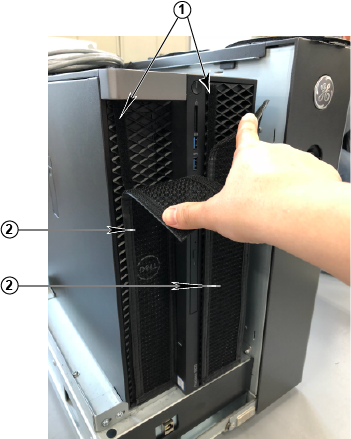
Remove the dust filter and Velcro strips from the old computer and examine them for reusability.
Figure 1. Dust filter attachment
1
Velcro strips
2
Dust filter
Install the Velcro strips on the computer.
If you can reuse the Velcro strips install them.
If you cannot reuse the Velcro strips install a new set.
Install the dust filter.
If you can reuse the dust filter from the old computer, then clean and install it.
If you cannot reuse the dust filter, then install a new one.
Connect the short ground lead that connects the left side panel to the GOC main chassis at the center of the lead.
Secure the left side panel to the GOC.
(For Brainwave option only) Insert the Brainwave Cedrus Lumina controller into a USB 3.0 port.
Get a GE equipment maintenance sticker, and write today's date on the sticker. Put the sticker on the GOC where it is easily seen.
Note: When replacing the hard drive or DVD drive, a maintenance sticker is not required.
Finalization
After this task you will be instructed to remove LOTO, if applicable, and start up the host computer. When you first start the host computer, complete the following steps to make sure the host starts up:
Before entering the OS, press [F2]. The display will show the BIOS setting GUI.
Select Power Management section > AC Recovery > Power On.