
- Discovery MR750 3.0T System Service Methods
- 5690009-2EN Revision 4
- 00000018WIA30E6CE20GYZ
- id_131072503.0
- Aug 29, 2019 1:45:54 AM
3.0T 8-channel high res brain array coil troubleshooting
Personnel Requirements
| Required Persons | Procedure |
| 1 | 30 minutes |
Overview
The following tips can be used to troubleshoot common problems with the 3.0T HD 8 Channel High Resolution Brain Array by Invivo (M3335LL).
Tools and Test Equipment
Digital Volt Meter
Required Conditions
The following coil configuration names must be installed to run this tool with 15.x and earlier:
-
HDx 8HRBrain
-
HDx 8HRBrainServ
Procedure
Receiving No Signal
Problem:
Unable to pre-scan or scanning, but receiving no signal.
Possible Solution:
-
Verify the green light above Port A is illuminated. This indicates the coil is properly plugged into the system.
-
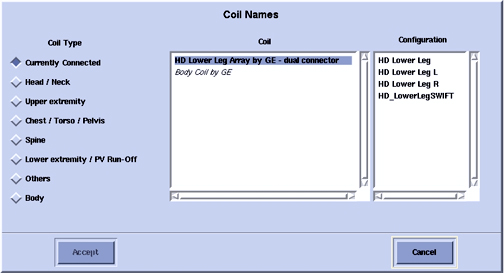
Verify the system correctly detected the coil by checking in Currently Connected in the GUI shown in the example in Figure 1.
-
Verify that the landmark is correct and the cradle did not unlatch.
-
Verify that the scan locations and any Field of View (FOV) offsets are correct.
-
Perform a continuity check on the external cable described in PIN Diode Control Channels Check. The continuity check must be performed by a GE-authorized Service Engineer.
-
Verify that the coil is positioned with the cable exiting towards the bore and that the system and coil polarity match.
If still unable to receive a signal, try to scan (transmit and receive) with the body coil. For this test, be sure to remove the imaging coil from the magnet bore before scanning with the body coil.
-
If still not receiving a signal, the problem probably lies with the MR system.
-
If the scan completes successfully, there may be a problem with the Invivo coil. Contact GE for further assistance. If unable to scan with the substitute coil, there may be a system problem related to this particular coil type.
Image Quality
Problem:
Poor IQ, shaded images, or MCQA fails.
Possible Solution:
-
Perform a continuity check on the external cable described in External Cable Wear. The continuity check must be performed by a GE authorized Service Engineer.
-
Verify that there are no loops in the cables.
-
Verify that there are no metal or ferromagnetic objects close to the coil, patient or magnet (i.e., safety pin, hair pin).
-
Verify that the coil is properly positioned.
-
Verify that the center frequency is within the frequency adjustment range for the system.
-
Verify that the R1, R2 and TG values from the pre-scan are within normally expected ranges.
If not already done:
-
Perform a system Quality Assurance phantom test.
-
If the values obtained do not fall within normal operating parameters, investigate further by performing a phantom scan with the body coil. For this test, be sure to remove the imaging coil from the magnet bore before scanning with the body coil. If still having the same problems, there is probably an MR system problem.
-
If the body coil scan is satisfactory, acquire a scan using another coil of the exact same type (receive-only, phased array, or transmit/receive, whichever applies) and the same system coil selection. If the image quality is visibly improved, there may be a problem with the Invivo coil.
-
-
Contact GE for further assistance. If the image quality still suffers, there may be a system problem related to imaging with this type of coil.
Artifacts
Problem:
There is a black line or signal void on the image.
Possible Solution:
Verify that there is no metal present in the area being scanned in or on the patient.
Problem:
Some or all of the images appear shaded or exhibit uneven signal or banding.
Possible Solution:
-
Confirm that no metallic objects are located nearby, outside the FOV. This is especially important on images utilizing Fat Saturation.
-
If Fat Saturation is being used, verify that the Center Frequency Adjustment (CFA) fine adjustment was optimized.
External Cable Wear
Problem:
System will not recognize the coil, or reports MC bias errors with the coil attached.
Possible Solution:
Perform the cable continuity check as follows:
RF Signal Channels Check
The center pins of the System Connector receive coaxial connectors are extremely fragile. Do not attempt to make any measurements at these center pins.
-
With the coil cable disconnected, use a multimeter to assure an open circuit condition exists between the designated pin and GND (shown in Figure 2) for each Signal Channel in .
Figure 2. Coil Cable Connector 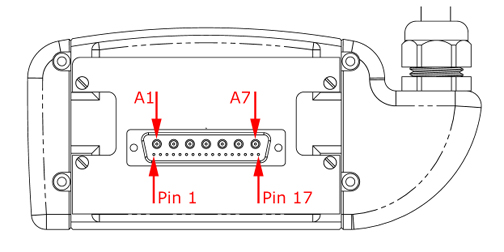
Table 1. Signal Channel Coil Cable Connector Connection MC-1 Center A7 GND MC-2 Center A6 GND MC-3 Center A5 GND MC-4 Center A4 GND MC-5 Center A3 GND MC-6 Center A2 GND MC-7 Pin 2 GND MC-8 Center A1 GND GND NOTE: All outer [A] shells and Pins 1 and 3 are common to GND. -
If one or more of the readings indicate a short, replace the cable. If all of the above readings indicate an open circuit condition, proceed to PIN Diode Control Channels Check.
PIN Diode Control Channels Check
-
With the coil cable disconnected, use a multimeter to determine continuity between the designated pins for each Control Channel in Table 2. Verify that the control pins are not shorted to GND.
Table 2. External Cable Expected Readings B Control Channel Coil Cable Connector System Connector MC bias 1 Pin 17 J1 MC bias 2 Pin 16 J2 MC bias 3 Pin 15 J3 MC bias 4 Pin 14 J4 MC bias 5 Pin 4 J5 MC bias 6 Pin 5 J6 MC bias 7 Pin 6 J7 MC bias 8 Pin 7 J8 GND NOTE: All outer [A] shells and Pins 1 and 3 are common to GND. K1 - K8, M6 -
If one or more of the readings are >3 ohms, replace the coil cable. If all readings are <3 ohms, proceed to PIN Diodes Check.
PIN Diodes Check
-
With the coil cable connected to the coil, use a multimeter to measure the diode drop across the coil connector pins as detailed in Table 3. Use Figure 3 for pin identification while performing this procedure.
Table 3. Pin Diode Expected Readings System Connector Reading Positive Lead Negative Lead J1 GND [K1] 1.7 GND [K1] J1 Open J2 GND [K2] 1.7 GND [K2] J2 Open J3 GND [K3] 1.7 GND [K3] J3 Open J4 GND [K4] 1.7 GND [K4] J4 Open J5 GND [K5] 1.7 GND [K5] J5 Open J6 GND [K6] 1.7 GND [K6] J6 Open J7 GND [K7] 1.7 GND [K7] J7 Open J8 GND [K8] 1.7 GND [K8] J8 Open Figure 3. System Connector 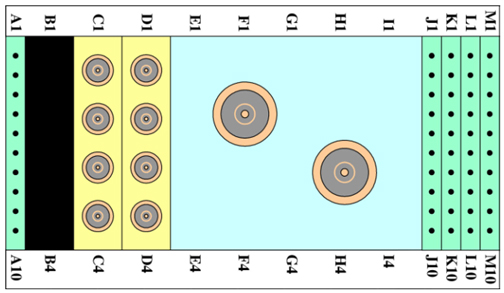
-
If one or more of the readings indicate a short, replace the coil. If all of the above readings are correct, redo Coil Imaging Performance Verification. If the problem still exists, replace the 1.5T HD 8 Channel High Resolution Brain Array Coil.
Mechanical Parts Wear
Inspect the coil for visible signs of wear. If the coil housings do not seat with each other or if the latch mechanism will not work properly, contact GE Service.