• SIGNA™ Hero 3.0T Service Methods
  • 5852800-8EN Revision 1.0
  • Object ID: 00000018WHA307872GYZ
  • Topic ID: id_2001637 Version: 9.2
  • Date: Dec 14, 2021 12:37:23 PM

Doing the Multi-Coil Quality Assurance (MCQA) check

The Multi-Coil Quality Assurance (MCQA) tool simplifies data acquisition and analysis of the signal-to-noise ratio (SNR) for surface coils.

Prerequisites

Personnel requirements
Required personsPreliminary requirementsProcedureFinalization
1---
Tools and test equipment
ItemQuantityPart numberManufacturer
Coils and phantoms to be testedAs required--
Required conditions
The system must be calibrated and must have passed all system tests.
The system must have passed MCRv.
The coil and phantom must be set up.
Safety

Before working in any GE Healthcare MR suite or performing any GE Healthcare service procedure, you must:

  • Have read and understood all hazard conditions and safety requirements in the latest revision of the GE Healthcare MR Service Safety Manual (5452735).
  • Have successfully completed all relevant GE Healthcare Environmental Health and Safety (EHS) courses (or for non-GE employees, equivalent workplace training courses).
  • Comply with all site-specific training and workplace safety requirements.

If you have any safety concerns at any time, do not begin work or immediately stop work and move to a safe location. Immediately contact your supervisor or site safety officer for instructions on how to proceed.

About this task

The Multi-Coil Quality Assurance (MCQA) tool simplifies data acquisition and analysis of the signal-to-noise ratio (SNR) for surface coils. It helps detect dead coil elements and develop improved integrated signal-to-noise ratio (ISNR) specifications for all multi-coils independent of scanner instabilities.
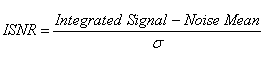
The ISNR measurement technique used is not dependent on coil or phantom geometry problems. It analyzes intermediate images by integrating the signal, instead of placing regions of interest (ROIs) in particular regions of the image.
Note: The Noise Test is coil-dependent and may not be applicable to all coils.
Figure 1. ISNR formula

PX26.1 software introduces the Noise Test feature for coils that have Noise Test data in their config file.

Procedure

  1. Note: If the MCRv test has not been executed or returns missing or failed results, the MCQA tool will detect them and a message will show asking to continue. Click Yes to continue with the MCQA scan.
    From the CSD, go to Image Quality > Multi-Coil QA Tool and click Click here to start this tool.

    Result

    The MCQA tool shows.
    Note: All images contained in this document are a representation. Actual system images may vary.
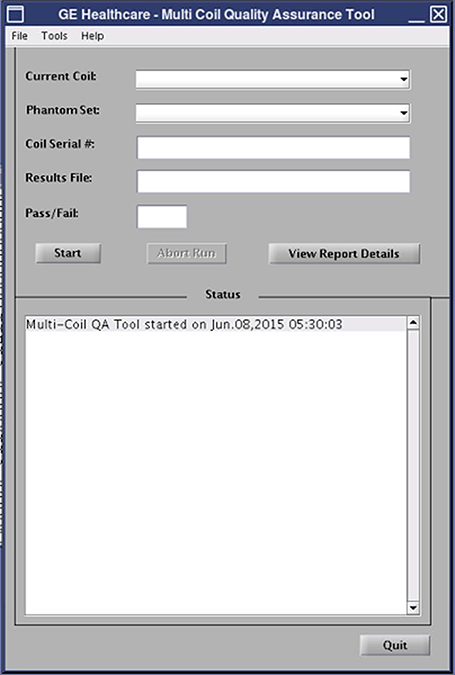
    Figure 2. MCQA tool
    Figure 3. MCQA tool for PX26.1 software with noise test ()
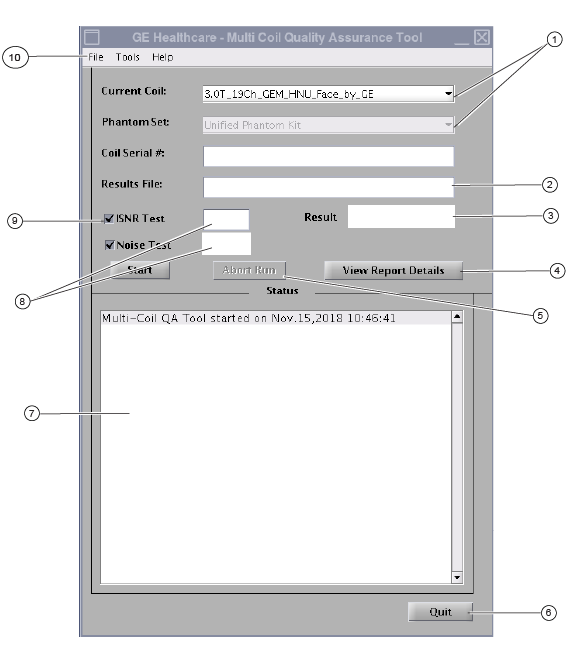
    1Shows all connected coil/coil serial numbers
    2Results file would show the name of the .mcqa file generated during ISNR test or .noisetest file during noise test
    3Shows combined result when both tests are selected
    4Launches mcqa_viewer for ISNR test, noise_viewer for noise test, and both the viewers when both tests are selected
    5Aborts the current run, enabled only during scanning
    6Close all of the GUIs and exit
    7Status box shows step-by-step working of the tool and shows final analysis
    8Shows results for respective tests
    9Three workflow options:
    • ISNR Test: completes SNR test
    • Noise Test: completes sub-clustering analysis
    • ISNR Test and Noise Test: complete both analyses
    10Menu to select result file (ISNR or .noise test) for offline analysis
    During startup, the MCQA tool tries to identify the coil connected to the system. The Current Coil field shows the current coil mode being tested.
    • If successful, the tool automatically shows the connected coil in the Current Coil field.
    • The names shown are the physical coil names and specific to the coil connector.
    • If the coil is not recognized, a message shows indicating the coil must be configured.
    • If the tool detects an incorrect coil selection during the download, an error message shows. You must manually select the correct coil from the Current Coil field.
  2. Enter the coil serial number in the Coil Serial # field.
  3. Position the coil and phantoms according to the QA test in the coil vendor manual. Refer to Coil Vendor Manuals.
  4. In the MCQA tool window, click Start to begin the test.

    Result

    A confirmation dialog box shows, asking you to continue with the selected phantom set.
  5. Click Yes.

    Result

    A warning dialog shows, asking you to examine the coil/phantom setup and position.
  6. Make sure the phantom and coil setup is correct and click Yes to continue.

    Result

    The status window of the MCQA tool continuously updates to give information about what the tool does. A time bar also shows the approximate total test time, elapsed time, and percent completed. After the test is completed, the test results file name shows in the Results File field, and the Pass/Fail field shows the overall test result.
  7. If the test fails, see Table 1 (Interpretation of test results) below for additional actions required based on the results of the test(s) you ran. In some cases, the Recommended Action column will direct you to the test result viewers page.

    The MCQA tool may have a Fail test result for reasons including, but not limited to, the following:

    • Bad coil element(s)
    • Incorrect phantom used for testing
    • Incorrect positioning/placement of phantom

    The MCQA tool may show Act Req in the Noise Test and/or Result windows if the variation among the noise groupings is such that it is necessary for the FE to do additional inspection steps, as described in case no. 2 and 5, in order to understand the final test result status.

    Table 1. Interpretation of test results
    Case No. SNR reporting statusNoise reporting statusCombined reporting statusRecommended action
    1PASSPASSPASSNone
    2PASSAct ReqAct ReqFor initial coil installation testing or staging testing (EST)
    Interpret as follows:
    • noise reported as: PASS
    • combined reporting status: PASS

    No further action is required.

    For coil troubleshooting post installation

    Check % SNR variance on the MCQA viewer status.

    Act Req shown in both Noise Test and Result windows indicates the FE must manually review the data to understand the final result. Select View Report Details from the MCQA tool menu. In the MCQA Viewer window, scroll down to the bottom of the Results display (located at the left of the window) and inspect the polarity of reported % SNR variance (shown as %SNRvar) values.

    If all reported % SNR variance values are positive and none shown are negative, the test passed and no further action is required.

    If all of the following are true, the coil may be faulty:
    • the value is negative and
    • the absolute value is > 15%. For example, in MCQA viewer showing %SNR variance, the absolute value of the number shown in the red box is greater than 15% and
    • IQ complaint exists from the customer

    Review the history of the coil and its type to identify if it previously had better performance.

    Review the results with someone familiar with OnWatch prescan noise data analysis, such as an online center engineer, before replacing the coil.

    3PASSFAILFAILSNR reported PASS and Noise reported FAIL. Do a check of the setup and review the results with an online engineer before you replace hardware.
    4FAILFAILFAILThe coil/element is likely the cause of the failure.
    5FAILAct ReqFAILFor Act Req, make sure the phantom selection and positioning is correct. If the setup is correct, review the results with an online engineer prior to replacing hardware.
    6FAILPASSFAILPlease make sure that the phantom selection and positioning is correct. If the setup is correct, review the results with an online engineer before you replace hardware.
  8. Click Quit to exit the MCQA tool. Remove the coil and phantom from the system.