Dell R640 (Gen7-DL) PerformanceICN with Dolphin 1 Interface Card and GPU Card(For software version PX29.1_R03 and later)
1
5941000-9
-
Dell R640 (Gen7-DL) Performance ICN with Dolphin 2 Interface Card and GPU Card(For software version PX29.1_R03 and later)
1
5941000-10
-
ICN PCIe Transition Cable X4-X8 for Dolphin 1 ICN (system with ICE)
1
5725719
-
PCIe Cable for Dolphin 2 ICN
1
5887762
-
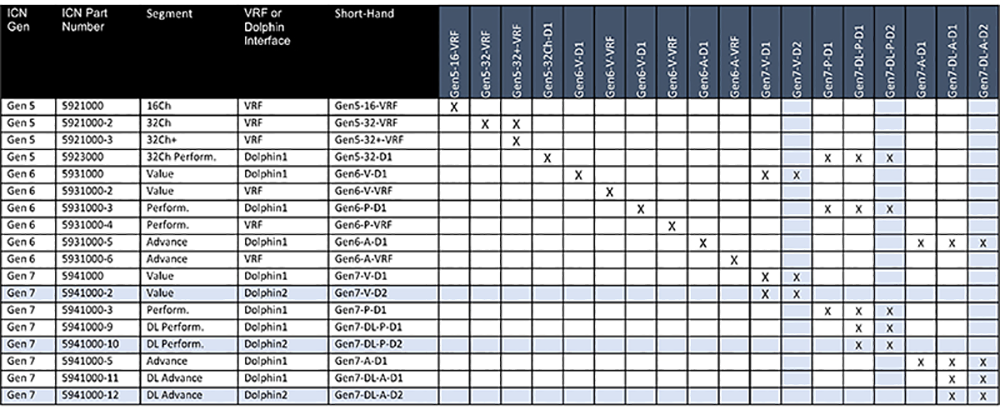
Note: This table represents the possible replacement ICNs for each model. Find the installed model on the left and see what models can be used to replace it. Make sure you have the proper software level to support all possible options as well as PCIe cable if changing dolphin board types.Figure 1. Compatibility matrix
Safety
Before working in any GE Healthcare MR suite or performing any GE Healthcare service procedure, you must:
Have read and understood all hazard conditions and safety requirements in the latest revision of the GE Healthcare MR Service Safety Manual (5452735).
Have successfully completed all relevant GE Healthcare Environmental Health and Safety (EHS) courses (or for non-GE employees, equivalent workplace training courses).
Comply with all site-specific training and workplace safety requirements.
If you have any safety concerns at any time, do not begin work or immediately stop work and move to a safe location. Immediately contact your supervisor or site safety officer for instructions on how to proceed.
CAUTION
Premature ICN failure
Failure to properly power down an ICN can result in premature ICN failure.
Never turn an ICN ON/OFF from the power button on the front. The ICNs have software running on disk drives that can be corrupted if not shut down properly. Follow the procedure for removing power to the ICN chassis.
About this task
Before doing this replacement, you must shut down the system.
Procedure
From the header area of the screen, click the Tools icon.
Click the Service Desktop Manager tab, and then click Utilities.