- id_13106164
- Version: 2.4
- Date: Aug 14, 2019 8:02:19 PM
HIS/RIS Setup and Troubleshooting
| Required persons | Preliminary requirements | Procedure | Finalization |
|---|---|---|---|
| 1 | Not Applicable | 15 minutes | Not Applicable |
| Condition | Reference | Effectivity |
|---|---|---|
|
Acquire HIS/RIS, filming network information from the customer administrator. |
- | - |
This procedure documents the set up and calibration of the system to a clinical hospital information system (HIS) or a radiology information system (RIS).
Setup
- From the Common Service Desktop, select the Configure button, select the Guided Install button, and in FE Mode login as root (password is operator). note: It is possible that the customer changed the default password. If you cannot log in, contact the customer for the correct password.
- Under Connectivity, select HIS/RIS.
Figure 1. HIS/RIS Screen
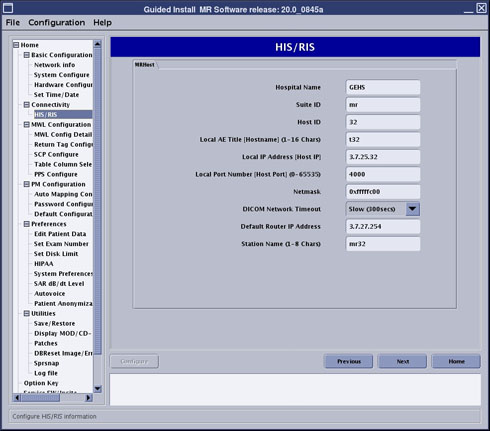
- Enter applicable information in all fields (as provided by site) and click the Configure button.
- Under MWL Configuration, select MWL Config Details.
Figure 2. MWL Config Details Screen
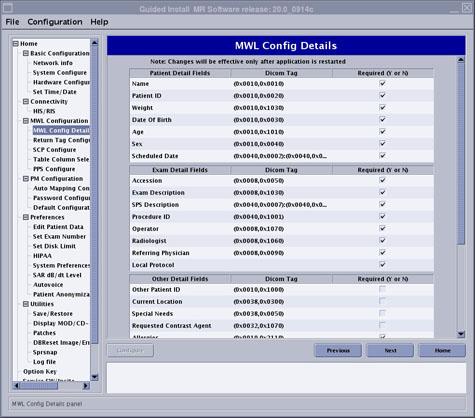
Figure 3. MWL Config Details Screen (Continued)
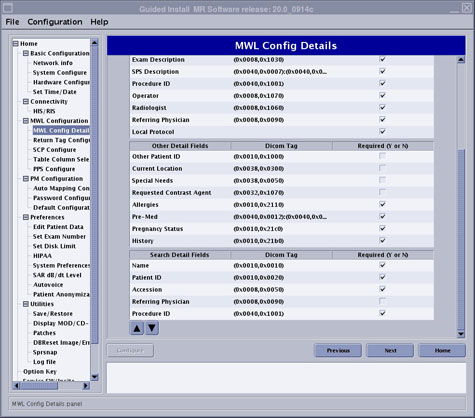
- If any of fields, other than the defaults, are desired to appear in the Modality Worklist, select or deselect appropriately and click the Configure button.
- Under MWL Configuration, select Return Tag Configure.
Figure 4. Return Tag Configuration Screen
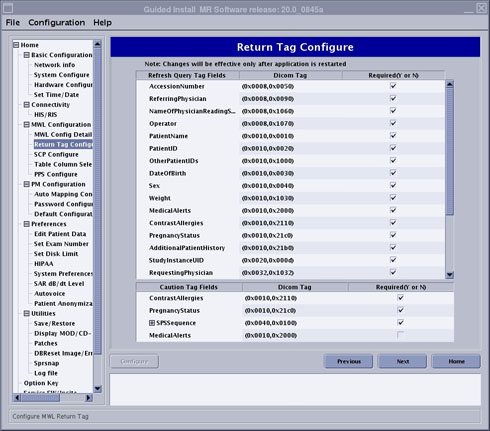
- If any fields, other than the defaults, are desired by the site to be refreshed in the Modality Worklist, select or deselect appropriately and click the Configure button.
- Under MWL Configuration, select SCP Configure.
Figure 5. SCP Configure Screen
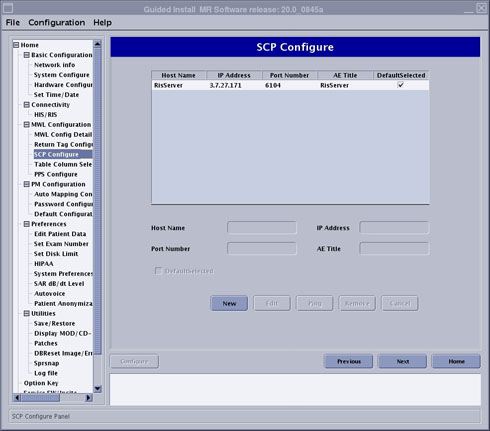
- Click the New button to setup a new item.
- Enter applicable information in all fields (as provided by site) and click the Configure button.
- To verify network connectivity, click the Ping button.
- Under MWL Configuration, select Table Column Selection Configure.
Figure 6. Table Column Selection Configuration Screen
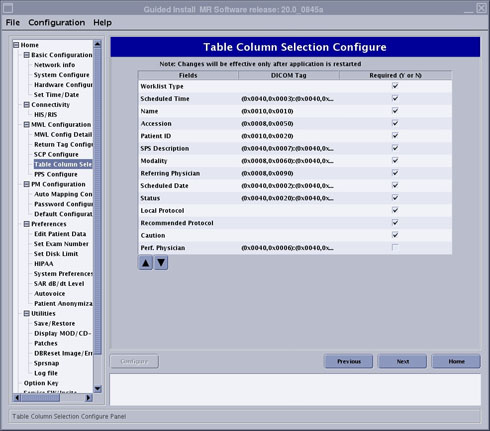
- Select or deselect any fields desired to be displayed in the patient record table (located at the top of the scan window) and click the Configure button.
- Under MWL Configuration, select PPS Configure. note: At release of this document, PPS Configure is available with 1.5T systems only. PPS Configure will be available for 3.0T at a later time.
Figure 7. PPS Configure Screen
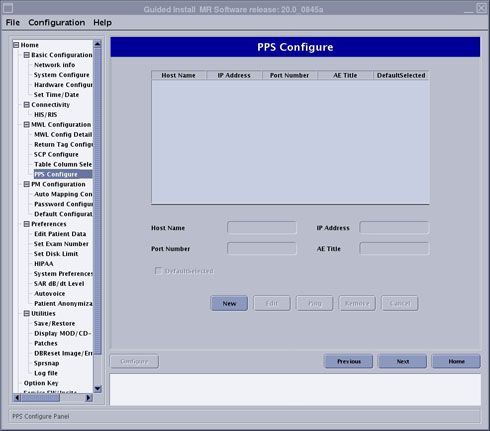
- Click the New button to setup a new setup.
- Enter applicable information in all fields (as provided by site) and click the Configure button.
Functional Check
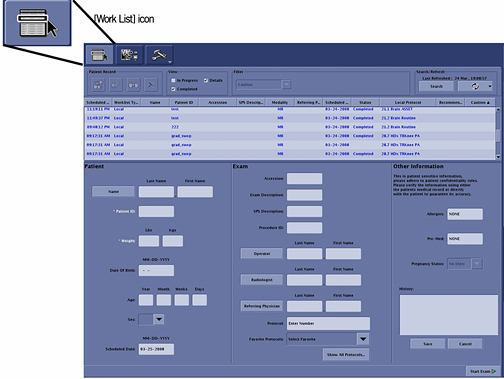
- Click the Work List icon for the scan screen.
Figure 8. Work List Icon
- To confirm the connectivity of the system to the RIS system, go into the scan desktop and select the New Patient icon.
Figure 9. New Patient Icon
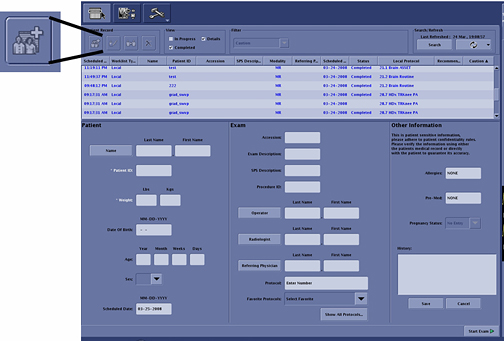
- On the scan screen enter the following:
- Patient ID:geservice
- Weight:111
- Click the Save button.
- In the Search/Refresh box, click the Search Data button.
Figure 10. Search Button
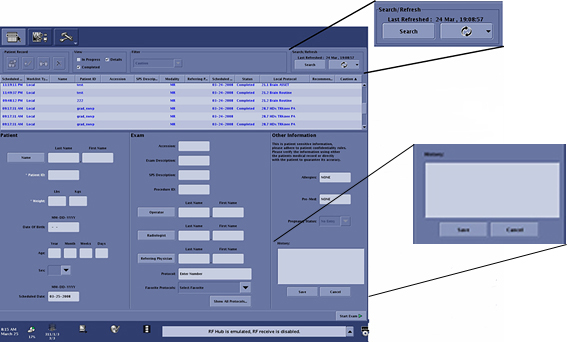
The Search Data window displays as shown below..
Figure 11. Search Data Window
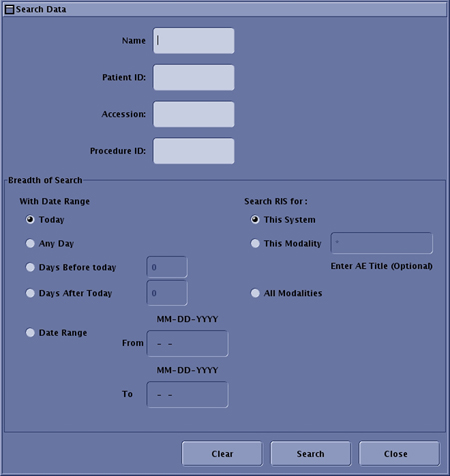
From this page select how you want to pull information from the RIS system. The Get Patient List options are:
-
Enter a patient Name, Patient ID, Accession Number, or Procedure ID to define the search.
-
Selecting This System, which pulls the patient lists entered for this system.
-
Selecting This Modality pulls the patient list for all MR systems at this facility.
-
Selecting All Modalities pulls the patient list for all systems associated with this facility. Using this option may cause the scanner to hang if the facility has too large of Work List for all scanners at the site.
-
Selecting Date Range pulls patient lists for any set day or date range.
-
- After entering the proper Search Data, click the Search button.
Figure 12. Search Details Selected
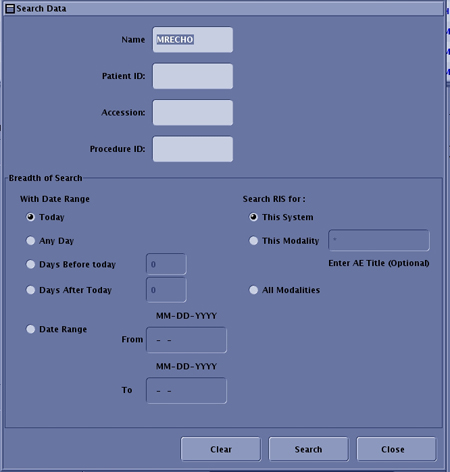
- The results appear in the list above the patient information.
Figure 13. Full Work List

Troubleshooting
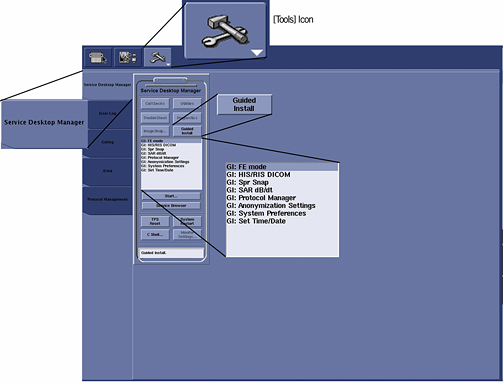
- From the Common Service Desktop, select the Guided Install button, and in FE Mode login as root.
Figure 14. Accessing HIS/RIS Setup
 note: It is possible that the customer changed the default password. If you cannot log in, contact the customer for the correct password.
 - Under Connectivity select HIS/RIS.
Figure 15. HIS/RIS Setup Screen and Tabs
- Ensure that the Hospital Name, Suite ID, Host ID, and Local AE Title are correct for the MR system. The Local Port Number (Host Port) should be set to 4000 (same as the DICOM (Digital Imaging and Communications in Medicine) networking port number for MR systems). These are the parameters that the hospital RIS system uses to identify our system (see Figure 15).
- Under MWL Configuration, select SCP Configuration.
Figure 16. SCP Configure Screen
Ensure the following information with the site network administrator:
-
Host Name is the site name.
-
AE Title is the Modality Work List (MWL) Application Entity (AE) title of the RIS system of the site.
-
IP Address is the internet protocol (IP) address of the RIS server.
-
Port Number is the port number of the RIS system of the site.
-
- Under Home, select Verification.
Figure 17. Verification Screen
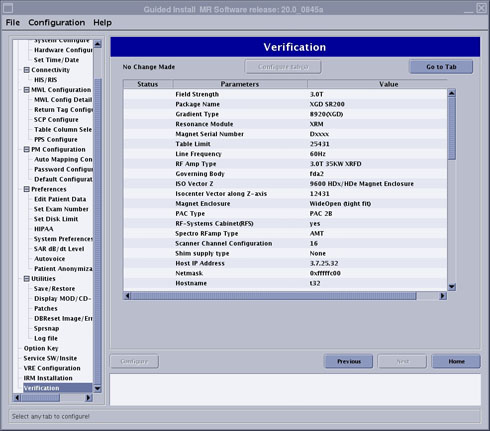
- Select Configure and confirm no errors.
- Select File>Quit.
Finalization
No finalization steps.