
- SIGNA MR355 / SIGNA MR360
- Service Manual
- 5856356-3EN Revision 5.0
- Basic Service Documentation. Copyright General Electric Company.
- 00000018WIA30EE1030GYZ
- id_131061851.6
- Jan 9, 2021 1:59:40 AM
SPR SNAP
Prerequisites
| Required persons | Preliminary requirements | Procedure | Finalization |
|---|---|---|---|
| 1 | Not Applicable | 3-5min minutes | Not Applicable |
About this task
SprSnap is a utility that is used to collect error log information, core files, and process status information after a software crash or a significant software problem has occurred on the scanner.
(For SV25.1) It is best to create an SprSnap as soon as possible and before a reboot after the system crash or problem occurs to ensure that the needed evidence is recovered. The SprSnap can be run from either the Common Service Desktop or from a C Shell terminal.
(For SV25.2) It will automatically take an SPR Snap on a TPS reset or when host monitor detects a process died. These new snaps gather all the core files and logs at that specific time and then places them into a SPR snap.
Once you complete the SprSnap and have the directory or DVD, you need to create a PQR referencing the SprSnap directory.
The preferred storage media for the SprSnap data is the site's hard drive. However, you do have the option to save to DVD and mail the disk for analysis. Most SprSnap directories can be transferred to Insite in about an hour whereas the DVD process takes longer. This document contains:
Running an SprSnap
About this task
The SprSnap tool creates a new directory: /export/home/snap/site, where site identifies the site name and date and time information. For example, /export/home/snap/Bay5.b15.0710181151, where the SprSnap was performed on the b15 computer on October 18, 2007 at 11:51.
Running an SprSnap from the Guided Install
Procedure
- Open the Common Service Desktop, and under the Configuration tab, expand Guided Install and select SPR SNAP. Click the Click here to start the tool link.
Figure 1. Guided Install SPR SNAP 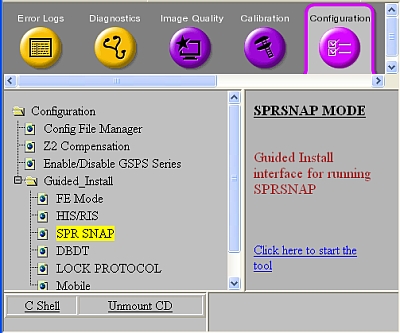
- When the SprSnap dialog window displays (see Figure 2), fill in the
required information:
-
Select or to store SPR information on DVD.
If you choose to save to DVD, you can select yes or no to delete the SprSnap directory after writing the DVD. If you select no, you need to delete the directory manually (see Deleting an SprSnap Directory)
- (For SV25.1 and before) Enter your name and phone number.
- (For SV25.2 and later) Select number of days past to retrieve System Log files.
-
Enter your name and phone number.
-
Enter a description of the problem and click SPR SNAP.
Figure 2. SprSnap Dialog Window 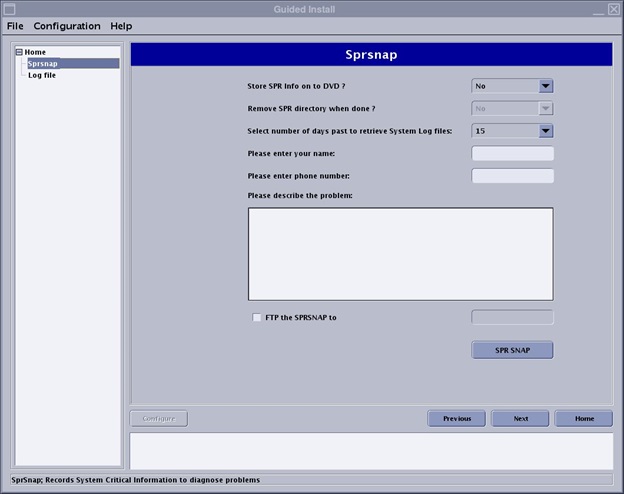
-
Running an Sprsnap from a C Shell Terminal or from Service Desktop
Procedure
- Open the Common Service Desktop, and under the Utilities tab, expand Tool Box and select SPR SNAP. Click the Click here to start the tool link.
Figure 3. SPR SNAP 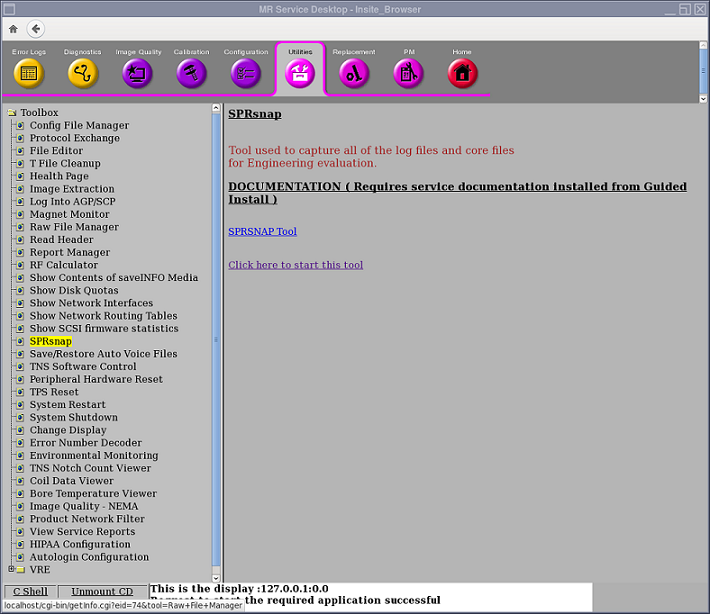
- Enter the required information, including your name, phone
number and description of the problem.
Figure 4. SprSnap C Shell Dialog Window 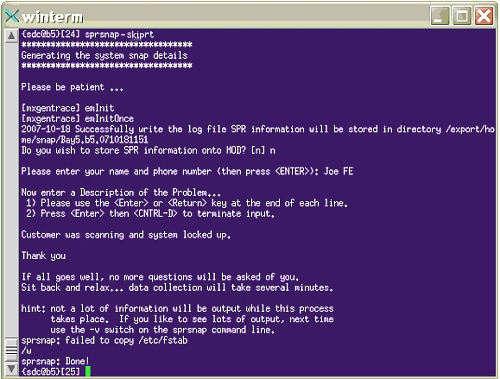
- When the SprSnap done message displays, type ls -al to view and make a note of the new directory (Figure 5).
Figure 5. Sprsnap Directory 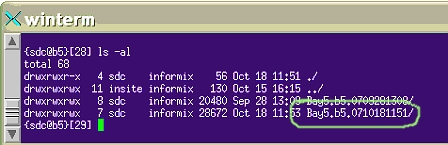
To view the collected data, navigate to the snap directory at /export/home/snap/site, where site is the name you noted.
Note:SprSnap data takes up a lot of disk space. After the directory is saved on DVD or FTP'd to the Online Center, delete the SprSnap directory.
Deleting an SprSnap Directory
Procedure
- Type rm -r -f directory, where directory
is the name of your sprsnap site.
-r deletes the directory recursively, and -f forces all files to be deleted without asking permission.
Note:If you created a tarball file, you should delete it with the command rm -rf tar zip directory, where tar zip directory is the name of your tarball file.
Figure 6. Remove Directory and Tarball 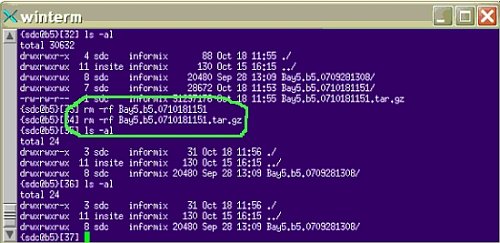 Note:
Note:To avoid deleting the wrong files, do not use wildcards when deleting the SprSnap directory. Each SprSnap has its own directory in /export/home/snap/site.
Finalization
No finalization steps.