Basic Service Documentation. Copyright General Electric Company.
Object ID: 00000018WIA30D5B260GYZ
Topic ID: id_2029796 Version: 1.5
Date: Jan 8, 2021 12:19:23 PM
Collecting IPM configuration settings
Find and record the DNS information, IPM proxy settings, and device registration information for use during reenrollment.
About this task
When new software is loaded, the IPM configuration may be lost. Document the Domain Name Service (DNS), SSL certificates, proxy settings, and registration information offline so you restore the IPM configuration after the upload.
Procedure
Record the DNS information. You may be required to re-enter these values after the software load.
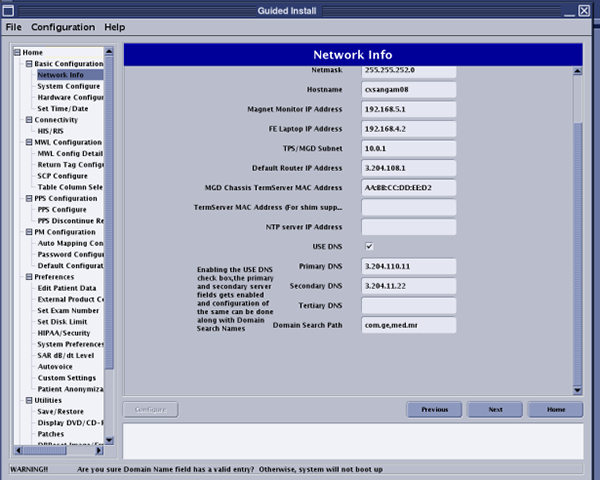
Go to Go to Guided Install > Network Info.
Figure 1. Guided Install window
Record the following DNS values, if they are present:
NTP server IP Address
Primary DNS IP Address
Secondary DNS IP Address
Domain Search Path
Identify whether SSL certificates are installed. If present, these must be copied back to the scanner and reloaded to the keystore after the software load.
Open a C shell.
Note: The Shell window can only be launched when the EA3 user is included in the authorized EA3 group. Users not in this EA3 group will not have access to launch the Shell window. If you are not logged in as the proper logon user, log out and then log back on as the correct EA3 user with the authorized permissions.
Login as root.
Type cd /usr/java/lib/security and press Enter.
To check whether SSL certificates are installed, type keytool -list -keystore ./cacerts -storepass changeit and press Enter.
Result
The SSL Certificate files will display.
Record the SSL certificate file name(s) and locations.