- id_2001455
- Version: 10.0
- Date: Oct 9, 2019 4:17:00 PM
Saving information
Save the current configurations and files in order to restore them later, if needed.
Prerequisites
| Required conditions |
|---|
| A Class M SSA key or Class C/A2 SSA soft key license is needed to access Guided Install from SIGNA applications. It is not needed when launched as Root. Refer to Service licensing for information on how to install an SSA soft license. |
| Consumables | |||
|---|---|---|---|
| Item | Quantity | Part number | Manufacturer |
| Writable Verbatim or TDK 48x CD-R | 1 of either | - | Verbatim or TDK |
| Verbatim or TDK 2x DVD-R | - | Verbatim or TDK | |
Procedure
- Launch Guided Install.If needed, see Accessing Guided Install for more information.
- In the left navigation pane, go to .
- Insert the writable medium that you will use (either a writable DVD-R or CD-R).
- Click Save Information & Save GI.A message displays saying Do you really want to Save Information and GI Config to CD/DVD?
- Click Yes to continue.After SaveInfo creation begins, a progress message is displayed.
- If an error or warning message is displayed, choose one of the following:
- If the media is not recognized, verify that the media is in the drive and click Retry.
- If some information is not saved, click Yes on the warning message to view the log and see which files were not saved.
Figure 1. Warning log example
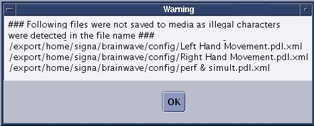 note: Even if the warning displays, the SaveInfo was saved; the files listed in the warning log were not.note: Protocols may fail to save if an illegal character is used in the name. You must edit the protocol and remove the illegal character before the system will save the protocol file.
 - After the SaveInfo is complete, remove the media and write the date and time on it.