- id_2003007
- Version: 5.0
- Date: Jul 10, 2019 2:40:37 PM
Downloading licenses directly
note: The preferred method of installing option keys is to burn to a CD/DVD (see Installing from an eLicense CD/DVD). A download may not install all option keys because dependent keys are not on the system.
Procedure
- After generating the option keys for the system, go to the eLicense System Information screen by clicking Details next to the host ID.
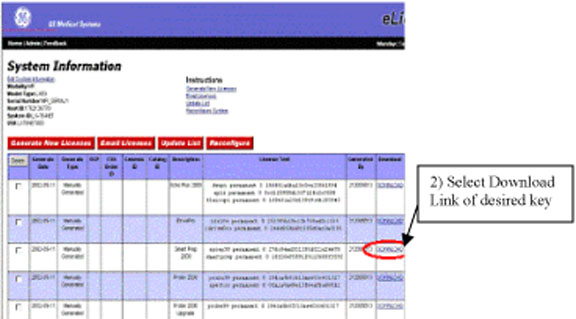
- Click on the download link to activate the desired option as shown below. If a link is not available, broadband connectivity was not established. Try one of the other installation options.
Figure 1. eLicense system information screen
- Wait for the request to be processed (a status page provides information on the downloading process).
- Repeat the previous two steps for all options that must be activated on the scanner.Once the auto download procedure is performed, the keys will be on the scanner waiting for a reboot.
- Reboot the MR scanner after all option keys have been downloaded from the eLicense server.
- Open Guided Install and verify the downloaded option keys are installed as permanent keys on the Option Key tab.
- Complete a SaveInfo to retain all newly installed options on an Info MOD.