- id_2003307
- Version: 8.0
- Date: Feb 14, 2020 4:00:39 PM
System and hardware configuration
This topic describes the values and explanation of each parameter for system configuration and hardware configuration in Guided Install.
The MR System is configured for the various hardware interactions within the system using the Guided Install System Configure and Hardware Configure tabs.
Below are the examples of the System Configure and Hardware Configure tabs, respectively (these are only examples and are subject to change based on software revision).
Figure 1. System configure tab (example)
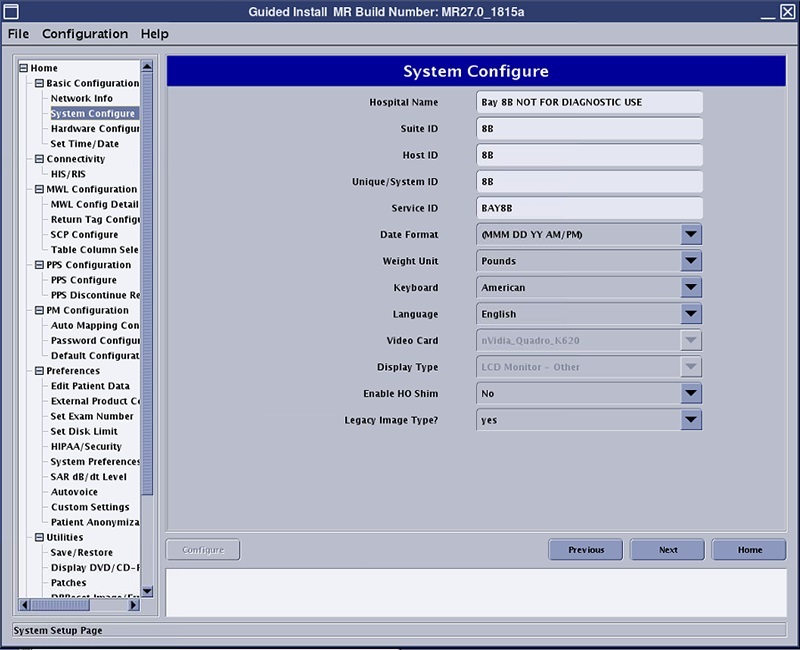
The following table provides guidance to fill out the various system configuration parameters.
| System configuration | ||
|---|---|---|
| Parameter | Explanation | Value |
| Hospital Name | Enter the name of the Hospital or site that will appear at the top of filmed images. | Site-entered |
| Suite_ID | Enter the name of the Suite to which the scanner will be connected. If the system is connected to a suite of systems, the name may need to be acquired from the site's system administrator. If the system is stand-alone (not connected to a suite or hospital network), the name is at the option of the installer. | Site-entered |
| Host_ID | Enter the name of the system host. If the system is connected to site's network, the name may need to be acquired from the site's system administrator. If the system is a stand-alone (not connected to a suite or hospital network), the name is at the option of the installer. | Site-entered |
| Unique / System ID | This is the GE CARES Unique system ID. This information is generated through the GEMS local area service manager. A dummy ID can be entered if the correct ID is unknown to speedup installation. The installer can go back and update this field with the correct code later when the correct information is known. An example of a dummy ID could be 123. | Site-entered |
| Service ID | This is the GE CARES System ID. This information is generated through the GEMS local area service manager. A dummy ID can be entered if the correct ID is unknown to speed up installation. The installer can go back and update this field with the correct code later when the correct information is known. An example of a dummy ID could be 123. However it should be noted that the entire GE back office connectivity suite, including Remote Software Download (RSD), is highly dependent on this entry being accurate. | Site-entered |
| Date Format | This is the date structure to be used/displayed by the system. A choice of one of Six options are available. Each with date format and standard time (AM/PM) or military time (24 hour clock). Japanese ERA time format is also provided. | (MMM DD YY AM/PM) [(MMM DD YY AM/PM), (DD MMM YY AM/PM), (YY MMM DD AM/PM), (MMM DD YY 0-23), (DD MMM YY 0-23), (YY MMM DD 0-23)] |
| Weight Unit | Select the unit of measurement desired by the site's staff: kilograms or pounds. | Pounds (Pounds, Kilograms) |
| Keyboard | Choose the keyboard language that will be used for this system. | American (American, French, German, Italian, Portuguese, Spanish, Swedish, Danish, Dutch, Norwegian, Finnish) |
| Language | Choose the language that will be used where the system is being installed. | English ([English, French, German, Italian, Portuguese, Spanish, Japanese, Chinese, Danish, Dutch, Norwegian, Finnish, Swedish) |
| Video Card | Video card value is selected automatically. | N/A |
| Display Type | LCD Monitor - Other is selected as default. | LCD Monitor - Other |
| Legacy Image Type | Legacy Image Type: Select the legacy image type for the system being installed: Yes, No. | Yes (Yes, No) |
Figure 2. Hardware configure tab (example)
The following table provides guidance to fill out the various hardware configuration parameters.
| Parameter | Explanation | Value |
|---|---|---|
| Product Name (Parameter available on SW versions 26 and later) | Select the product name for the product being installed. | 1.5T, 60 cm, Discovery MR450 |
| Field Strength | - | 1.5T |
| Package Name | Gradient driver-coil package name. |
XGD XG2 |
| Gradient Type | Gradient driver type. |
8920(XGD) 8921(XG2) |
| Resonance Module | Gradient coil type. | XRM |
| Magnet Serial Number | Enter the magnet serial number for the installed system. The serial number can be found on the rating plate on the magnet. | R |
| Magnet Ramp Direction | - | Forward |
| Table Limit | - | - |
| Scan Range | Long is the default value. Select Short if there is not enough room for the cable overhang between the rear ped and the customer wall. For DV25.0 and earlier, this parameter is seen in the System Configure tab. |
Long Short |
| Line Frequency | Select the incoming power line frequency under which the installed site will operate. Selections are:
|
50 Hz 60 Hz |
| RF Amp Type | - |
1.5T SRFD2 RF amp 1.5T 16 KW XRFD |
| Governing Body | Select the governing body according to the Region rule. Selections are:
|
fda2, iec, MHLW-JIS, special1, special2 |
| ISO Vector Z | Enclosure and Iso-Z value. | 1.5T 60 cm magnet enclosure |
| Magnet Enclosure | - | DV enclosure |
| PAC Type | - | PAC2B/PAC5 |
| RF-Systems Cabinet (RFS) | Yes is the default value. | Yes |
| Scanner Channel Configuration | Select the channel configuration as applicable. note: Some channel configurations may require option keys.
|
32 16 |
| Shim Supply Type | None is the default value. Select NAV Shim Supply if the system is configured with HO Shim. |
None NAV shim supply |
| LPCA/Port Configuration | - | 2 P-port on LPCA |
| HEC Type/Cooling Cabinet Type | Check the part number of the HEC at the site and configure. To identify the HEC type, see Identifying HEC type. |
G6001EN G6000EN |
| UPM Type | - |
QUPM 1 MHz sampling rate UPM 100 KHz sampling rate |
| Table Configuration | - | None |
| SSC Type | - |
MGD ICE |
| Receiver Type | - | RRx |
| Grad Processor type | - | None |
| Table Encoder Calibration Value | - | None |
| Altitude in meters | The altitude of the installation site determined using a website. To determine the altitude, see:
|
None |