- id_2003003
- Version: 6.0
- Date: Aug 6, 2019 9:52:28 AM
Adding system to order (new installations)
Procedure
- Go to the eLicense website http://elicense.gehealthcare.com and log on using your single sign-on (SSO) username and password.
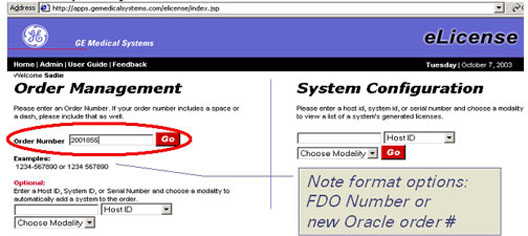
- On the eLicense homepage, enter the order number in the Order Number field and click Go.The order associated with the number entered from the eOM system displays. The order number may be a new global order number or an FDO number, depending on when the order was placed. This number is listed on the packing list included with the order.
Figure 1. Order number
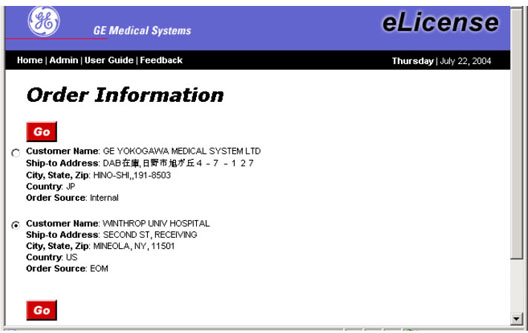
- It is possible that the order number is not unique to your customer. If this is the case, a list of all matching sites displays on the Site Selection screen shown below. Select the desired system and click Go to display the order. If the order number is unique, eLicense automatically brings up the order and displays the Order Information screen. Verify that the Customer Information at the top left of the screen is the correct customer.
Figure 2. Site selection
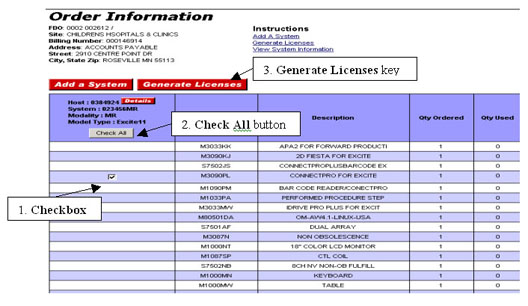
- Click Add a System to associate the order to a specific system.
Figure 3. Order information
- Enter the host ID. Select Host ID from the drop-down menu, select MR for the modality, and click Go.
Figure 4. Enter system information dialogue

- When a screen displays requesting additional information for this system, select the Model Type for the system from the table below, and enter the System ID. Leave the Serial Number field blank for all MR systems.For Milwaukee produced products, use model type MR, which will support creation of most options. If any expected options are not created, try the product specific model type. See Table 1 table below for model type information.
Figure 5. New system dialogue
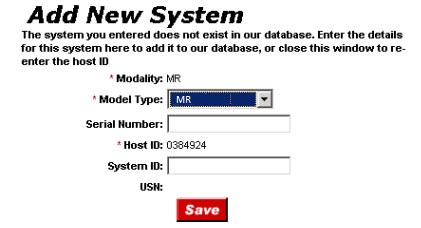
Table 1 MR Model Types System Software Version Model Type MR450 20.1, 22.0, 23.0 or later MR The Order Information screen displays with a new column for the added system.