- id_2003004
- Version: 4.0
- Date: Jul 10, 2019 2:40:28 PM
Adding a system to an order (upgrades)
Procedure
- Go to the eLicense website http://elicense.gehealthcare.com and log on using your single sign-on (SSO) username and password.
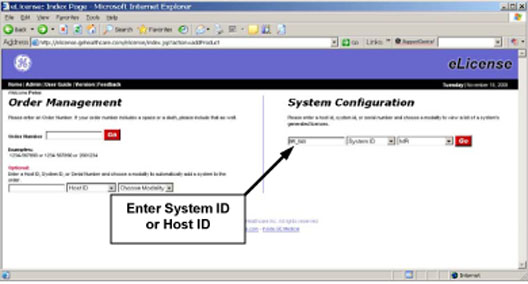
- From the eLicense homepage, enter the System ID, select System ID from the drop-down menu and MR for the modality as shown below.
- Click select Go. If the system ID is not associated with keys in eLicense, select Host ID from the drop-down and enter the host ID of the original computer. See Recording the host ID to determine the host ID of the system.note: It is important to locate all of the option keys prior to creating new keys on upgrades. Older system types like SIGNA LX do NOT have option keys in eLicense.
Figure 1. Order management/system configuration screen
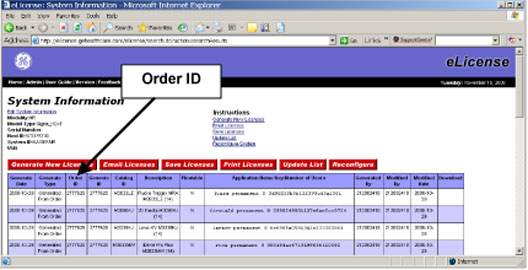
- When the screen shown below opens, record the order number(s) that display. note: The Order ID column contains all of the order numbers of any key created for the system. It is good practice to record these numbers prior to doing the upgrade.
Figure 2. Record order number(s)
- Select Edit System Information.
- Select the model type for the system from the drop-down menu. See MR model types for model type information.
Figure 3. Enter system information
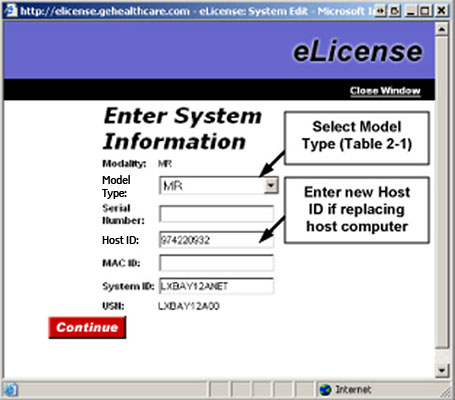 note: If the host computer is being replaced, delete the host ID in the Edit System Information GUI and enter the new one. Do NOT transfer the NIC card to the new computer. All previous option keys are automatically regenerated with the host ID.