Running the fMRI Quality Assurance (QA) tool in Expert mode
Run the fMRI Quality Assurance (QA) tool in Expert mode to load an fMRI QA protocol matching the system configuration (wide or non-wide), load and view images, do customizable stability and ghosting analysis, archive data, and view protocol details.
Procedure
From the Service Desktop, open the Image Quality tab, and select ImageQuality > fMRI QA Tool > Click here to start this tool.
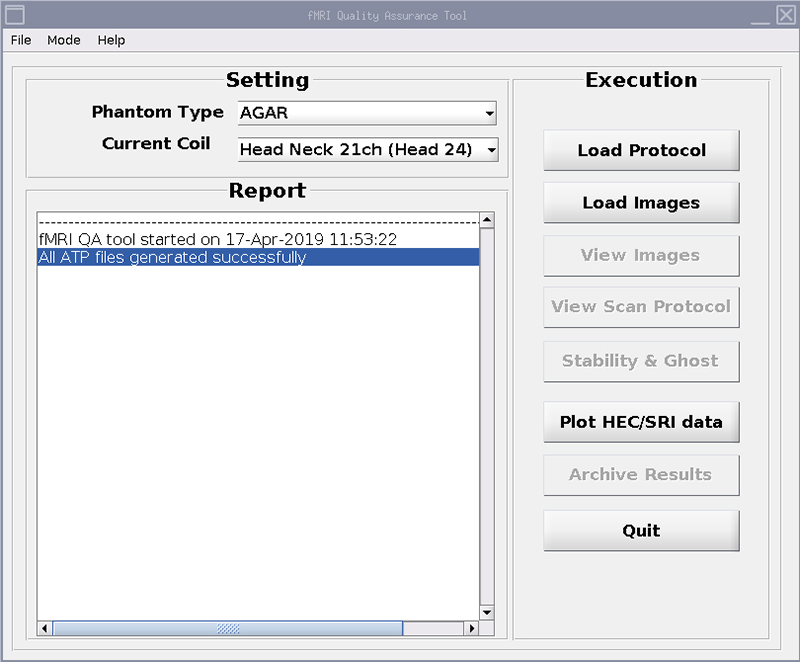
For Phantom Type, select the phantom you are using.
From the Mode menu, select Expert.
Figure 1. fMRI QA tool (Expert mode)
The Current Coil is auto-populated with the connected coil.
Click Load Protocol, and select the desired protocol from the resulting list.
Run the scan manually from the Scan desktop. Images are saved to the image database.
Click Load Images, and select the exam number and series number, to load images from the image database for analysis.
Click View Images to see the loaded images in a VI window.
To see the scan protocol parameters used to scan loaded images, click View Scan Protocol.
Result
The scan protocol information is shown in a text file.
To select a slice to analyze, total number of slices, polynomial fit order, and noise ROI, click Stability & Ghost.
Result
Results show in a Stability and Ghosting Results plot window.
If the option is available, click Plot HEC and SRI data to select the number of data points to analyze.
Select the parameters to plot and the data time range. Results show in a multi-plot window.
Click Archive Results and select the files to archive.
You can archive image data, QA reports, P-file (if applicable), and user-defined files. Files are saved to a compressed archive folder.