- SIGNA™ Hero 3.0T Service Methods
- 5852800-8EN Revision 1.0
- 00000018WIA30B14510GYZ
- id_20045105.4
- Dec 30, 2021 9:39:56 PM
Running the fMRI Quality Assurance (QA) tool in Basic mode
Run the fMRI Quality Assurance (QA) tool in Basic mode to complete automatic acquisition using fBIRN protocol, analyze the images, report results, and archive the results without user intervention.
Procedure
- From the Service Desktop, open the Image Quality tab, and select .
The tool starts in Basic mode by default.
Figure 1. fMRI QA tool (Basic mode) 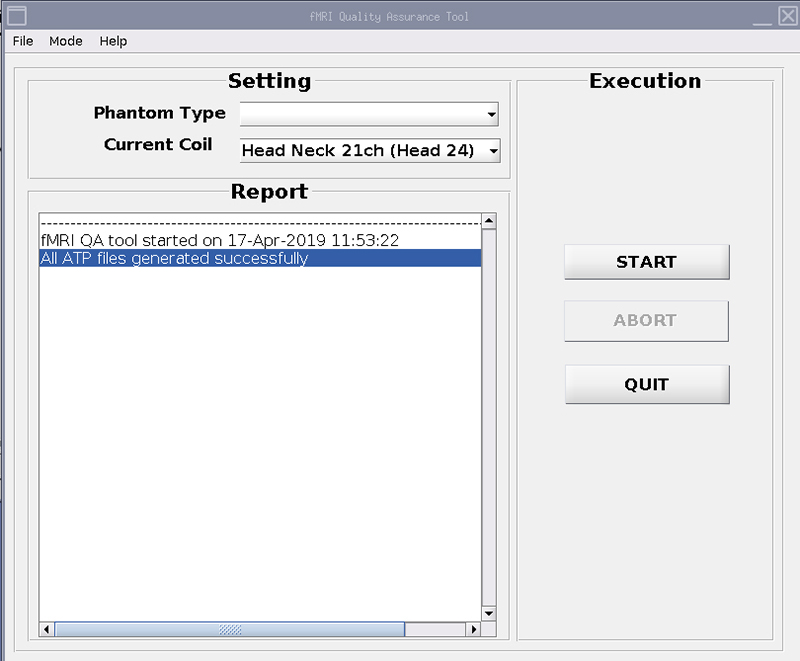
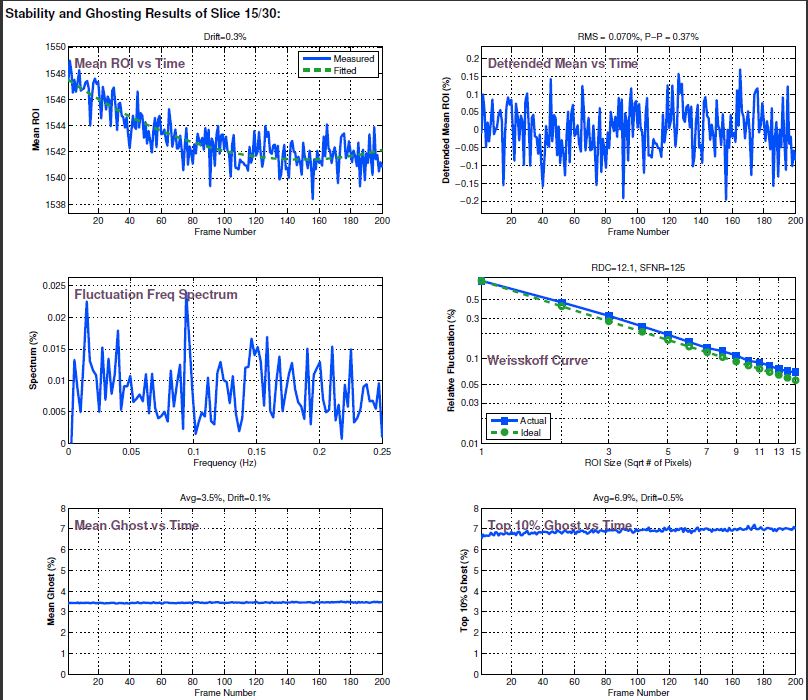
- Results are given in a PDF file that summarizes QA scan time and analysis mode; stability and ghosting summary with reported variables; scan protocol; ROIs used to calculate reported variables and plots; stability and ghosting plots; temporal average; SFNR map; comparison of odd and even images; and noise versus time.
PDF reports are found in the /export/home/signa/tools/fMRI_QA_tool directory. The file name will begin with fMRIQAReport.
Figure 2. Example fMRI stability report, stability section 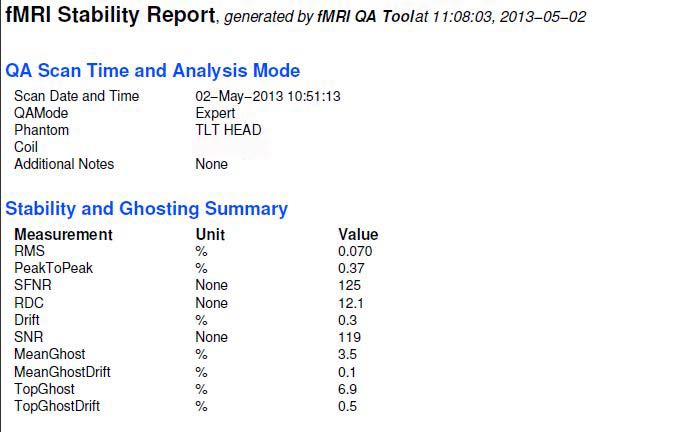
Figure 3. Example fMRI stability report, plots