- SIGNA MR355 / SIGNA MR360
- Service Manual
- 5856356-3EN Revision 5.0
- Basic Service Documentation. Copyright General Electric Company.
- 00000018WIA3034EF20GYZ
- id_131065981.2
- Jul 5, 2019 10:46:04 PM
ICE/ICN Troubleshooting
Overview
This document describes the troubleshooting guide for the following error conditions.
- VRE configuration is successful but iVRF diagnostic is failed.
- VRE configuration failed.
Diagram
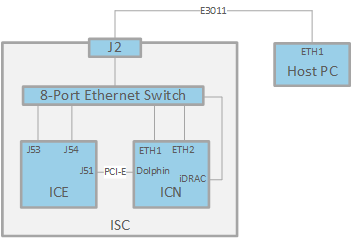
Precondition
Network Path Check
Before starting troubleshooting, make sure the connection between ICE, ICN and Host PC is good.
- Setup you laptop IP address different with the node you will test on ICE/ICN. (10.0.1.50 for example).
- Disconnect Ethernet cable from suspected node on ICE/ICN.
- Connect laptop instead and ping the host from there.
- If OK, reconnect Ethernet cable to suspected node, and disconnect its other end from 8-Port Ethernet Switch.
- Connect it to laptop directly and ping the suspected node.
You can also disconnect Ethernet cable from host, connect it to laptop, and ping ICE/ICN instead of step 2 to 5.
Speed Mode Check
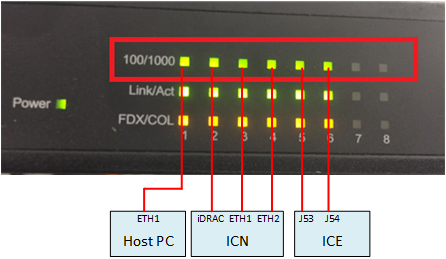
All the Ethernet cable should be running at 1000 Mbps mode. 100/1000 LED on Ethernet switch front panel should be green. If anyone of them is orange, change it with a new cable.
ICE/ICN Troubleshooting
Troubleshooting flowcharts in this manual are colored as following Table for visibility.
| Color | Meaning |
| Error Condition | |
| Fault Isolation | |
| Action |
VRE Configuration Successful But iVRF Diagnostic Failed
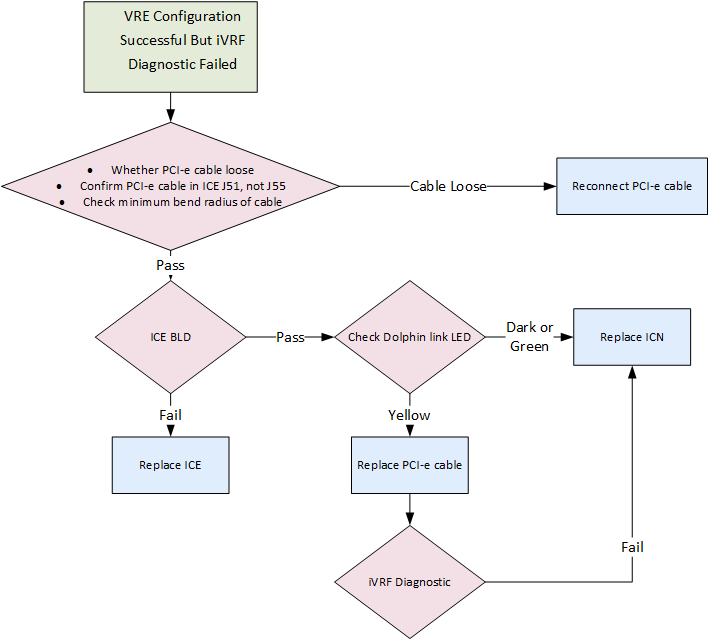
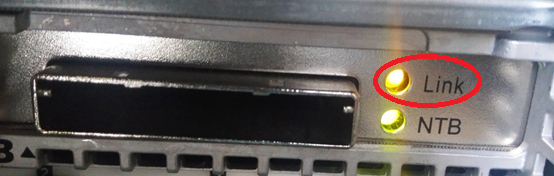
Overview: VRE configuration is successful but iVRF diagnostic is failed. Check PCI-e cable, ICE BLD, Dolphin link LED, and iVRF Diagnostics.
VRE Configuration Failed
Under this condition, system cannot boot up, so service browser and diagnostic cannot be running. VRE configure could be classified into six milestones, specific troubleshooting actions could be adopted according to which milestone dose the fault appears. Following table shows the six milestones during VRE configuration.
| Milestone | Description |
| 1 |
Starting VRE Installation and Configuration at: Mon May 15 12:20:08 CST 201 RDS Configuration: Disabled Copying OS contents from VRE OS disk to host machine is needed mount: block device /dev/sr0 is write-protected, mounting read-only Copying VRE OS contents ..........................................................................................................................VRE OS content successfully copied Ejecting OS media |
| 2 |
Performing the OS integrity check for VRE OS OS integrity check completed successfully for VRE OS IVRF system detected VERBOSE reporting activated. Printing debug information. Entering pre-detect phase: MGD subnet is 10.0.1.0 / 255.255.255.0 Entering ICN detection phase: Detect via NMAP ICN discovery phase completed, detected following ICNs: 10.0.1.223 [ 84:7B:EB:D7:74:F4 ] icn1, bmc ipaddr: 10.0.1.223, bmc macaddr: 84:7B:EB:D7:74:F4 Received BMC IP Address: 10.0.1.223 Determining ICN Vendor Dell ICN: Bios upgrade not required Launching ICN Remote Console in the background....requires license Entering ICN BMC validity check phase: vrevalidtest: Checking ICN BMC validity... We matched a valid ICN BMC configuration ! |
| 3 |
Entering pre_install phase Entering install phase: Inserted logfile marker for NFS mount Issuing IPMI chassis OFF command to device @ 10.0.1.223: Unsuccessful. Trying again. Successful Issuing IPMI chassis ON command to device @ 10.0.1.223: Successful Setting ICN 10.0.1.223 to pxeboot: Successful |
| 4 |
Waiting 360 seconds (max) for 1 NFS mount requests. ...................:1: 10.0.1.221 key: 10.0.1.221 value: 24:6e:96:3c:16:d0 10.0.1.221 [ 24:6e:96:3c:16:d0 ] Returned from watch_log after 101 seconds. 10.0.1.221 Mount requests received in 101 seconds. |
| 5 |
Inserted logfile marker for ICN OS load/reboot Waiting 1800 (max) seconds for ICN OS load/reboot. ......................................................................... 10.0.1.221 24:6E:96:3C:16:D0 Waiting 250 seconds to allow ICNs to finish booting. ICN OS load completed in 753 seconds. |
| 6 |
ICNs booted with following temporary IP addresses: 10.0.1.221 [ 24:6E:96:3C:16:D0 ] Entering ICN DMI validity check phase: vrevalidtest: Checking ICN configuration... Checking 10.0.1.221 [ 24:6E:96:3C:16:D0 ] VRF: 0 BVER: 1.2.10 SNAME: ICN Gen6 DRIVES: 2 PCIE: 1 CMAN: General Electric Company BNAME: 086D43 CVER: Not Specified CASS: 5931000-3rev4 IB: 0 We matched a VALID ICN configuration ! Entering post_install phase: Entering icn_config phase ICN data file transfer: Completed for 10.0.1.221 Configuring 10.0.1.221 [24:6E:96:3C:16:D0] as ICN1 and 10.0.1.100: Completed. Dell System...Getting cores per socket [All] cores are availabl Rebooting ICN1 Entering host_config phase: Entering post_host_config phase: Waiting for the final reboot to finish........ Final reboot is complete in 130 seconds... Waiting 30 seconds to allow ICNs to finish booting |
- If you get stuck in milestone 1: The VRE OS CD is not good. Please Change another VRE OS CD
-
If you get stuck in milestone 2, please follow below steps for trouble shooting:
-
Login in by root/ operator and type flowing command
{sdc@blrmr194}[107] /export/home/insite/server/cgi-bin/getIcnVendor.pl
If Dell|10.0.1.2xx (xx is random values) comes back, this means IPMI is successfully working on ICN. Please implement Step b to double confirm ICN BIOS is in communication.
If Error: BMC not reachable Check BMC connections on the ICN and retry the diagnostics comes back, this means the IPMI commands are not working. Please go to Step c to check racadm connection.
-
SSH login IDRAC IP address for double confirm ICN BiOS is in connection.
{sdc@GEHC}[XX] /export/home/insite/server/cgi-bin/racadm <BMC_IP> "get BIOS"
If the feedback is same as following, it means iDRAC and BIOS is normal
spawn /usr/bin/ssh -oStrictHostKeyChecking=no – oStrictHostKeyChecking=no root@icn1-bmc racadm get BIOS FIPS mode initialized root@icn1-bmc's password: BiosBootSettings IntegratedDevices MemSettings MiscSettings NetworkSettings OneTimeBoot ProcSettings PxeDev1Settings PxeDev2Settings PxeDev3Settings PxeDev4Settings SataSettings SerialCommSettings SlotDisablement SysInformation SysProfileSettings SysSecurity...
If the feedback is not same as above, please go to Step c to check the racadm connection.
-
Check racadm connection
-
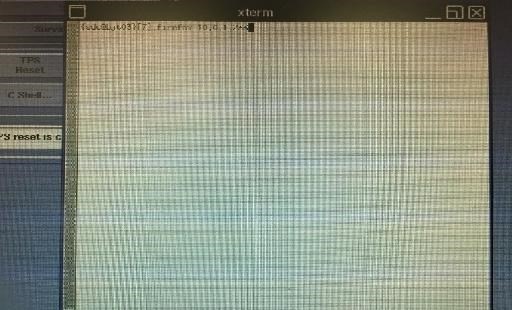
Telnet iDRAC from host, type command firefox 10.0.1.2xx in xterm.
-
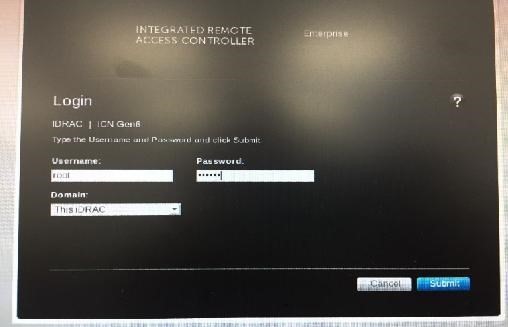
Login IDRAC by root/calvin
-
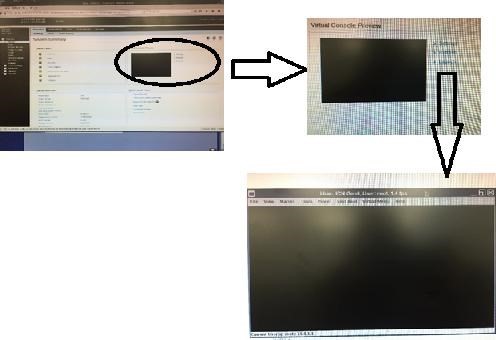
Click Launch.
-
Reboot ICN.
Press Power button in front panel till ICN off and then power on. Press F2 during ICN server boot to enter setup.
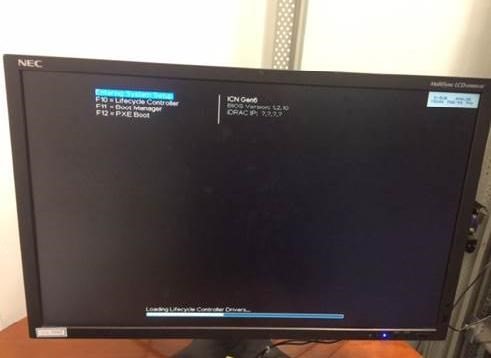
-
Select iDRAC Setting.
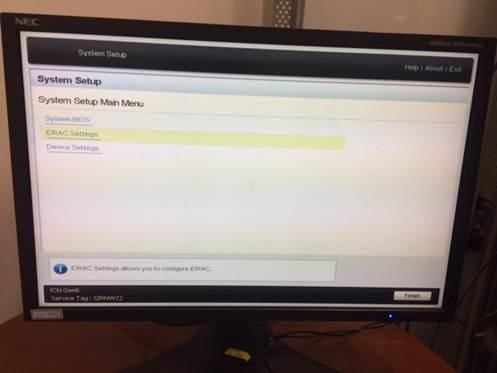
-
Select Network, and make sure the IP address is “10.0.1.2xx”.
-
Select User Configuration , and make sure the user name is “root” and set the password to “calvin”.
-
Press to exit and wait the system to boot.
-
Go back to MR console and try to config the VRE again.
-
-
-
If you get stuck in milestone 3. Enter the Bios and check the PXE setting.
-
Telnet iDRAC from host
-
Login iDRAC by root/calvin
-
Click Launch
-
Restart ICN and press F2 to log in BIOS
-
Click System BIOS
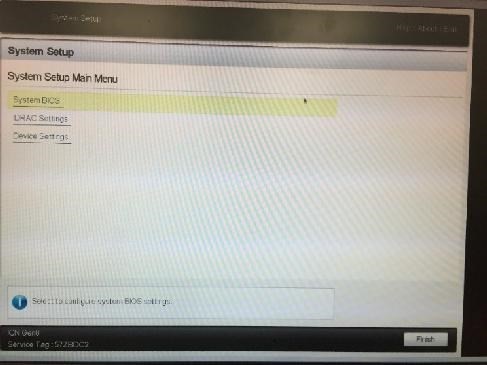
-
Click Boot Settings
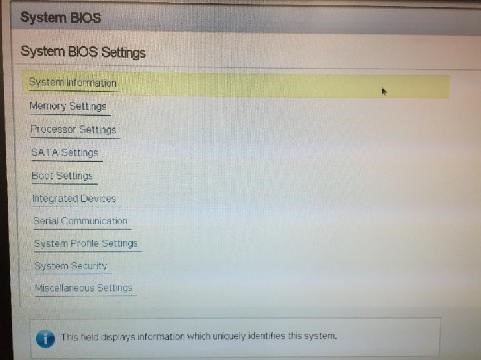
-
Click BIOS Boot Setting
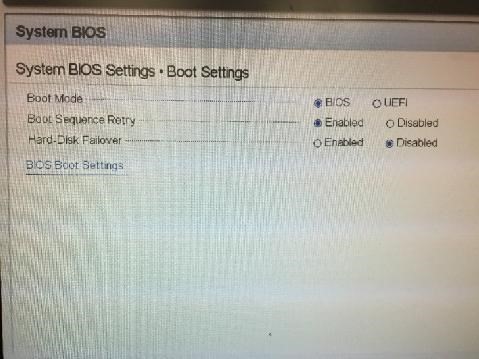
-
Make sure “Hard Drive Sequence” must be C. if it is A or B, click Boot Sequence to change.
-
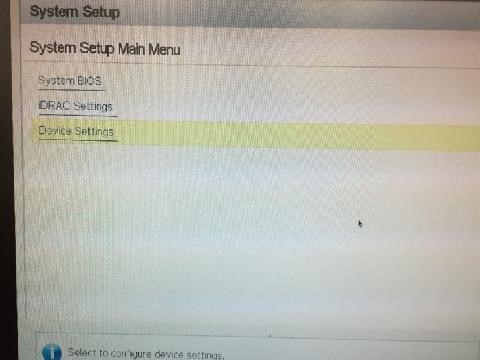
Back to System Setup and click Device Setting
-
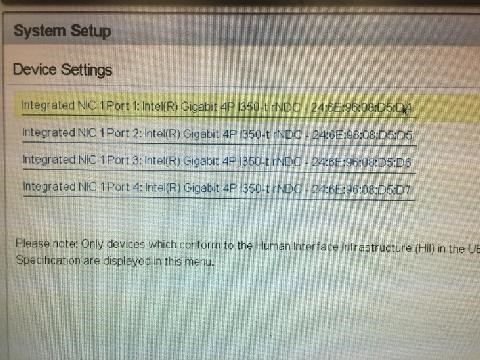
Click Integrated NIC 1 Port 1
-
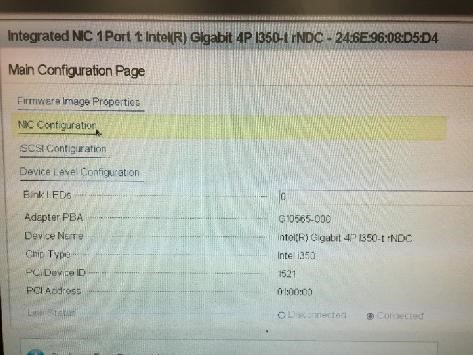
Click NIC Configuration
-
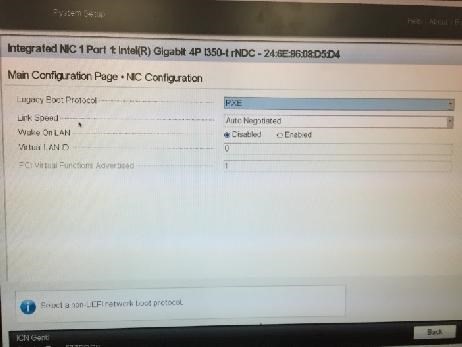
Make sure “Legacy Boot Protocol” must be set to PXE
-
-
If you get stuck in milestone 4. Please check the ICN-Host Ethernet connection.
-
If you get stuck in milestone 5 or 6. Replace the ICN.
Reference
Dolphin Link LED
| Dark | Yellow | Green | Green and Blink |
| Power off | Power on and link down | Power on and link up | Power on and data transmitted |
How to Get IP Adress
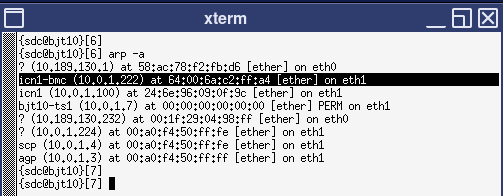
ETH1 and ETH2 are used on ICN, they are backup for each other, so they have the same IP address 10.0.1.100. ICN iDRAC has a random IP address 10.0.1.2xx, xx is a random value assigned when doing VRE configure.
You can check the iDRAC address:
-
using the ICN front panel: View->iDRAC IP->IPv4->IP->10.0.1.2xx

-
running “arp-a”. Address will be feedback with a name ‘inc1-bmc’.