
• Object ID: 00000018WIA302EE030GYZ
  • Topic ID: id_12373699 Version: 1.4
  • Date: Sep 11, 2020 10:30:00 AM

Keyboard, Mouse, and SCIM Replacement or Installation

Prerequisites

Table 1. Personnel requirements
Required personsPreliminary requirementsProcedureFinalization
1Not Applicable20 minutes (per procedure)30 minutes
Table 2. Tools and test equipment
ItemQuantityEffectivityPart numberManufacturer
FE Tool Kit1---
Table 3. Replacement parts
ItemQuantityEffectivityPart numberManufacturer
MR Scan Control and Intercom Module (SCIM)- IEC Black with English Overlay1-5480818-2-
Data Cable1-

2262158-9

-
Standard USB US English Keyboard1-

2275756

-
International Languages Overlay package1-

5148389-9

-
Table 4. Required conditions
ConditionReferenceEffectivity

PDU must be powered off.

--

About this task

Overview

This procedure outlines the steps for replacing or installing the SCIM (Scan-Control Intercom Module), keyboard, and mouse.

LOTO the PDU

Procedure

  1. Shut down the software as follows:
    1. Click the Toolbelt icon.
    2. Click System Shutdown on the Service Desktop Manager.
    3. Select OK to confirm the shutdown.
    4. Wait for the system to indicate that it is safe to power off the computer before proceeding. (It usually takes about 90 seconds for this message to appear.)
  2. Perform LOTO on the PDU. See the MR Service Safety Manual, PN 5452735.

Keyboard Replacement

Procedure

  1. Disconnect the USB cable from the keyboard. This is a 1 m USB extension that goes directly to the host computer.
  2. Lift the keyboard to detach it from the SCIM base plate. The keyboard is attached with Velcro.
  3. Pull the cable and defective keyboard clear of the SCIM and set them aside
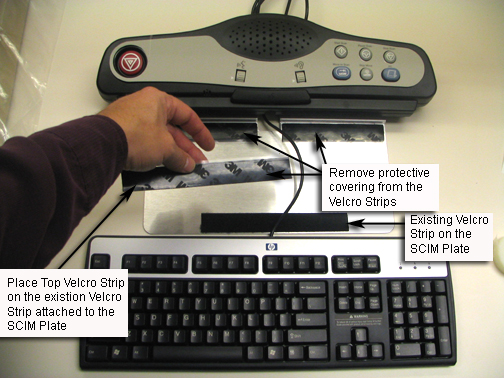
  4. Place new Velcro strips on the top of the strips attached to the SCIM.
    Figure 1. Placing Velcro Strips
  5. Pull the replacement keyboard USB cable through the opening in the SCIM.
  6. Remove the protective covering from the Velcro. Position the replacement keyboard, then push down firmly to fasten the Velcro.
    Note:

    The glue on the Velcro must be given time to set. Do not attempt to remove the keyboard from the SCIM for 24 hours.

  7. Connect the keyboard USB cable to the host computer.
  8. If the replacement is finished, proceed to Step 1.

Mouse Replacement

Procedure

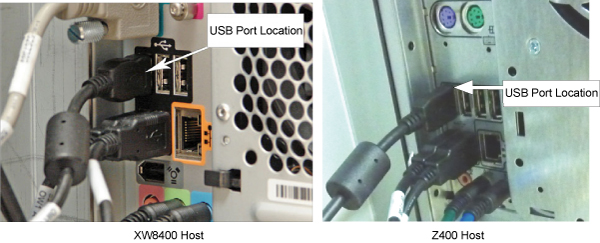
  1. Unplug the defective mouse from the host computer USB connector.
  2. Install the new mouse by plugging it directly into the host computer USB connection.
    Figure 2. USB Port Location
  3. If the replacement is finished, proceed to Step 1.

SCIM Replacement

Procedure

  1. Disconnect the USB cable from the keyboard. This is a 1 m USB extension that goes directly to the host computer.
  2. Lift the keyboard to detach it from the SCIM base plate. The keyboard is attached with Velcro.
  3. Pull the cable and keyboard clear of the SCIM and set it aside
  4. Turn the SCIM over to see the cable connections.
    Figure 3. Data Cable Connection
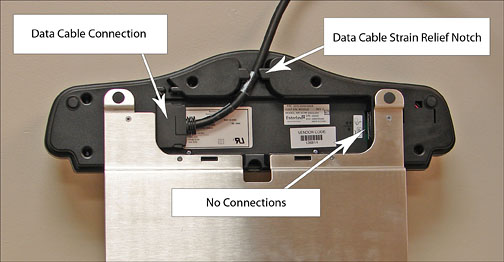
  5. Remove the data cable from the defective SCIM. The data cable is the only cable that needs to be removed. The keyboard and mouse connect directly to the host computer through USB connections.
  6. Remove the SCIM, data cable, keyboard, and SCIM language overlay from the box.
  7. Turn the replacement SCIM over to see the cable connections.
  8. Connect the data cable to the new SCIM.
  9. Remove the protective film from the language overlay and position it over the SCIM. When you are satisfied it is in the proper position, rub your finger over it lightly, in between the scan buttons and around the Emergency Stop button, to press it in place.
  10. Turn the SCIM over (top side up).
  11. Pull the keyboard USB cable through the opening in the SCIM.
  12. Remove the protective covering from the Velcro. Position the keyboard, then push down firmly to fasten the Velcro.
    Note:

    The glue on the Velcro must be given time to set. Do not attempt to remove the keyboard from the SCIM for 24 hours.

  13. If the replacement is finished, proceed to Step 1.

Keyboard, Mouse, and SCIM Installation

Procedure

  1. Remove the SCIM, data cable, keyboard, and language overlay from the box.

    SCIMs come with one overlay for the selected language. For the availability of other languages, check the sales catalog.

    Figure 4. SCIM Kit Contents
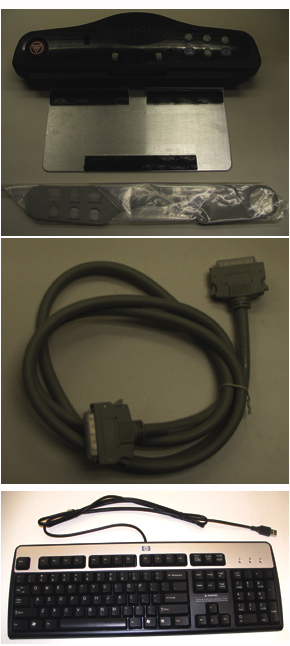
    Figure 5. Language Overlay
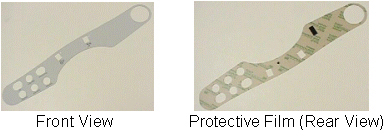
  2. Remove the protective film from the language overlay and position it over the SCIM. When you are satisfied it is in the proper position, rub your finger over it lightly, in between the scan buttons and around the Emergency Stop button, to press it in place.
  3. Turn the SCIM over to see the cable connections.
  4. Attach the data cable as follows:
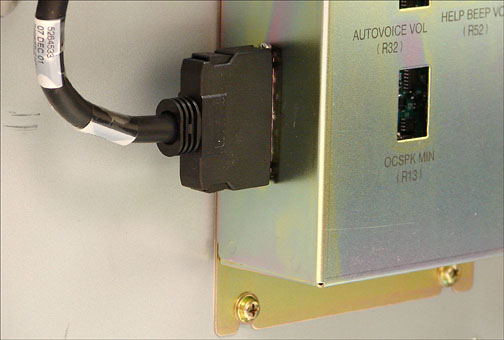
    1. Connect the data cable to the SCIM. See Figure 3.
    2. Connect the other end of the data cable to J6 in the GOCAA.
      Figure 6. Cable Connection to GOCAA
  5. Turn the SCIM over (top side up) and guide the keyboard cable through the center opening.
  6. Center the keyboard by turning it over bottom side up and centering it on top of the SCIM patient speaker. Keep the cable as short as possible so when the keyboard is turned top side up on the Velcro, the keyboard cable does not interfere.
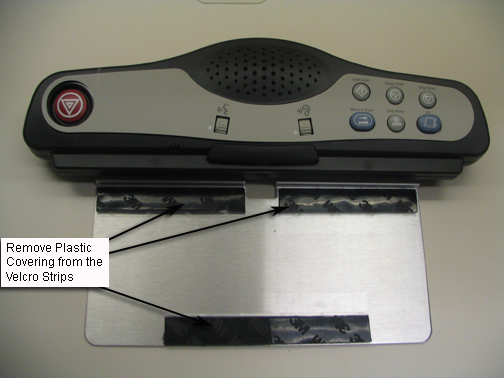
  7. Remove the plastic strips from the Velcro, exposing the adhesive.
    Figure 7. SCIM Velcro Strips
  8. Guide the cable back into the center notched opening until all the remaining cable is under the SCIM base.
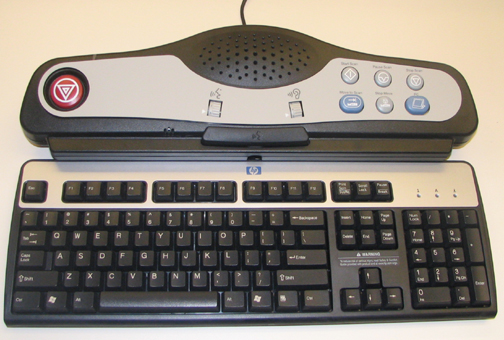
  9. Place the keyboard tight against the SCIM, center it, and set it in place. The Velcro pads will stick to the bottom of the keyboard.
    Note:

    The adhesive on the Velcro takes 24 hours to completely adhere to the bottom of the keyboard. Allow the adhesive to dry completely before removing keyboard from SCIM base.

    Figure 8. SCIM and Keyboard Assembled
  10. Position the SCIM assembly in front of the monitor and guide any excess data cable through the opening provided in the workspace desktop.
  11. Connect the USB cable from the keyboard to an available USB port on the host computer. See Figure 2.
  12. Plug the mouse cable directly into an available USB port on the host computer.
  13. Proceed to Step 1.

Finalization

Procedure

  1. Remove LOTO from the PDU. See the MR Service Safety Manual, PN 5452735
  2. Start the host computer by pressing the ON button. The computer will run the boot sequence.
  3. Log in using the appropriate username and password.
    Note:

    It is possible that the customer changed the default password. If you cannot log in, contact the customer for the correct password.

  4. When the system is fully booted, perform a scan to ensure proper system operation.
  5. If the SCIM was replaced, check for scan room intercom sound at the SCIM and check for intercom sound in the scan room.