- id_2002356
- Version: 5.0
- Date: Jul 17, 2019 6:10:48 PM
Loading software updates from repository or CD/DVD
You can install software updates to the host computer from the repository or from a CD/DVD.
Prerequisites
| Required persons | Preliminary requirements | Procedure | Finalization |
|---|---|---|---|
| 1 | Not applicable | 10 minutes | Not applicable |
| Item | Quantity | Effectivity | Part number | Manufacturer |
|---|---|---|---|---|
| Class M service key | 1 | Not applicable | - | |
| Service Pack CD/DVD | 1 | Not applicable | Not applicable |
| Condition |
|---|
| Load updates after MR apps and service software have been loaded. |
| Service Packs must be loaded at root level (applications not up). |
| Invoke Guided Install as root and display the Patches tab. See Invoking Guided Install as root. |
note: Updates should not be loaded with application software running.
Procedure
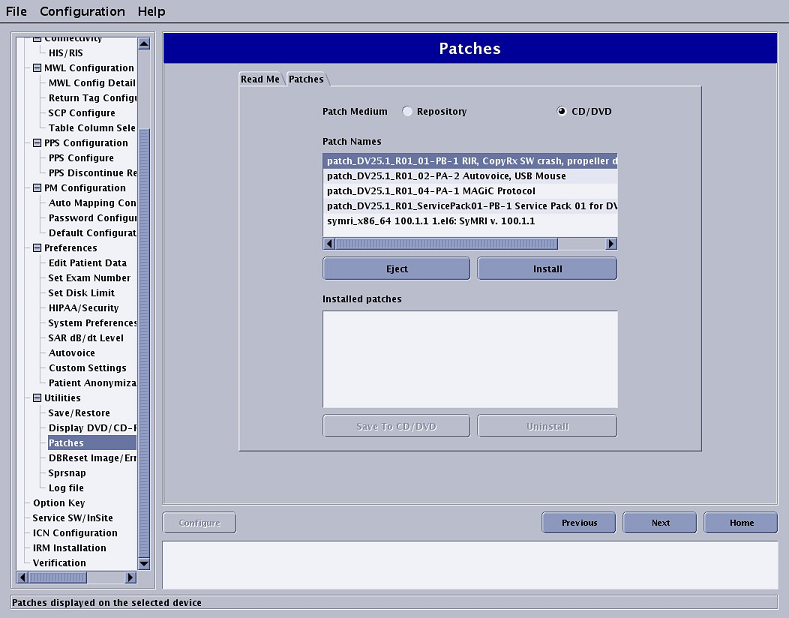
- Either insert the update CD/DVD in the appropriate drive and select CD/DVD, or select Repository to load updates from /usr/g/insite/data.
Figure 1. Guided Install patches
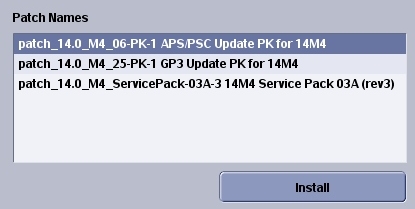
- Click on the applicable update to load and select Install.note: You must load one update at a time.
Figure 2. Available updates
 Updates that load successfully display in the Installed Patches window. A confirmation message also appears in the GUI status section.
Figure 3. Install done message

The update process looks for the software revision and conflicting information before loading. If the software revision of the update does not match the applications revision, a message displays in the status section of the GUI that explains that the update cannot be loaded.
If the message Patch_tst_M4_01 = PA conflicts with patch_tst_M4_03-PA-1 appears, you must delete the most recently installed update from the system before you load the new update. See Removing software updates.
- Perform any other patch load instructions that are documented in the “Read Me” file of the Service Pack.
- Reboot the system. When prompted, log in as sdc for user.