- id_13106140
- Version: 3.1
- Date: Nov 18, 2019 12:30:44 AM
B0 Drift Functional Check
Prerequisites
| Required persons | Preliminary requirements | Procedure | Finalization |
|---|---|---|---|
| 1 | Not Applicable | 1.5 hours | Not Applicable |
| Item | Quantity | Effectivity | Part number | Manufacturer |
|---|---|---|---|---|
| Body TLT Phantom and Sphere | 1 | - |
2360037 |
- |
| Service Filler Panel | 2 | Curved table |
5344577 |
- |
| Condition | Reference | Effectivity |
|---|---|---|
|
All other applicable calibrations must be complete. |
- | - |
|
Heat exchanger must be within operating limits. |
- | - |
|
System must be idle for a minimum of 2 hours before functional check. |
- | - |
This procedure can be performed using either a flat table or a curved table.
Using B0 Drift Tool
Procedure
-
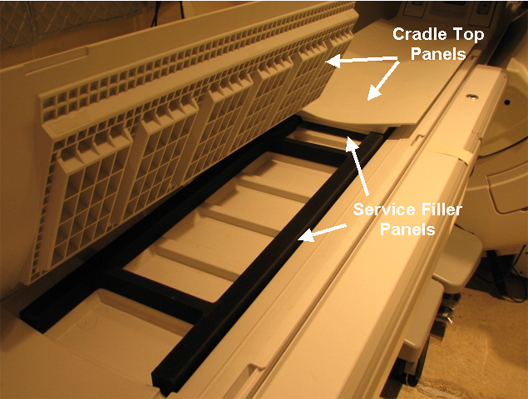
(For curved table) Install a service filler
panel under both cradle top panels.
Figure 1. Service Filler Panel Installed on Curved Table
-
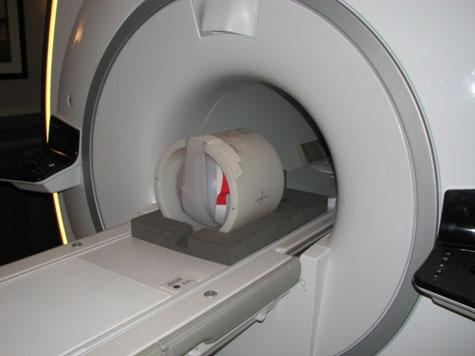
(For flat table) Place the TLT phantom and sphere
on the flat table. Position the phantom in the center of the cradle
and center it on the PA coil. To achieve the best test measurement,
the phantom must be located in the center (long direction) of the
cradle.note:
The MR table in the illustration is a flat (GEM) table.
(For curved table) Place the TLT phantom directly on the cradle.
Figure 2. TLT Phantom and Sphere on Flat Table
- Start the B0 Drift tool:
- (For non-proprietary service tools) From the Common Service Desktop, select Calibration > B0 Drift Calibration. Select Click here to start this tool.
The B0 Drift window appears.
Figure 3. B0 Drift Window in Test Mode with X, Y, and Z Axes Highlighted
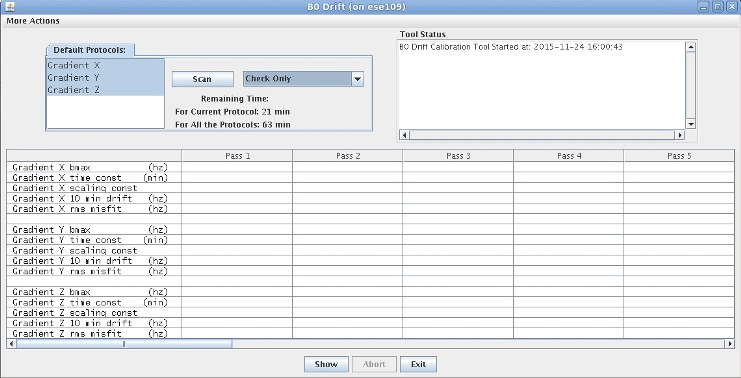
- Select the axis that is being validated. To select a second axis, press Shift and click another axis.
- Select Check Only.
The total time required to run B0 Drift Check Only mode is 63 minutes.
- Select Scan.
When the test is complete, it displays the compensated drift rate for the selected axis. Green values indicate pass, and red values indicate fail.
If one axis fails, run B0 Drift Calibration for only the failed axis.
Additional Functions of B0 Drift Tool
Figure 4. View Plot from B0 Drift Window
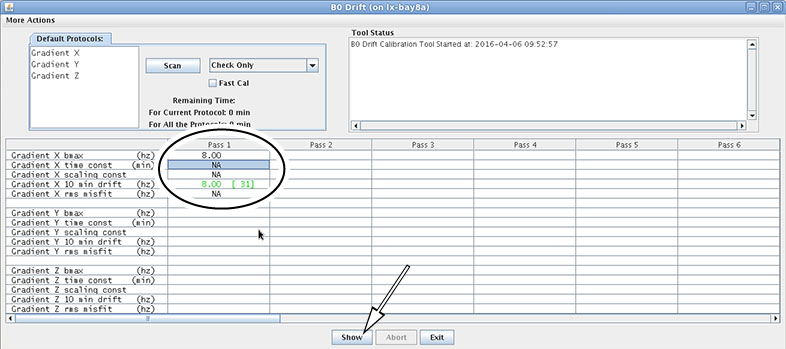
Figure 5. Example Plot Generated from Pass 1
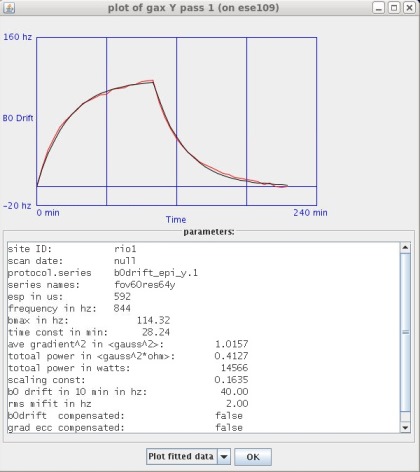
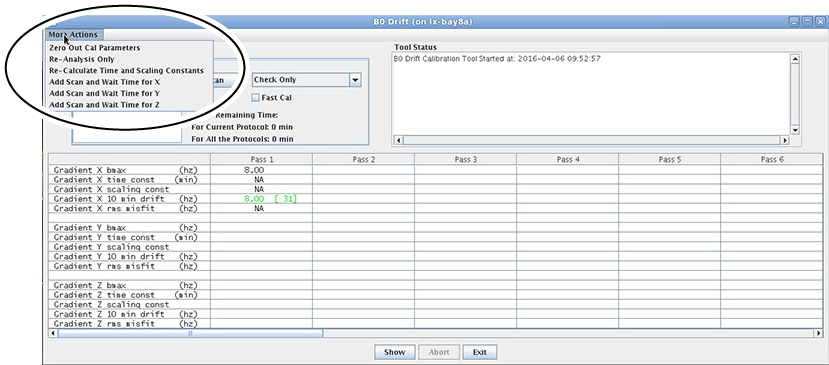
Figure 6. B0 Drift Tool Window Showing More Actions
-
Zero Out Cal Parameters: Zero out the calibration file. It can be executed for one axis or all three axes.
-
Re-Analysis Only: Re-analyze or view a previously executed pass (existing data).
-
Re-Calculate Time and Scaling Constants: Use existing data to put back into the calibration file of the system. If you want to use existing data:
-
First, run Re-Analysis Only.
-
Select Re-Calculate Time and Scaling Constants.
-
In the new popup, select the axis that you want to change.
-
Select Re-Calculate Time and Scaling Constants and click Apply.
-
-
Add Scan and Wait Time for x/y/z axis: Do not use.
Finalization
Finalization
Remove service equipment, phantom, and head coils.
(For curved table) Remove service filler panels from each cradle top panel.