The UPM functional check runs a prescribed scan in the forward power. It compares the measured RF power from the UPM to the expected value stored in the UPM configuration file.
About this task
On an XRFD system, there is only one body channel. All references to Body Ch 1 indicate Body.
Procedure
Make sure the RF enable switch is in the DISABLE (down) position.
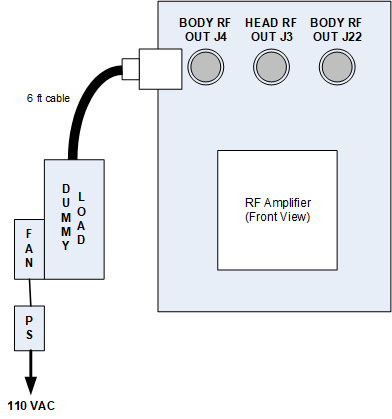
For body channel 1, disconnect J4 and J22, connect the dummy load to J4, and connect the 3/16 inch wavelength stub cable to J22. (J22 is for dual drive only.)
Figure 1. Connect dummy load
Set the RF enable switch to the On position.
Press Landmark. Then, advance to scan. A phantom is not needed.
On the Common Service Desktop, from the Calibration menu, select Calibration > Calibration Wizard and select Click here to start this tool.
(For non-proprietary mode in systems running DV29.0 or earlier) On the Common Service Desktop, from the Calibration menu, select Calibration > UPM and Click here to start this tool.
(For non-proprietary mode in systems running DV29.1 or later) On the Common Service Desktop, from the Calibration menu, select Calibration > RAP and Click here to start this tool.
Select RF/UPM Cal & Functional Check (Body) and select Click here to start this tool.
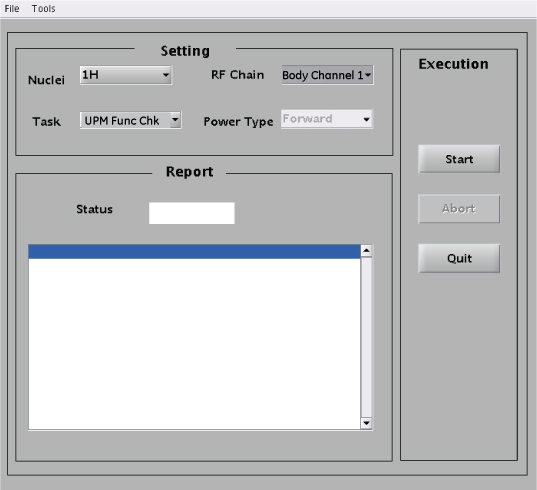
In the tool, make the following functional check selections:
Figure 2. UPM functional check selections
(For system running DV29.0 or earlier)
Setting
Single drive value
Dual drive value
Nuclei
1H
1H
Task
UPM Func Chk
UPM Func Chk
RF Chain
Body
Body Channel 1
Note: The Power Type drop-down menu is inactive for this step.
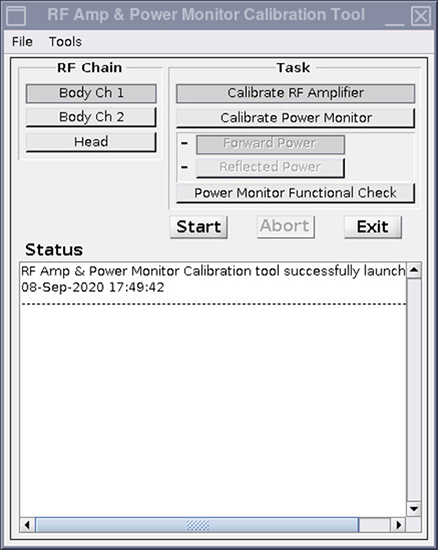
Figure 3. RF Amp and Power Monitor (RAP) Tool functional check selections
(For system running DV29.1 or later)
Setting
Single drive value
Dual drive value
Task
Power Monitor Functional Check
Power Monitor Functional Check
RF Chain
Body Channel
Body Channel 1
Click Start.
Click Yes when the prompt asks if the hardware setup is correct.
Review the system prompts as they are shown during test execution.
This functional check takes 2 to 3 minutes before any user interaction is required. Functional check tests include: 10-second average power check, RF inhibit test, and short-term average power fault host trip test.
Look for a dialog box about the UPM tripping and a power trip error message.
If the UPM does not trip, recheck the calibration connections and repeat the functional check.
From the CSD, open the error log. Make sure the error log contains the message that the UPM has detected a power fault on Body Short Term Average.
If the error is shown in the log, the functional test has passed. Click Yes on the dialog box.