
- SIGNA MR355 / SIGNA MR360
- Service Manual
- 5856356-3EN Revision 5.0
- Basic Service Documentation. Copyright General Electric Company.
- 00000018WIA30FE0550GYZ
- id_20244621.27
- Jul 4, 2020 12:10:12 AM
Importing and exporting TLS certificates
A certificate or digital certificate is a unique, digitally signed document that identifies the identity of an individual or organization. Using public key cryptography, its authenticity can be verified to make sure the software or website you are using is legitimate.
Prerequisites
| Personnel requirements | |||
|---|---|---|---|
| Required persons | Preliminary requirements | Procedure | Finalization |
| 1 | - | 45 to 65 minutes | 5 minutes |
| Tools and test equipment | |||
|---|---|---|---|
| Item | Quantity | Part number | Manufacturer |
| USB Flash Drive | 1 | - | - |
| Required conditions |
|---|
| The certificate must be installed on the USB flash drive prior to starting the procedure. |
| Safety |
|---|
|
Before working in any GE Healthcare MR suite or performing any GE Healthcare service procedure, you must:
If you have any safety concerns at any time, do not begin work or immediately stop work and move to a safe location. Immediately contact your supervisor or site safety officer for instructions on how to proceed. |
About this task
Certificate specifications as required by the MR software
About this task
- Certificates can be self-signed or CA Authorized
- The MR scanner only accepts certificate files with extension .pem
- The following attributes within the certificate are mandatory:
- Common name (for example, server FQDN)
- Organization name
- Organizational unit name
- Locality name (city/locality)
- State or province name (state/province)
- Country name (country/region)
- Bit length. 2048 is the current industry standard
- Self-signed certificates complying with the above rules can be generated on the MR scanner itself; however, this is the least preferred and not a recommended method for accomplishing certificate management. For information on self-signed certificates, see Generating self-signed certificates.
Note: Consult with customer IT to determine which of the below setups is applicable for their system.
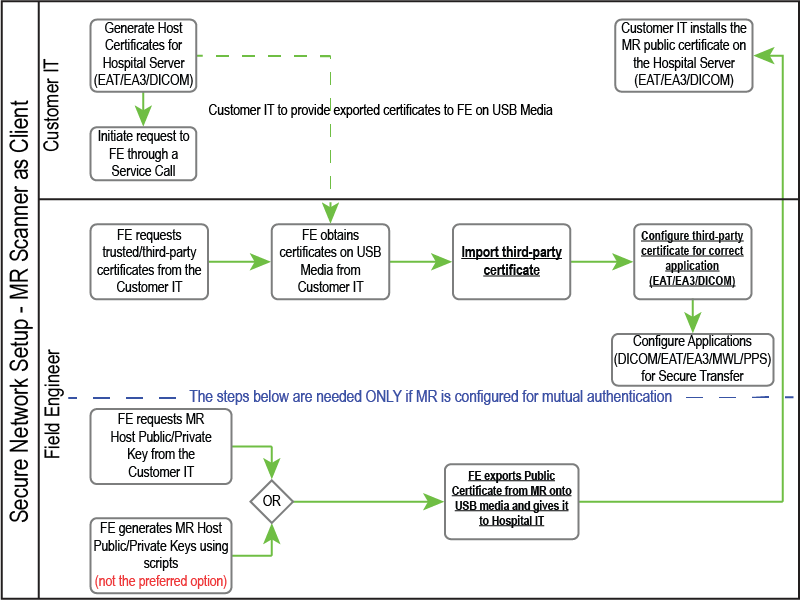
MR Scanner set up as secure client
About this task
Note: Underlined text in the flowchart below indicates links to additional content.
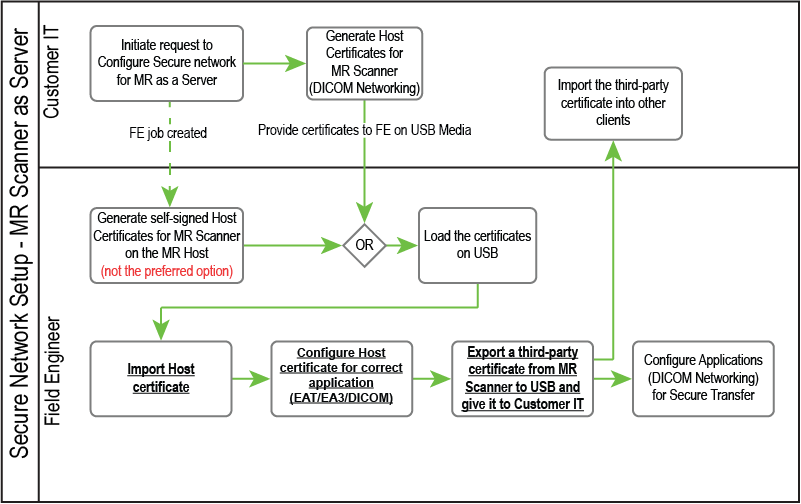
MR Scanner set up as secure server
About this task
Note: Underlined text in the flowchart below indicates links to additional content.
Note: Certificate import/export alone does not configure secure networking on the MR scanner. Individual applications must be configured to use the certificates. For detailed information on configuration, see the following:
- To configure DICOM over TLS using certificates recently configured with the procedure above, see Configuring DICOM networking (standard or DICOM over TLS).
- To configure EAT with TLS encryption, see Enterprise Audit Trail (EAT)-audit logging.
- To configure EA3 with TLS encryption, see Accessing the EA3 admin utility.