
- SIGNA MR355 / SIGNA MR360
- Service Manual
- 5856356-3EN Revision 5.0
- Basic Service Documentation. Copyright General Electric Company.
- 00000018WIA300F0550GYZ
- id_20244631.11
- Apr 22, 2020 2:59:43 PM
Importing host certificates - private keys
Import the host certificate using a private key from a USB.
Prerequisites
| Personnel requirements | |||
|---|---|---|---|
| Required persons | Preliminary requirements | Procedure | Finalization |
| 1 | - | 20 to 30 minutes | - |
| Tools and test equipment | |||
|---|---|---|---|
| Item | Quantity | Part number | Manufacturer |
| USB Flash Drive | 1 | - | - |
About this task
The keys that are used in the certificate management process are private keys and public keys. A private key is sent back to the host from the client, which is encrypted using the public key. In this way, the host is the only device that can read the private key, because it is the only device capable of unencrypting a message encrypted with the public key.
Procedure
- On MR Service Desktop, click Service Browser.
Figure 1. Service Browser button 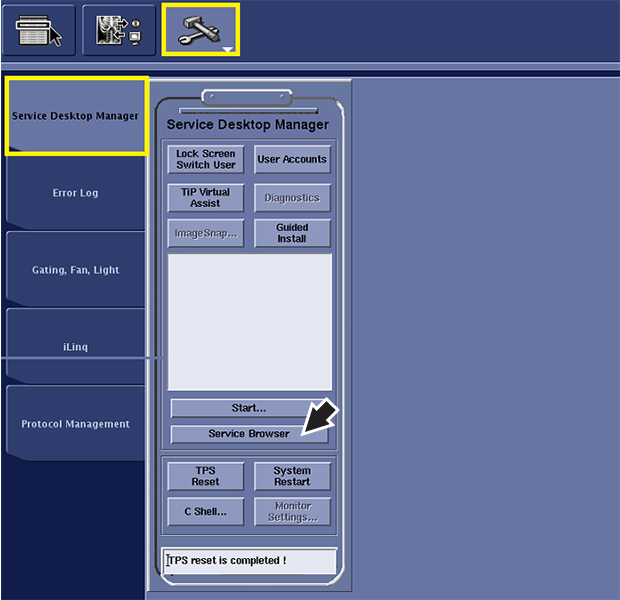
Result
The Certificate Management browser displays. - In the left toolbar, select .
Figure 2. Certificate Management browser 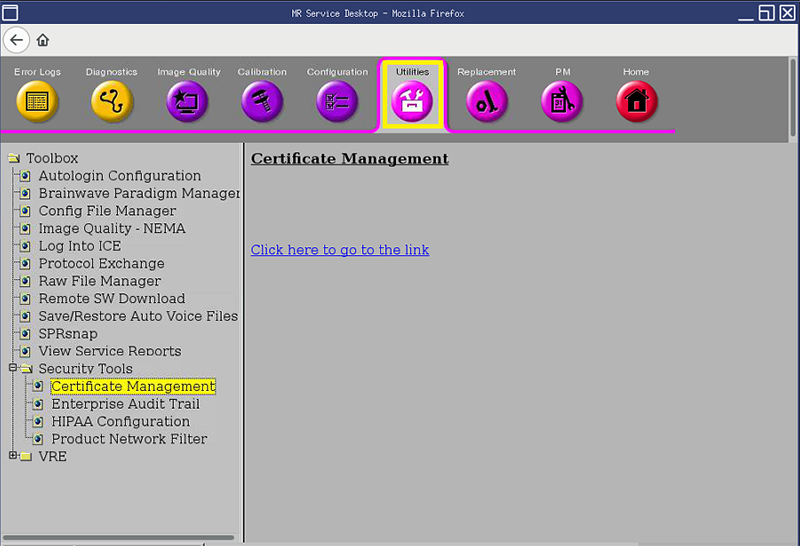
- Click Click here to go to the link.
Result
The Certificate Management window displays.Figure 3. Certificate Management window 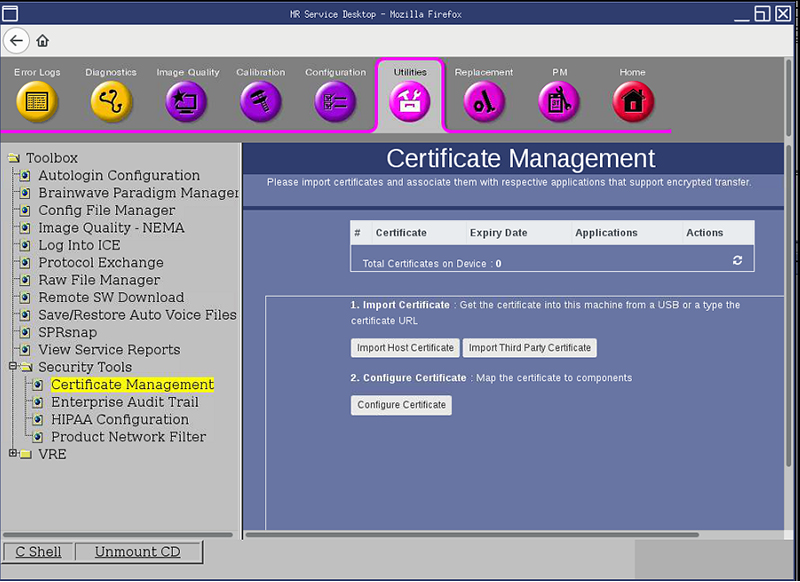
- Click Import Host Certificate.
Result
The window refreshes with the applicable fields to populate.Figure 4. Specify host information 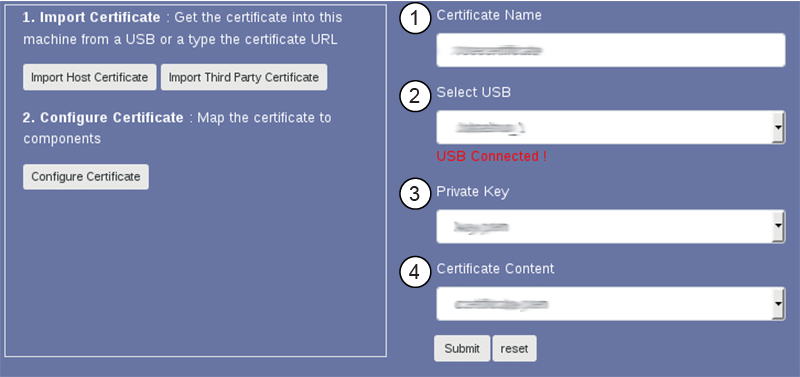
1 Certificate Name 2 Select USB 3 Private Key 4 Certificate Content