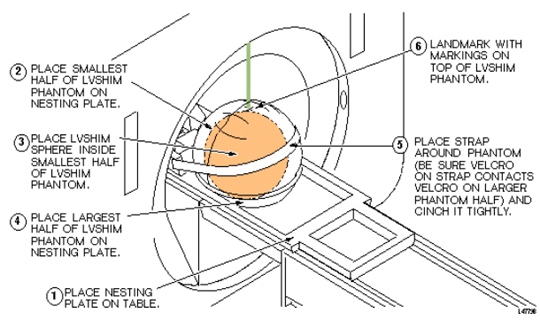
Figure 1. Aligning LVShim Phantom on Patient Table
Press Advance to Scan button.
Gradient LVShim Scan Prescription
Procedure
At the Host Computer, prepare the system for scan using the LVShim Scan Protocol.
Click Auto Prescan. Make sure TG is between 130
and 160. Record Gradient Shim current value. If auto prescan fails, proceed
to Step 3, (Manual Prescan).
Otherwise skip down to Step 5.
Click Manual Prescan
While in the Center Freq. Fine (CFH) mode,
verify that the frequency peak is centered in the display. Center frequency
peak as necessary. After locating the best signal, open the Frequency menu
at the top of Manual Prescan window and select Save Frequency to
save the new center frequency.
Click Transmit Gain (TG), open the
Markers menu at the top of the Manual Prescan and select Horizontal
Hairline. Adjust Transmit Gain for the highest value. TG should
be between 130 to 160.
Note:
The TG needs to be adjusted correctly after performing Auto Prescan.
Auto Prescan sets the TG for this phantom too high which results in the RF
being over driven and will produce NaN (Not a Number) in the LVShim analysis.
Typically the TG will maximize at approximately 20 counts less than the Auto
Prescan setting when adjusted in Manual Prescan.
Click Scan TR (R1/R2). Verify that
R1 and R2 are not over ranged. Adjust R1 and R2 for approximately 50%.
Click Done to exit Manual Prescan.
When finished with manual prescan, click Scan.
Note:
The annotation on the LVShim images is not correct and does not
change. The scan plane is driven by the LVShim PSD, not through scan prescription.
Therefore, the software that is responsible for the image annotation doesn't
know about the plane changes and keeps the annotation at the first plane.
The images are in the correct plane and orientation; however, the annotation
does not reflect this.
Gradient LVShim Analysis
Procedure
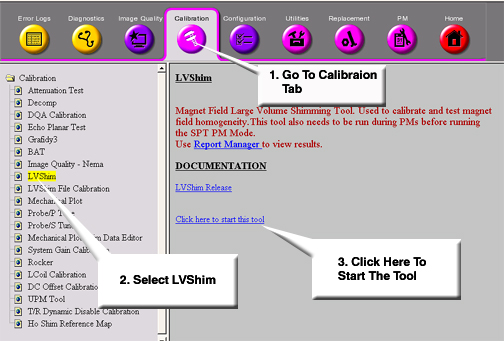
At the Host Computer, go to the Service Desktop and open the Service
Browser, if it's not already running.
For TwinSpeed, highlight WHOLE or ZOOM matching the coil currently being
shimmed.
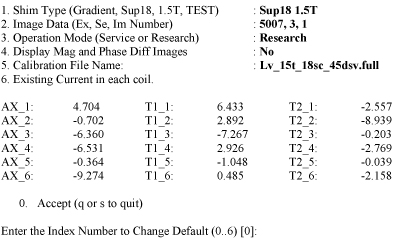
The LVShim tool will started as shown in Figure 3.
Figure 3. LVShim Main Menu
Change the following parts to calculate the next set of currents while
performing Main LV Shim:
Shim Type should be set to Gradient . Type 1 Enter until
the correct set is displayed.
Image Data should show the Exam, Series and the first Image number of
the previously scanned LV Shim series. Type 2 Enter and
change if necessary.
Operation Mode should be set to Service. Type 3 Enter until
this is listed correctly.
Display Mag and Phase Diff Images should be set to No.
Type 4 Enter until this is listed
correctly.
The calibration file should list the correct configuration file to use.
Type 5 Enter to view possible
filed. You can view detailed information on these files in the LV Shim Software document. Make sure the correct gradient mode is chosen if
this system is a TwinSpeed.
The existing grad shim in each coil should match the grad shim set in
each coil from the previous iteration (or the initial currents). Type 6Enter and
modify the currents if necessary.
Once the LVShim Analysis tool is setup correctly via Step 5, type 0Enter to
run the analysis.
If image phase wrap was detected, the following message appears: “Excessive
phase wrapping….Please re-scan at Wider Bandwidth or smaller test diameter”.
If this occurs, return to Gradient LVShim Scan Prescription and
rescan and a greater bandwidth.
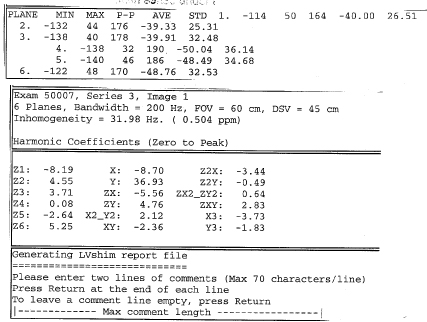
The output should open in a c-shell. See Figure 4 for an example. (Bandwidth, Exam, Series and Image # will
match the LV Shim series under analysis):
Figure 4. Example Output
If “NaN” is displayed in the Harmonic Coefficient data,
you should return to Gradient LVShim Scan Prescription and
rescan. Make sure the TG value is between 130 and 160.
Enter Comments as desired. Once comments are entered, the following
is displayed :
Compare this data to the appropriate LV Shim Specifications for your
magnet, see CRM
TRMZM (Zoom) or BRM TRMWB (Whole Body). Keep
iterating until no noticeable shim improvement is seen.
If you accept the new grad shim values, type YEnter and
return to Gradient LVShim Scan Prescription and rescan,
the new currents are automatically entered into the gradient amplifiers by
the software. Update the Data Sheets.
Finalization
Procedure
Remove any phantoms and or tool used during LVShim.
Do a TPS Reset.
Do a head or body test scan before customer turn over.