- id_2001861
- Version: 4.0
- Date: Aug 23, 2019 3:56:17 AM
Doing HIS/RIS functional check
Check connectivity and set information retrieval preferences.
Procedure
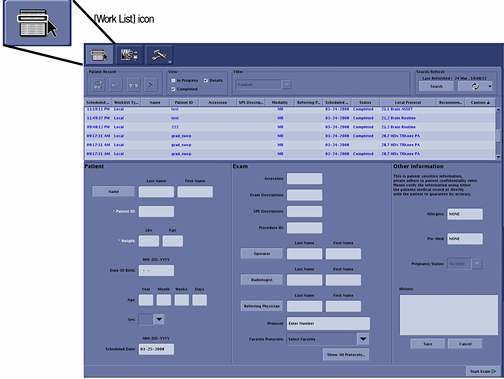
- Click the Work List icon for the scan screen.
Figure 1. Work List icon
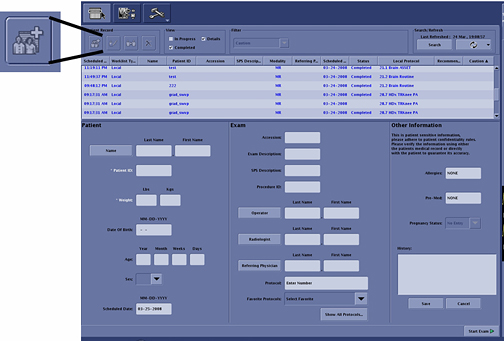
- To confirm the connectivity of the system to the RIS system, click the [New Patient] icon in the scan desktop.
Figure 2. New Patient icon
- On the scan screen, enter the following:
- Patient ID: geservice
- Weight: 111
- Click Save.
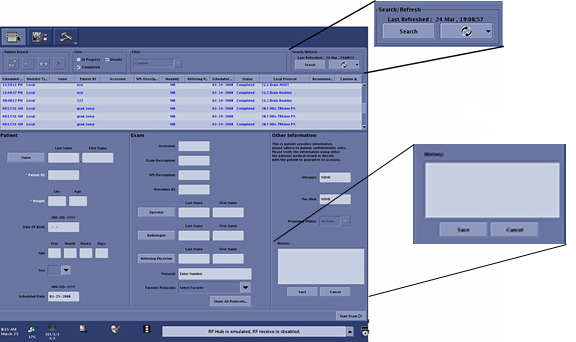
- In the Search/Refresh box, click Search Data.
Figure 3. Search button
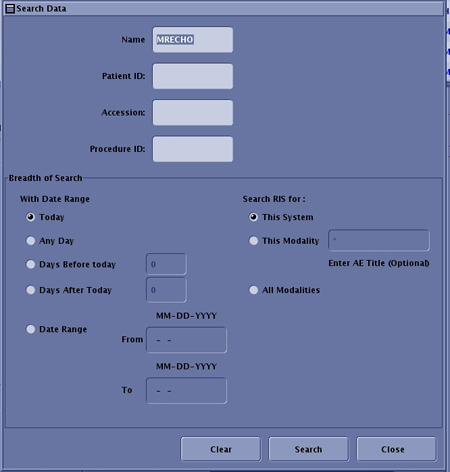
 The Search Data window displays as shown below.
Figure 4. Search Data window
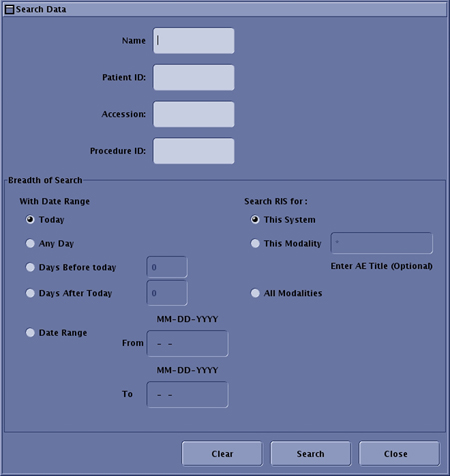
- Select how you want to pull information from the RIS system in the Search Data window. The Get Patient List options are:
- Enter a patient Name, Patient ID, Accession Number, or Procedure ID to define the search.
- Selecting Date Range pulls patient lists for any set day or date range.
- Selecting This System pulls the patient lists entered for this system.
- Selecting This Modality pulls the patient list for all MR systems at this facility.
- Selecting All Modalities pulls the patient list for all systems associated with this facility. Using this option may cause the scanner to hang if the facility has a large Work List for all the scanners at the site.
- After entering the proper Search Data, click Search.
Figure 5. Search details selected
 The results appear in the list above the patient information.
Figure 6. Full Work List
