- id_2016821
- Version: 2.0
- Date: Oct 9, 2019 5:13:06 PM
Calibrate ViewSonic monitor (for VP231wb and VP2330wb)
Procedure
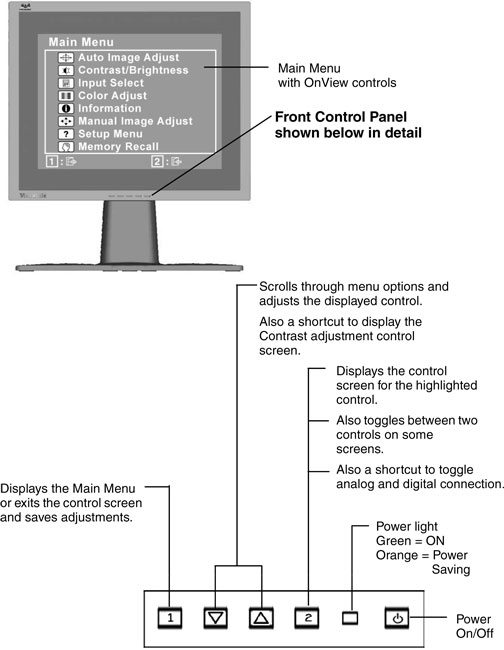
- Refer to the illustration below for control locations and functions.
Figure 1. ViewSonic VP231wb and VP2330wb OnView controls
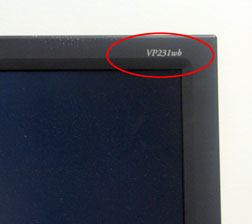
- Find the model number in the upper right corner on the front of the monitor and record it.
Figure 2. Locating monitor model number
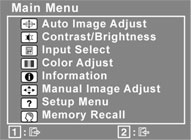
- To display the Main Menu, press the 1 button.
Figure 3. Main Menu
 note: All OnView menus and adjustment screens disappear automatically after about 30 seconds.
 - Modify the red-green-blue (RGB) setting by navigating to Color Adjust -> User Color.
- (For VP2330wb) Numeric values are used for adjustments. Calibrate the monitor to match the settings in the table below.note: Contrast/Brightness and Color Adjust are different menu selections.
Table 1 Required settings Contrast/brightness Contrast 60 Brightness 50 Color adjust Hue 50 Saturation 50 Color Adjust 6500K - (For VP231wb) A green slider is used for adjustments instead of numerical values. To calibrate the monitor, count the major tick marks (total of 14) to determine the proper slider location.
-
The slider is set at 9.75. Calibrate the monitor to match the settings in the table below.
-
Contrast/Brightness and Color Adjust are different menu selections.
Figure 4. On-screen adjustments

Table 2 Required settings Contrast/brightness Contrast 9.0 Brightness 9.75 Color adjust Hue 7.0 Saturation 8.5 R 12.5 G 12.0 B 11.25 -
- Proceed to Finalization.
Finalization
Procedure
- To save adjustments, press the 1 button.
- To exit the menu, press the 1 button again.
- Return to LCD Monitor Installation to complete finalization steps.