• SIGNA MR355 / SIGNA MR360
  • Service Manual
  • 5856356-3EN Revision 5.0
  • Basic Service Documentation. Copyright General Electric Company.
  • Object ID: 00000018WIA30A81640GYZ
  • Topic ID: id_2014042 Version: 3.3
  • Date: Nov 10, 2020 10:41:49 PM

Checking Internet connectivity prior to InSite Remote Service Platform (RSvP) upgrade

Makes sure an InSite1 connected system has Internet connectivity prior to a Remote Service Platform (RSvP) upgrade.

Procedure

  1. (For Customers connected through DNS) Configure and test DNS using the following instructions:
    1. Configure DNS:
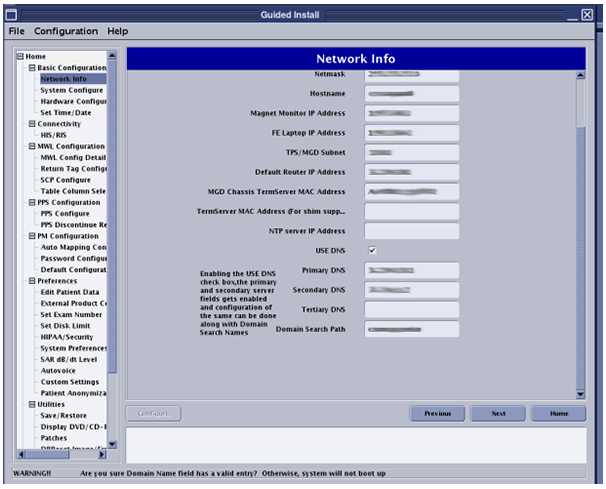
      • (For SW revision 25.3 or later) The MR software supports DNS configuration. Check the USE DNS box and enter the DNS IP addresses on the Network Info tab of Guided Install.
        Figure 1. Network info DNS entry
      • (For SW revision 25.3 or earlier) The MR software does not support DNS configuration. Do the following to configure DNS:
        1. Launch Guided Install
        2. Make sure the Network Info tab has correct network configuration information for IP/Netmask/Gateway.
        3. Click on File > quit.
        4. Open a terminal and login as root.
          Note: The Shell window can only be launched when the EA3 user is included in the authorized EA3 group. Users not in this EA3 group will not have access to launch the Shell window. If you are not logged in as the proper logon user, log out and then log back on as the correct EA3 user with the authorized permissions.
        5. Type gedit /etc/nsswitch.conf and press Enter.
        6. Add dns to the entry at the end of the file: hosts: files dns.
        7. Type gedit /etc/resolv.conf and press Enter.
        8. Add Google or any other DNS entries:
          • nameserver <site DNS IP address 1>
          • nameserver <site DNS IP address 2>
        9. Save and quit the edit terminal.
        10. Restart the system.
    2. Test connectivity using DNS:
      1. Execute the following command in a terminal: >> openssl s_client -connect insite.gehealthcare.com:443.
        Note: The Shell window can only be launched when the EA3 user is included in the authorized EA3 group. Users not in this EA3 group will not have access to launch the Shell window. If you are not logged in as the proper logon user, log out and then log back on as the correct EA3 user with the authorized permissions.
        Note: If the system has connectivity, the digital certificate information will be displayed and the cursor will be waiting for the next command.
      2. Enter the following at the prompt exactly as written, including the spaces: GET / HTTP/1.0
      3. The system will respond with:

        HTTP/1.0 200 OK

        Server: BigIP

        Connection: close

        Content-Length: 148

        <HTML><HEAD><TITLE>GE Healthcare Web Server</TITLE></HEAD><BODY><P><A HREF="http://gehealthcare.com/">GE Healthcare</A> Web Server</P></BODY></HTML>read:errno=0

      4. If the test fails, use a public IP to determine if DNS resolution is the cause of the failed test. Type the following command and then repeat 1.b.ii: >> openssl s_client -connect 198.169.189.25:443.
  2. (For Customers connected through a proxy) Execute the following command in a terminal:
    Note: The Shell window can only be launched when the EA3 user is included in the authorized EA3 group. Users not in this EA3 group will not have access to launch the Shell window. If you are not logged in as the proper logon user, log out and then log back on as the correct EA3 user with the authorized permissions.
    • (For Proxy without login) >> env https_proxy=<proxy IP>:<port #> curl -k https://198.169.189.25:443
    • (For Proxy with login) >> env https_proxy=http://<user>:<password>@<proxy IP>:<port #> curl -k https://198.169.189.25:443

    Result

    The system should respond with:

    <HTML><HEAD><TITLE>GE Healthcare Web Server</TITLE></HEAD><BODY><P><A HREF="http://gehealthcare.com/">GE Healthcare</A> Web Server</P></BODY></HTML>read:errno=0