- id_2004578
- Version: 5.0
- Date: Jul 19, 2019 10:55:29 AM
Troubleshooting InSite Auto Checkout failure
The following steps are to be performed if Auto Checkout fails.
 |
|
Procedure
- In Guided Install, enter the GE system ID in the Service ID field.
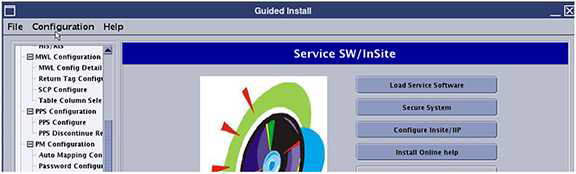
- Open Service SW/InSite and click Configure InSite/IIP to launch the IIP Config Manager.
Figure 1. Service SW/InSite window
- Click ACCEPT three times to accept the proprietary agreement.
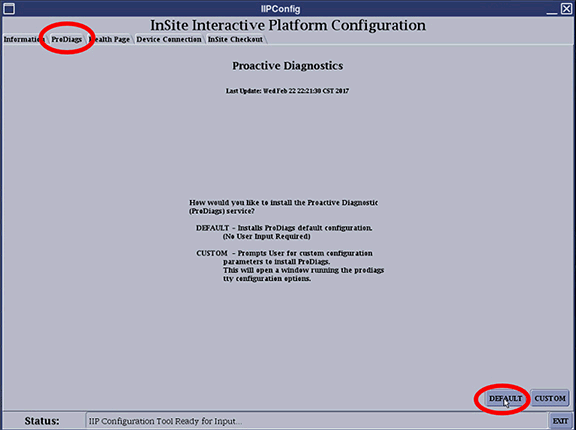
- Click the ProDiags tab.
- Click DEFAULT.
Figure 2. ProDiags tab
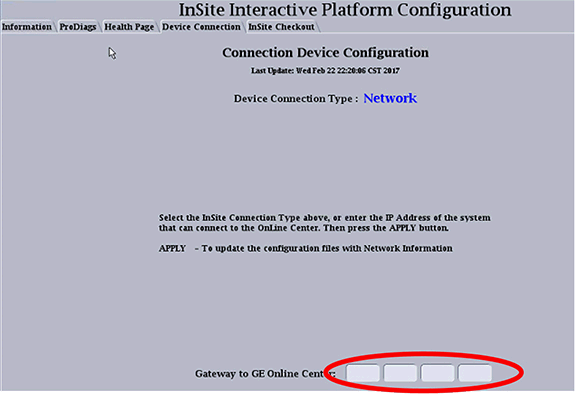
- Click the Device Connection tab.
- Enter the Gateway IP address as provided by the customer in the Gateway to GE Online Center field.
Figure 3. Device connection tab
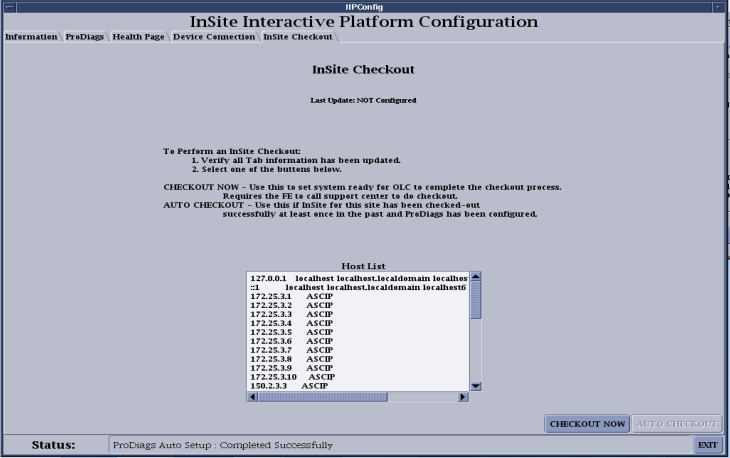
- The CHECKOUT NOW option configures PPP to allow a connection from the Online Center. You must call the local Online Center connectivity team to complete checkout.
Figure 4. Checkout now
- Perform Save Info.note: This step is critical to make sure all the settings just configured are carried over during future software loads. If there is a model type change for a software upgrade, then restore alone is not sufficient. This entire process will need to be repeated to ensure connectivity.