
- 00000018WIA30F2D010GYZ
- id_20029493.0
- Feb 24, 2021 2:43:46 AM
Setting Remote Software Download (RSD) to install software updates (only if third option is chosen)
Procedure
- Click Preferences on the RSD user interface to set system update install options and user access for update installation.
Figure 1. RSD root user interface 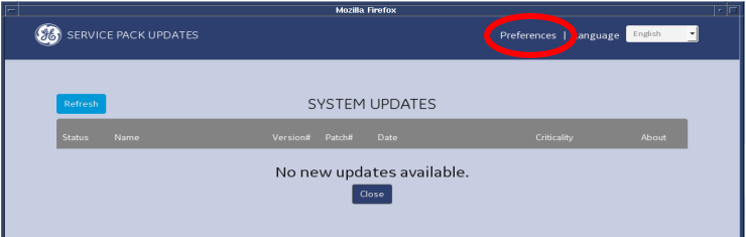
Choose one of the following options:
- Install updates automatically on restart: Installation starts automatically (for all users) after 30 seconds, unless the user skips or declines the update.
- Allow all users to install updates: Allows all users to acknowledge and install a new Service Pack. The user can choose to install, skip, or decline the update.
- Only allow authorized users to install updates: This is the default preference. It allows only root users and EA3 authorized users (role-based authorization) to install a new Service Pack. The Go to User Administration Tool link launches the EA3 user interface where you can change authorization for individual EA3 users. For more information, see Configuring user access for RSD.