
- 00000018WIA3003D260GYZ
- id_20299792.0
- Feb 24, 2021 2:43:42 AM
Installing updates from Remote Software Download (RSD) for software patches after DV29.1
Remote Software Download (RSD) is an installer application that helps to install new updates from Service Packs whenever they are released and pushed from the GE back office.
About this task
Note: See Observing system tray status icons for information about the status icons of RSD.
Use these steps if you have GESoftwareInstaller Group privileges.
Procedure
- If a software patch is available for installation, the UPDATE READY TO INSTALL screen displays.
Figure 1. UPDATE READY TO INSTALL screen 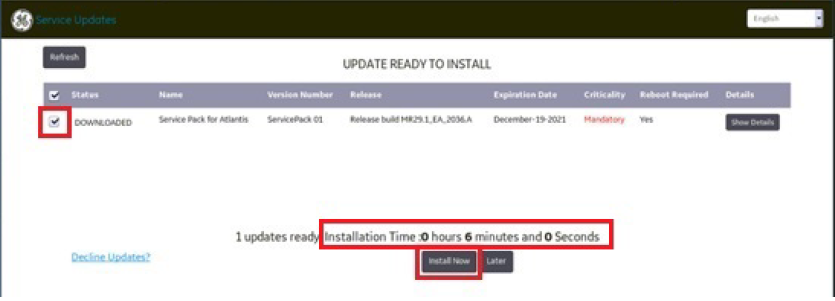
- After you click Install Now, a confirmation screen appears.
Figure 2. Install confirmation screen 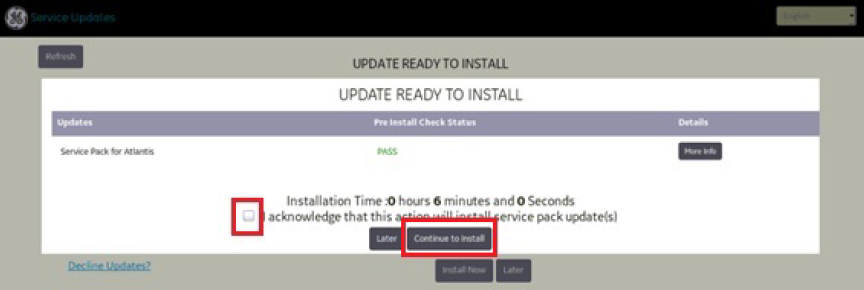
- Select the Acknowledge check box.
- Click Continue to Install.