
- Object ID: 00000018WHA3033C6GYZ
- Topic ID: id_2001846 Version: 9.0
- Date: Feb 22, 2021 1:49:23 AM
Running the EPT Calibration tool
Procedure
- Start the EPT calibration tool:
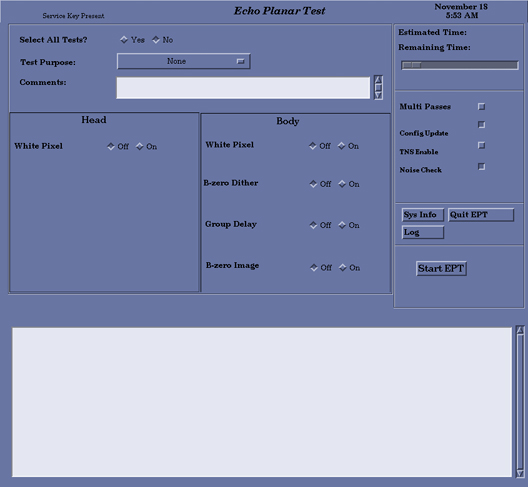
- From the Common Service Desktop, select Calibration > Calibration Tools > Echo Planar Test and click Click here to start this tool.
The Echo Planar Test window appears.
-
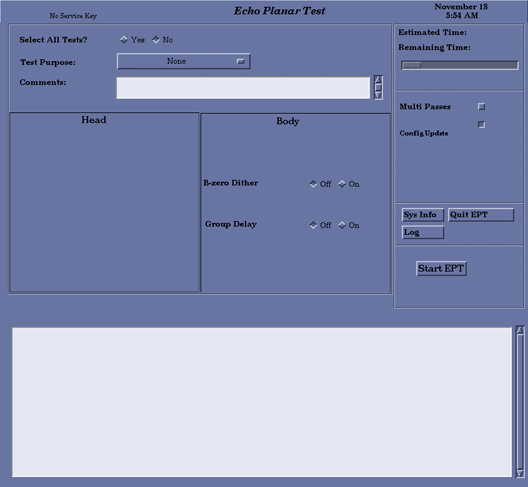
(For non-proprietary service tools) From the Common Service Desktop, select Calibration > Echo Planar Test. Select Click here to start this tool.
The Echo Planar Test window appears with partial test selection.
Figure 1. Echo planar test window (without service key) 
- For calibration, set the Select All Tests? option to Yes.The default is No.
For troubleshooting, select individual tests as needed.
- Two lines of Comments: can be entered, if needed.If no comments are entered, the text NO COMMENT is entered into the results file.
- Select a Test Purpose from the menu.
- For normal operation, the options buttons on the screen are set correctly by default. You can change the options to suit the tests you need to run.
- To perform more than one pass of the tests, select Multi Passes and enter a number in the text box.
- One or more of the selected tests can automatically update the configuration files with new calibration data if the new data is within specification. Select Config Update before starting EPT.
- Click Start EPT. Running all the tests takes about 30 minutes and thoroughly tests the system’s EPI performance.While EPT is running, each test is displayed in the message window showing the amount of time the test requires to run.Note: For 3.0T systems, B0 Dither is no longer run. Zeros are placed in the B0 Dither calibration files.