
- SIGNA™ Hero 3.0T Service Methods
- 5852800-8EN Revision 1.0
- 00000018WIA308CAE20GYZ
- id_131067253.0
- Aug 29, 2019 1:50:05 AM
TR dynamic disable calibration
Prerequisites
| Required persons | Preliminary requirements | Procedure | Finalization |
|---|---|---|---|
| 1 | Not Applicable | 3 minutes | Not Applicable |
About this task
- System installation
- Driver Module replacement
- Body Coil replacement
- Body Hybrid replacement
- Replacement of cabling between any of the above
Procedure
- If you are unable to start the Restricted Service tools, use
the non-proprietary method:
- Select Click here to start this tool to
start the procedure with the non-proprietary service tools.
Figure 1. TR dynamic disable open limit calibration 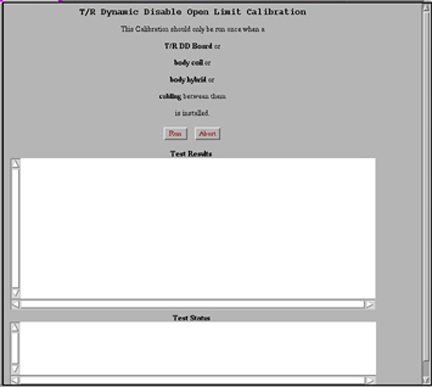
Once the calibration is complete, the results will display in the Test Results text area.
- Select Click here to start this tool to
start the procedure with the non-proprietary service tools.
Finalization
Perform a TPS Reset for changes to take effect.