
- Discovery MR750 3.0T System Service Methods
- 5690009-2EN Revision 4
- 00000018WIA30595E50GYZ
- id_20282721.4
- Sep 9, 2020 9:36:17 AM
Running High Order Shim (HOS) calibration
Procedure
- Start the HOS procedure/calibration:
- (For restricted service tools) Make sure the service key is installed.
- On the Calibration tab, select .
- Select HOShim Procedure. If HOShim Procedure is not available, refer to Installation and Calibration Wizard for instructions.
- (For non-proprietary service tools) Open the Common Service Desktop.
- On the Calibration tab, select .
Figure 1. HOS Calibration option 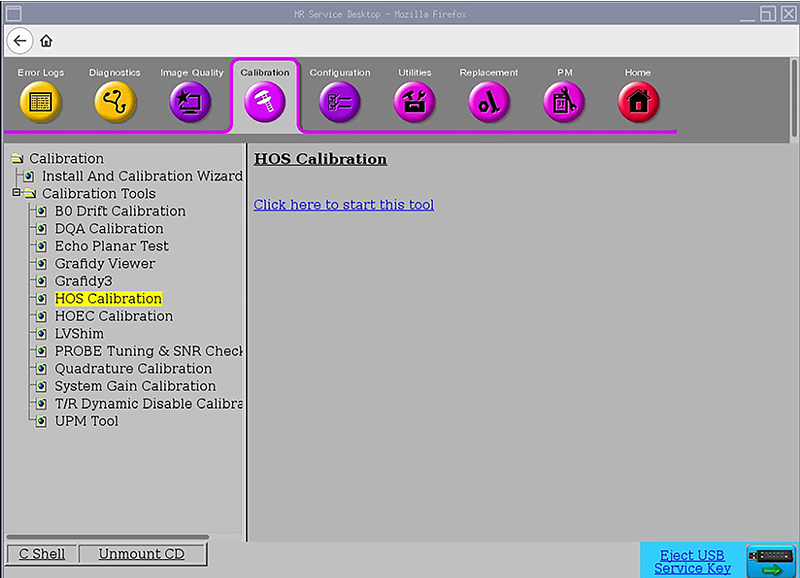
- Click Click here to start this tool.
Figure 2. HOS Calibration tool 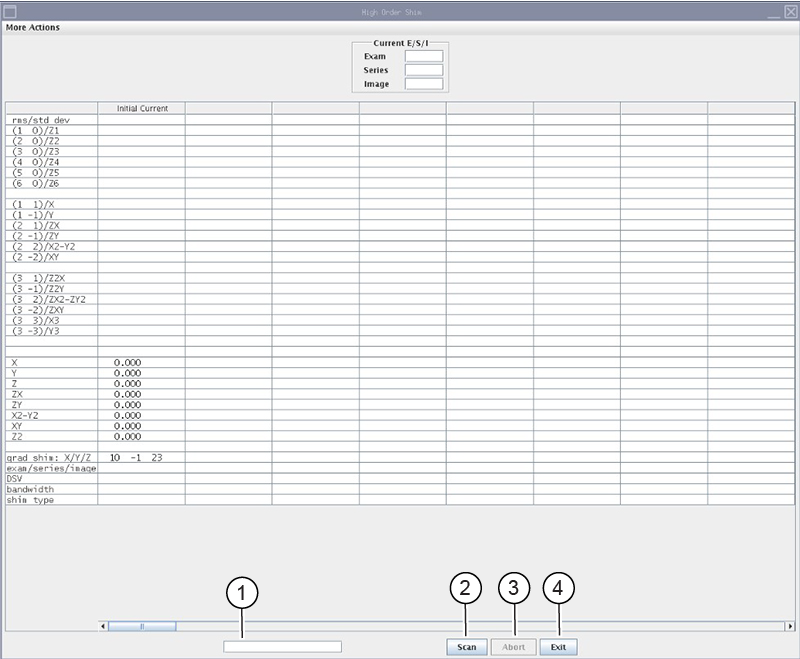
Callout Name Description 1 Status bar The current status of the HOS calibration procedure 2 Scan Starts the HOS calibration 3 Abort Stops the HOS calibration 4 Exit Closes the HOS calibration tool - Click Scan.
The system prescans first, then scans. There are multiple scans in this sequence with no user interaction required. The scan will take approximately 50 minutes to complete.
When the scan is complete, a dialog box appears. If the calibration is successful, the values show in green and a dialog box appears indicating High Order Shim Calibration Passed.
- Click OK.Note: If the value is red, this indicates the calibration failed. A dialog window appears with the following message: High Order Shim Calibration Failed. Check High Order Shim Power Supply.
Figure 3. High Order Shim Calibration Passed dialog box 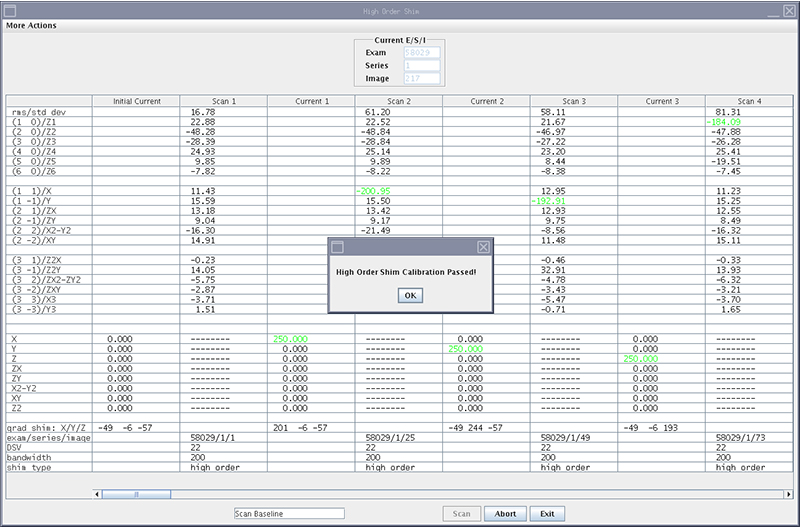
- On the Calibration tab, select .
- (For restricted service tools) Make sure the service key is installed.
- Click Exit.