• Discovery MR750 3.0T System Service Methods
  • 5690009-2EN Revision 4
  • Object ID: 00000018WIA30DD3E20GYZ
  • Topic ID: id_13106299 Version: 8.0
  • Date: Feb 21, 2021 9:07:47 PM

Doing Multi-Nuclear Spectroscopy (MNS) functional checks

Prerequisites

Personnel requirements
Required personsPreliminary requirementsProcedureFinalization
115 minutes45 minutes30 minutes
Tools and test equipment
ItemQuantityPart numberManufacturer
13C 3.0T1

2354050-6 - T/R Module

5114403-3 - QA Probe

-
13P 3.0T1

2354050 - T/R Module

5114403-3 - QA Probe

-
9-hole USS and Grafidy base plate146-271410-
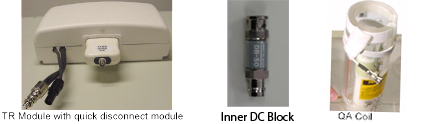
Inner DC Block1

5309801

-
Required conditions
ConditionReference
MNS option installed and amplifier calibrated.-
Each time the QA coil is hooked up, the Inner DC block must be connected onto BNC connector of the QD box.-
Note: (For PET/MR systems) Remove the CMA coil and replace it with the CMA proxy. MNS will not operate with the CMA coil.

About this task

The tests in this section are used to ensure the operation of the Multi-Nuclear Spectroscopy (MNS) subsystem. All the tests utilize a transmit/receive (T/R) module and quality assurance (QA) probe for the nucleus under test (e.g. 13C or 31P). The tests are run in the same manner regardless of field strength or nucleus, therefore this single set of instructions covers 13C on 3.0T systems.
Table 1. Minimum performance limits for the MNS subsystem
Nucleus Field Strength Min Mag at TG = 0 Min. SNR Max NoiseStdev
13C

3.0T

2.0 X 10^812060000
31P3.0T2.0 X 10^828060000
Figure 1. Required components

The following procedures are included in this functional test:

Topic ID: id_SL1777396-1046721

Functional test

Topic ID: id_SL2286849-1046721

Hardware Setup

Procedure

  1. Install the T/R module onto the top of the low profile carriage assembly (LPCA) cover.
  2. Connect the cables to the A connector on the LPCA.
  3. Put the grafidy base plate on the patient bed near the top of the bed.
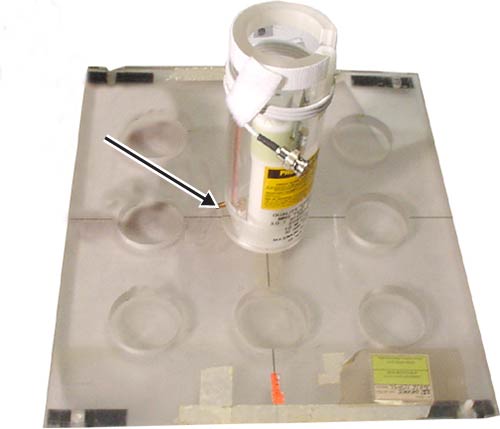
  4. Put the QA probe in the center hole on the grafidy base plate and lock the probe into place.
    Figure 2. QA probe lock
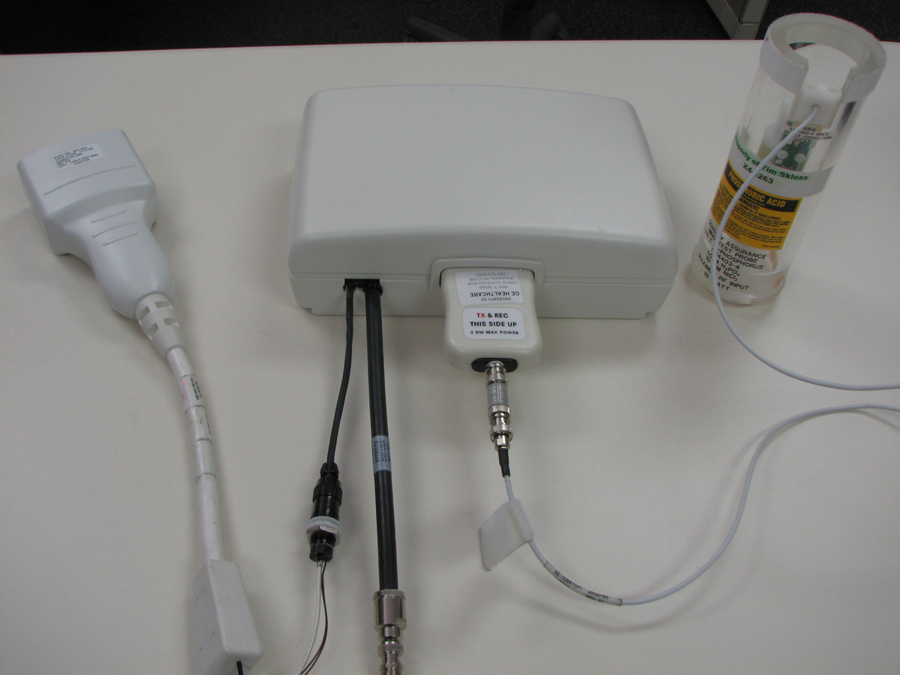
  5. Connect the Inner DC block between the QA probe cable and the quick disconnect module.
    Figure 3. Inner DC block installed
  6. Connect the QD module to the T/R module.
  7. Landmark on the center of the QA probe and advance to scan.
Topic ID: id_SL2286963-1046721

Scanner setup

Procedure

  1. Click the Worklist icon, then click the Add Pt Record icon.
  2. Type MNS (Last Name) and Setup (First Name), and press Enter for Patient Name.
  3. Type geservice and press Enter for Patient ID.
  4. Type 111 and press Enter for Patient Weight.
  5. Click Show All Protocols. From the Protocol Selector library, select Service and then double-click on MNS_Setup.
  6. Add the Func Test for the nucleus under test to the Multi Protocol Basket. Click Accept.
  7. Landmark on the center of the QA probe, if not already completed during the Hardware Setup Hardware Setup.
  8. Click Start Exam.
  9. Click Save Rx.
  10. To set the control variables (CVs), click the down arrow next to the scan option, select Research, and then select Display CVs.
  11. Set the following control variables (CVs):
    • flip_rf1 = 2, click Enter.
    • pw_rf1 = 40, click Enter.
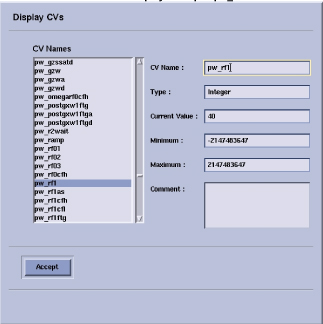
    • ia_rf1 = 32767, click Enter. (See the example screen in Figure 4)
    • xmtaddSCAN = 200, click Enter.
    • Click Accept.
  12. Click Scan > Research > Download.
    Figure 4. CV display example pw_rf1
  13. Click Scan > Spectro Prescan.
  14. Slide R1 and R2 to the maximum positions.
  15. Set TG (Transmit Gain) to 0 (zero).
  16. Set the top display mode to Magnitude.
  17. Click Start. After a few seconds you should see a peak in the top display and a free induction decay (FID) in the bottom display as shown below.
    Figure 5. Typical prescan signal for 31P (left) and 13C (right) at 3.0T
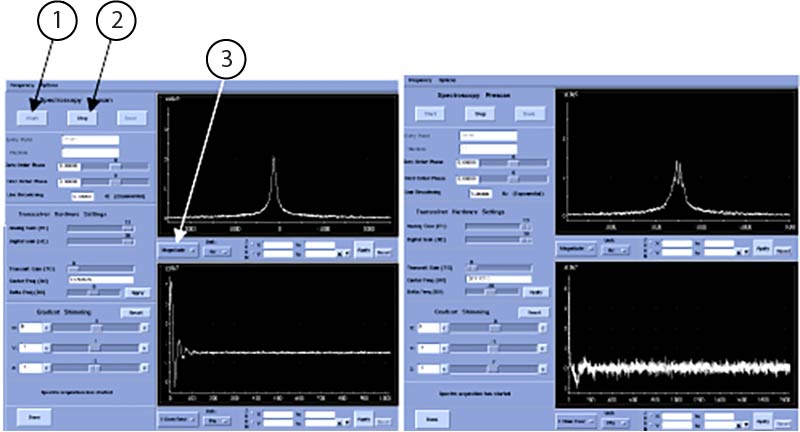
    1Start
    2Stop
    3Magnitude

    13C spectrum is four closely spaced peaks and has been centered.

  18. Adjust the center frequency to center the peak in the Magnitude window using Delta Frequency DX . After each adjustment click Apply.
    Note:

    If you see nothing but noise in the Magnitude window, you may be off frequency for MNS. See the following ratios for calculating the correct center frequency.
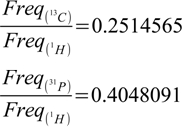
    Table 2. 3T center frequencies
    IsotopeCenter frequency (Hz) reference frequency
    1H127,732,407
    2H19,607,704
    3He97,345,529
    7Li49,645,367
    11B40,988,944
    13C32,125,190
    15N12,951,797
    17O17,322,806
    19F120,232,710
    23Na33,808,565
    29Si25,396,354
    31P51,754,323
    55Mn31,728,754
    129Xe35,328,351
  19. Record the Magnitude peak height. The peak height at TG = 0 should exceed the minimum acceptable value in Table 1.
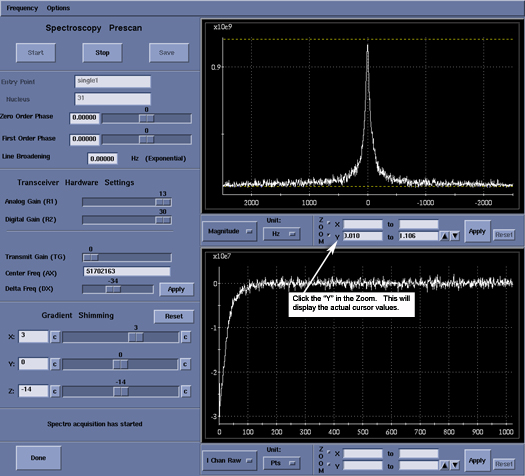
  20. Use the ZOOM mode functions to measure the Magnitude peak height.
    Figure 6. Measuring with zoom mode
  21. Click Done when complete.
Topic ID: id_SL1777424-1046721

Signal to noise test

About this task

If the Functional Test procedure Functional test has successfully completed and you now want to begin the Signal to Noise Test, select SNR Test from the MNS-Setup area and select Setup. Then proceed to Step 9.
Topic ID: id_SL2286986-1046721

Hardware setup

Procedure

  1. Install the T/R module onto the top of the LPCA cover.
  2. Place the grafidy base plate on the patient bed near the top of the bed.
  3. Place the QA probe in the center hole of the grafidy base plate and lock the probe into place.
  4. Connect Inner DC Block to BNC connector. See Figure 3.
  5. Connect the QA probe cable to the quick disconnect module.
  6. Connect the QD module to the T/R module.
  7. Landmark on the center of the QA probe and advance to scan.
Topic ID: id_SL2286993-1046721

Scanner setup

Procedure

  1. Click the Worklist icon, then click the Add Pt Record icon.
  2. Type MNS (Last Name) and Setup (First Name), and press Enter for Patient Name.
  3. Type geservice and then click on Enter for Patient ID.
  4. Type 111 and click on Enter for Patient Weight.
  5. Click Show All Protocols. From the Protocol Selector library choose Service. From the list select MNS_Setup.
  6. Add the SNR Test for the nucleus under test to the Multi Protocol Basket. Click Accept.
  7. Landmark on the center of the QA probe, if not already completed during Hardware Setup.
  8. Click Start Exam.
  9. Click Save Rx.
  10. To set the control variables (CVs), click the down arrow next to the scan option, select Research, and then select Display CVs.
  11. Set the following CVs:
    1. flip_rf1 = 2, click Enter.
    2. pw_rf1 = 40, click Enter.
    3. ia_rf1 = 32767, click Enter.
    4. xmtaddSCAN = 200, click Enter.
    5. Click Accept.
  12. Click Accept.
  13. Select the down arrow next to the Scan button, click Research, and then click Download.
  14. Click Scan > Spectro Prescan.
  15. Slide R1 and R2 to the maximum position.
  16. Set TG (Transmit Gain) to 0 (zero).
  17. Set the top display mode to Magnitude.
  18. Click Start. After a few seconds you should see a peak in the top display and a free induction decay (FID) in the bottom display.
  19. Adjust the center frequency to center the peak in the Magnitude window.
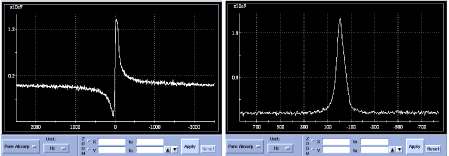
  20. Change the display mode in the top window to Pure Absorp. The shape of the peak changes with some of the signal dipping below zero. The distortion varies depending on the QA coil and scanner.
  21. Use the Zero Order Phase control to adjust the shape of the peak until it is fully positive and symmetric. The Zero Order Phase control was used to correct the spectrum until all signals were positive and the peak shape was symmetric.
    Figure 7. Typical uncorrected (left) and corrected (right) “Pure Absorp” (31P peak shape)
  22. Increase TG by units of 10 until the peak decreases and becomes slightly negative, about 180.
  23. Decrease TG slowly until the peak is split half-positive and half-negative.
    Figure 8. Example of half-positive and half-negative
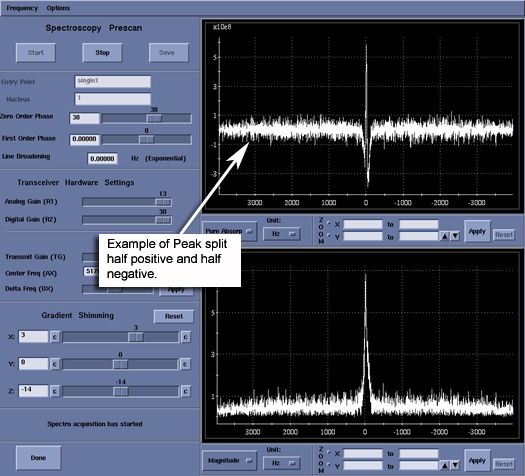
  24. Record this null value for TG.
  25. Subtract 60 units from the null TG value and set TG to this value. Now the peak is positive again and at maximum amplitude.
  26. Click Stop and then click Done.
Topic ID: id_SL2287025-1046721

Scanning and analysis

Procedure

  1. Click Scan to collect the SNR data.
  2. Switch to the Tools Workspace and open a Command Window.
    Note: The Shell window can only be launched when the EA3 user is included in the authorized EA3 group. Users not in this EA3 group will not have access to launch the Shell window. If you are not logged on as the proper logon user, log out and then log back on as the correct EA3 user with the authorized permissions.
  3. Type sage and click Enter to initiate the SAGE spectroscopy analysis tool.
    Figure 9. Example of sage tool
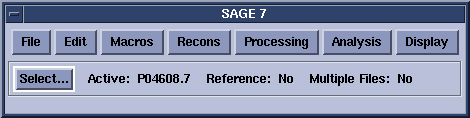
  4. Click File > Load > Rawdata to open the load raw data dialog window.
  5. When the scan is finished, click Update List to refresh the list of P files to choose from.
    Figure 10. Example of raw load window
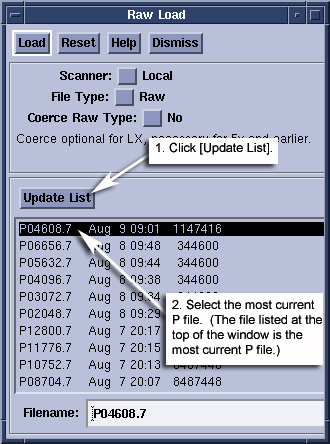
  6. The topmost P file is the latest. Select this file and click Load.
  7. In the main SAGE panel, select Macros > Func Tests > SNR Test....
  8. Move the windows around if necessary.
    Figure 11. SNR test window
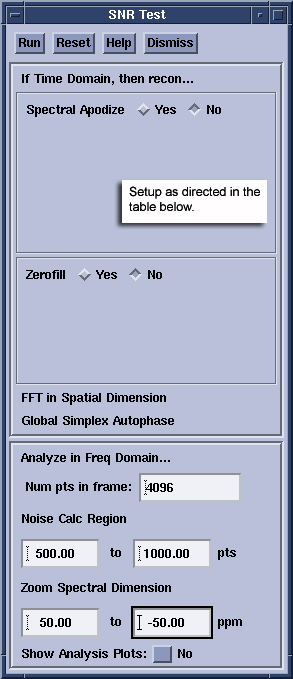
  9. Set up the SNR Test window as listed in Table 3 for the nucleus under test.
    Table 3. SNR test panel settings for 13C and 31P SNR tests
    Field 13 C setting 31 P setting
    Spectral ApodizeYESNO
    Function: Exponential
    LB 2.5 Hz
    Line Shaping NO
    Zero FillNONO
    Num pts in frame40964096
    Noise Calc Region500 to 1500500 to 1500
    Zoom Spectral Dimension50 to –50 ppm50 to –50 ppm
    Show Analysis PlotsNONO
  10. Click Run on the SNR Test window. The SNR is calculated for the active data set and reported in the command window where SAGE was started.
    Figure 12. Example of data set
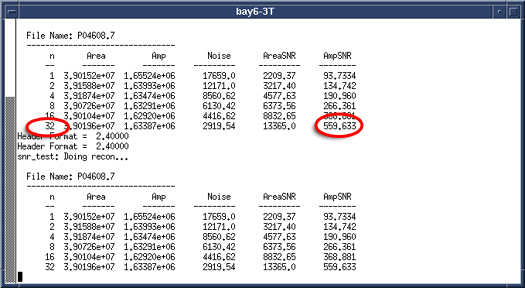
  11. Record the n=32 value for peak SNR (AmpSNR). Compare to the minimum acceptable value in Table 1
  12. Scanning and analysis
    1. See Table 3 for the nucleus under test.
    2. Record the n=32 value for peak SNR (AmpSNR). Compare to the minimum acceptable value in Table 1.
Topic ID: id_SL1777475-1046721

Noise test

About this task

If the Functional Test procedure, Functional test, has successfully completed and you now want to begin the Noise Test, select Noise Scan from the MNS Setup area and select Setup. Then proceed to Step 9.

Topic ID: id_SL2287037-1046721

Hardware setup

Procedure

  1. Install the TR module onto the top of the LPCA cover.
  2. Connect the cables to the A connector on the LPCA.
  3. Place the grafidy base plate on the patient bed near the top of the bed.
  4. Place the QA probe in the center hole of the grafidy base plate and lock the probe into place.
  5. Connect Inner DC Block between the QA probe cable and the quick disconnect module. See Figure 3.
  6. Connect the QD module to the TR module.
  7. Landmark on the center of the QA probe and advance to scan.
Topic ID: id_SL2287045-1046721

Scanner setup

Procedure

  1. Click the Worklist icon, then click the Add Pt Record icon.
  2. Type MNS (Last Name) and Setup (First Name), and press Enter for Patient Name.
  3. Type geservice and then click on Enter for Patient ID.
  4. Type 111 and click on Enter for Patient Weight.
  5. Click Show All Protocols. From the Protocol Selector library choose Service. From the list select MNS_Setup.
  6. Add the Noise Test for the nucleus under test to the Multi Protocol Basket. Click on Accept.
  7. Landmark on the center of the QA probe, if not already completed during Hardware Setup.
  8. Click Start Exam.
  9. Click Save Rx.
  10. To set the control variables (CVs), click the down arrow next to the scan option, select Research, and then select Display CVs.
  11. Set CV ia_rf1 = 0 and then click Accept.
  12. Select the down arrow next to the Scan button, click Research, and then click Download.
  13. Click Scan > Spectro Prescan.
  14. Slide R1 and R2 to the maximum position.
  15. Set TG to 0 (zero).
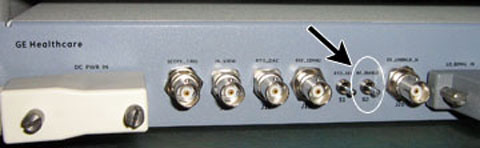
  16. Turn the RF ENABLE switch on the MNS exciter OFF by flipping it down.
    Figure 13. Location of RF switch on MNS exciter
  17. Set the top display mode to Power.
  18. Click Start. After a few seconds you should see a band of noise across the power spectrum. There should be no distinct broad peaks across the spectrum. The noise intensity should taper off near the edges.
    Figure 14. Noise test power spectrum in spectro prescan
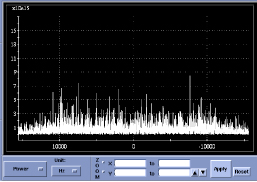
  19. The tops of the noise should be about even across the window without any peaks. Peaks in the power spectrum may indicate a source of noise in the scan room.
  20. Click Stop and then click Done.
Topic ID: id_SL2287067-1046721

Scanning and analysis

Procedure

  1. Click Scan to collect the Noise data.
  2. Switch to the Tools Workspace and open a Command Window.
    Note: The Shell window can only be launched when the EA3 user is included in the authorized EA3 group. Users not in this EA3 group will not have access to launch the Shell window. If you are not logged on as the proper logon user, log out and then log back on as the correct EA3 user with the authorized permissions.
  3. Type sage, and then click Enter to initiate the SAGE spectroscopy analysis tool.
    Figure 15. Sage window
  4. Click on File > Load > Rawdata to open the Raw Load data dialog window.
    Figure 16. Raw Load data window
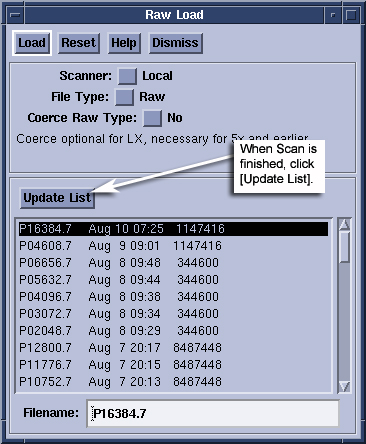
  5. When the scan is finished, click Update List to refresh the list of P files to choose from.
  6. The topmost P file is the latest. Select this file and click Load.
  7. In the main SAGE panel, click on Macros > Func Tests > SNR Test....
  8. Move the windows around if necessary.
  9. Set up the SNR Test window as listed in Table 4 for nucleus under test.
    Figure 17. SNR Test window
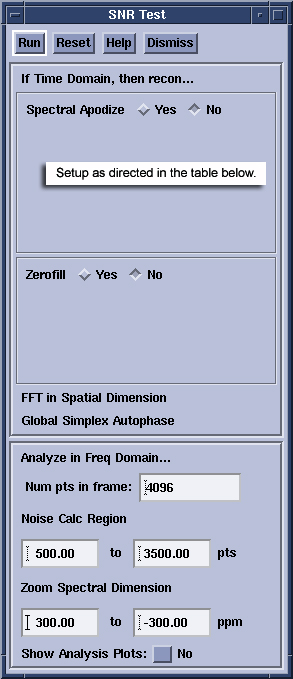
    Table 4. SNR Test panel settings for noise tests
    Field 13 C setting 31 P setting
    Spectral ApodizeNONO
    Zero FillNONO
    Num pts in frame40964096
    Noise Calc Region500 to 3500500 to 3500
    Zoom Spectral Dimension (3T)480 to –480 ppm300 to –300 ppm
    Show Analysis PlotsNONO
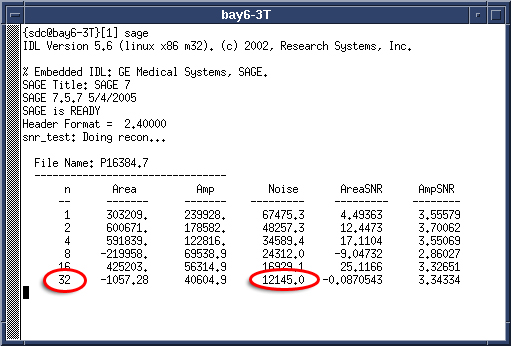
  10. Click Run on the SNR Test window. The noise is calculated for the active data set and reported in the command window where SAGE was started.
  11. Record the n=32 value for Noise. Compare to the maximum acceptable.
    Figure 18. Example of noise data
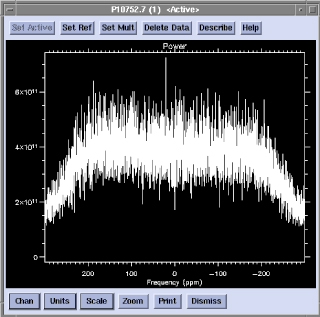
  12. In the spectrum window, select Chan, and then click on Power.
  13. The spectrum should be flat across the window with tapering to zero at each edge as shown in Table 1. Broad peaks in this window suggest unwanted noise in the scan room. Use this test as a tool for tracking down noise sources if found. There should be no distinct broad peaks across the spectrum. The noise intensity should taper off near the edges.
    Figure 19. Noise test power spectrum following calculations in SAGE
  14. To zoom out and see the full spectrum, click Zoom, then right-click in the window and select Unzoom. Right-click again and click Quit to exit the zoom control.
  15. Turn the RF ENABLE switch on the MNS exciter ON by flipping it up Figure 13.
Topic ID: id_14985230

Finalization

Procedure

  1. Remove any hardware used during system testing.
  2. Do a test scan of the system to make sure it is operating correctly.