
- SIGNA MR355 / SIGNA MR360
- Service Manual
- 5856356-3EN Revision 5.0
- Basic Service Documentation. Copyright General Electric Company.
- 00000018WIA30927640GYZ
- id_20144914.0
- Feb 21, 2021 9:06:10 PM
Grafidy - Auto mode
Auto Mode is provided to allow automatic eddy current calibration.
About this task
Auto Mode is provided to allow automatic eddy current calibration. The recommended configuration displays by default:
- All three gradients axes are selected.
- Both long and very long modes are selected with the maximum number of iterations set to 5.
With the recommended configuration, the calibration pulsing the X gradient runs until completion, followed by the Y gradient, then the Z gradient. When the very long mode is complete, the long mode is then calibrated, again starting with the X gradient, followed by the Y gradient, then the Z gradient.
When the Scan button is selected in this configuration, the very long modes are calibrated first.
Procedure
- BRM, CRM, and TRM System Selections
When working with the Body Resonance Model (BRM) or the Cardiac Resonance Model (CRM) systems, the Grafidy Tool displays with the Zero Out tab selected. You can use either Zero Out or Auto Mode tabs to complete calibration.
With the Twin Resonance Model (TRM) system, when starting the Grafidy Tool, a window displays presenting three options: Whole, Zoom, Whole and Zoom.
Figure 1. Whole, zoom, and whole and zoom options 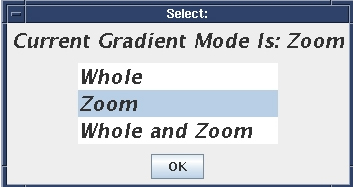
- If Whole or Zoom is selected, the gradient mode is set to the selected value and the tool looks like it does with BRM or CRM systems. Calibration in Auto mode is identical to that described above. To calibrate the other mode, exit and restart the tool, and then select the other mode in the initial popup window.
- For TRM systems, select Whole and Zoom. This selection performs a total automated process, calibrating both modes without operator interaction. The tool displays and begins the calibration in Whole mode. When complete, the tool automatically closes and then reopens to begin calibration of Zoom mode. After calibration is complete, the tool closes, and provides a results summary.
Figure 2. Results summary for whole and zoom calibration 
In each mode, the complete calibration is performed (long and very long modes with X, Y, and Z gradients applied) with the maximum iteration values for both long and very long modes set to 5. The fixture and signal checks are only performed for Whole mode. If the default short mode compensation parameters are not used for Zoom mode, a popup stating this fact is not displayed when the software is started as usual. To allow compensation to proceed without operator interaction, a popup is displayed AFTER the Zoom mode has been calibrated. The popup will be presented before calibration if the default short mode compensation parameters are not used for the Whole mode. Two log files are generated, which can be reviewed after both modes have been calibrated (see Grafidy - GE services pull-down list).