- SIGNA MR355 / SIGNA MR360
- Service Manual
- 5856356-3EN Revision 5.0
- Basic Service Documentation. Copyright General Electric Company.
- 00000018WIA30E01750GYZ
- id_20254051.8
- Jun 15, 2020 5:09:42 PM
Configuring a DICOM printer
Configure a DICOM printer.
Prerequisites
| Personnel requirements | |||
|---|---|---|---|
| Required persons | Preliminary requirements | Procedure | Finalization |
| 1 | - | 10 minutes | - |
Procedure
- From any Session tab (with the exception of Protocol session), select SHOW Filmer from the menu.
Figure 1. SHOW Filmer option 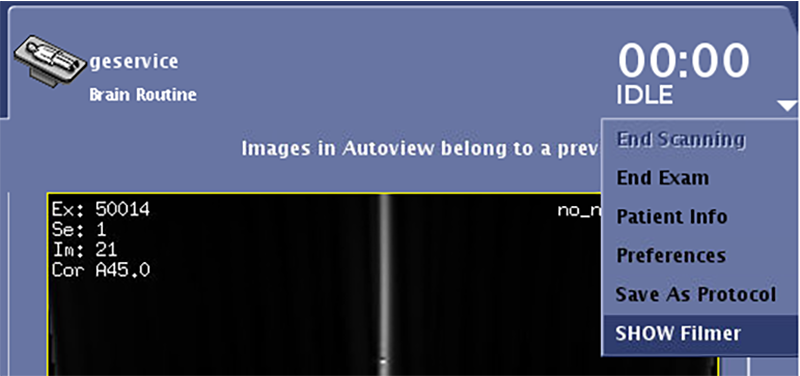
- Click Configure in the FilmComposer window.
Figure 2. FilmComposer window 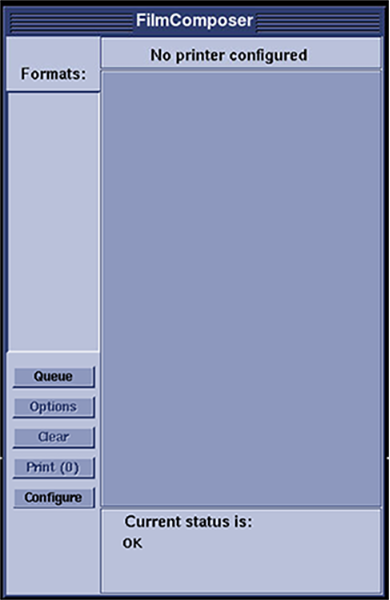
- Click Add in the Remote printer configuration window.
Figure 3. Remote printer configuration window 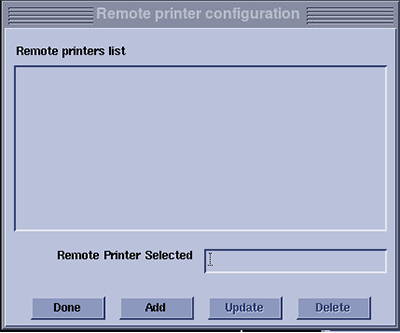
- In the Type of Laser Camera dialog window, click Dicom.
Figure 4. Type of Laser Camera dialog window 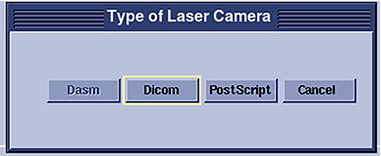
- Select the camera from the Camera Config List and click Select.
Figure 5. Camera Configuration Dialog (DICOM) window 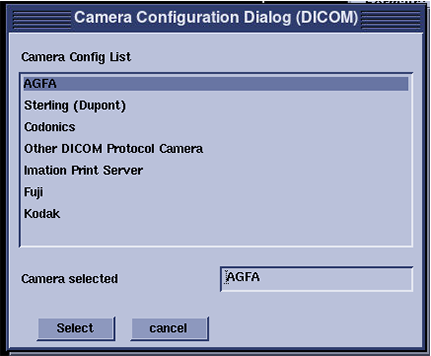
Result
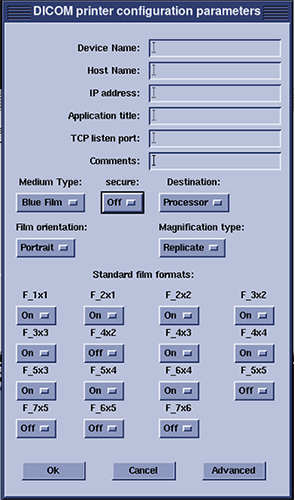
The DICOM printer configuration parameters window displays. - Configure the parameters as applicable and click OK.Note: The secure option can ONLY be set to On in case the third-party certificate from the printer is available and is imported into the MR System through certificate management. This will enable DICOM over TLS printing. For more information, see Importing and exporting TLS certificates.
Figure 6. DICOM printer configuration parameters window