- Discovery MR750 3.0T System Service Methods
- 5690009-2EN Revision 4
- 00000018WIA305CDF20GYZ
- id_131065213.2
- Oct 13, 2021 1:57:30 PM
Dell T5810 Computer Replacement
Prerequisites
| Required persons | Preliminary requirements | Procedure | Finalization |
|---|---|---|---|
| 1 | Not Applicable | 60 minutes | 120 minutes |
| Item | Quantity | Effectivity | Part number | Manufacturer |
|---|---|---|---|---|
| Screwdriver set | 1 | - | - | - |
| Disk Management Tool | 1 | - | - | - |
| Item | Quantity | Effectivity | Part number | Manufacturer |
|---|---|---|---|---|
| GE equipment maintenance sticker | 1 | - |
Refer to FRU manual | - |
| Item | Quantity | Effectivity | Part number | Manufacturer |
|---|---|---|---|---|
| Dell T5810 computer | 1 | - |
Refer to FRU manual | - |
| Dust filter (if needed) | 1 | - |
Refer to FRU manual | - |
| ||||
About this task
This procedure provides instruction to replace the host computer with a Dell T5810 computer.
Prepare Workstation for Host Computer Removal
Procedure
Remove Host Computer from GOC
Procedure
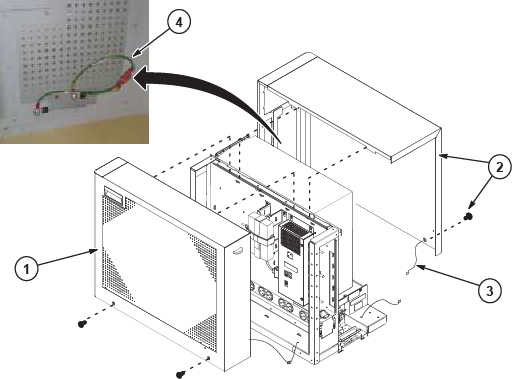
- Remove the two screws that secure the left side panel of the
GOC.Note: The side panel has a short ground lead connecting it to the main chassis. When removing the side panel, do not strain this ground lead.
Figure 1. Remove GOC Left Side Cover 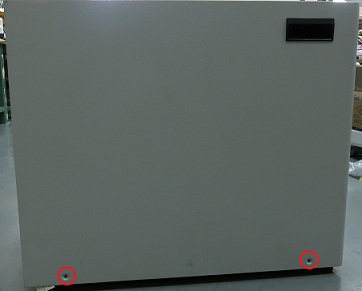
- Disconnect the short ground lead that connects the side panel
to the GOC main chassis at the center of the lead.
Figure 2. Left Side Panel Ground Lead 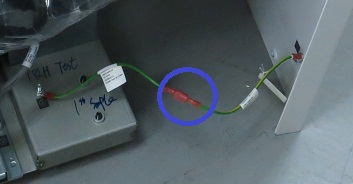
- Remove all the cables connected to the host computer.
Confirm that the cables are properly labeled. Note their locations for reattachment.
Figure 3. Dell T5810 Cable Configuration 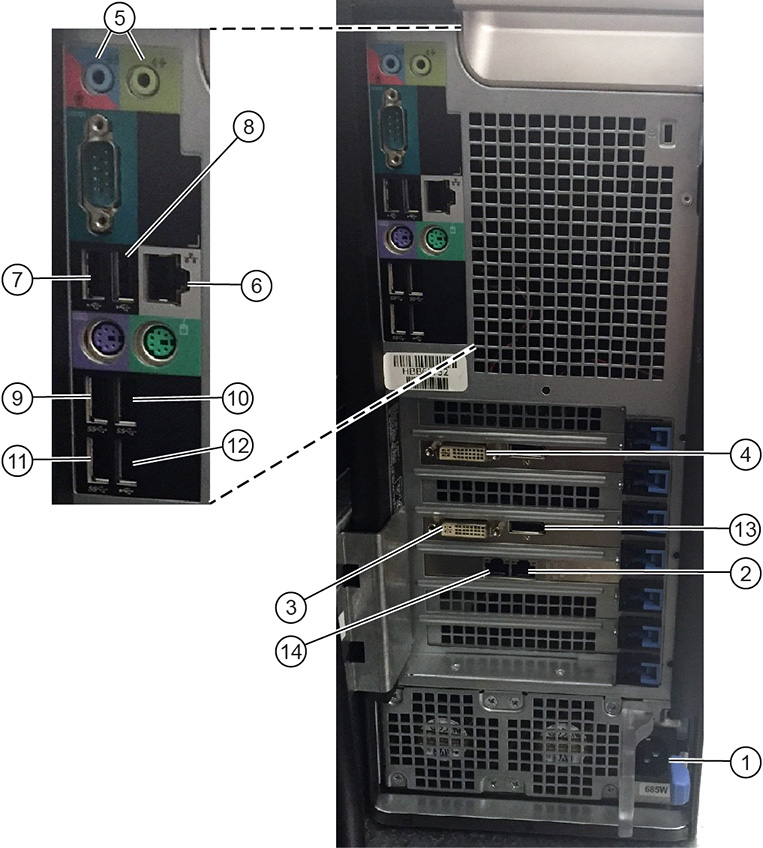
Item Description 1 Power supply 2 Ethernet cable to PGR J2 3 IRDC connection to LCD monitor 4 System monitor connection to LCD monitor 5 GOCAA (line in, line out) 6 For older GOCs which include an 8-port hub, route and connect Ethernet cable from GOC hub to this port. For newer GOCs without a hub, this port is available for connecting to a service laptop, site network, or AW option. If connection to multiple Ethernet devices is required, a customer-supplied switch must be used.
7 IRDC USB ports 8 USB serial converter 9 USB extender cable 10 Brainwave option accessory USB cable 11 Mouse USB cable 12 Keyboard USB extension cable 13 Brainwave option video cable 14 Not used Note:For older GOCs which include an 8-port hub, route and connect Ethernet cable from GOC hub to this port.
For newer GOCs without a hub, this port is available for connecting to a service laptop, site network, or AW option. If connection to multiple Ethernet devices is required, a customer-supplied switch must be used.
Upgrading to Dell Host PC
About this task
The mounting brackets must be replaced for upgrading a different host PC to the Dell T5810.
-
Cables routed to the existing PC can be reused for connecting to the new PC.
-
Remove cable ties as necessary to make it easier to remove the cables that are routed into the PC.
Procedure
- Make sure all cables are identified and marked as you disconnect
them from rear of the PC. Disconnect all cables.
Figure 5. Mounting Bracket Removal 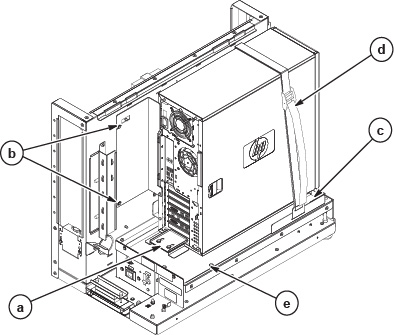
- Install the new PC mounting brackets.
- Install the new chassis with the four M5 fasteners previously removed.
- Install, but do not tighten, the rear side bracket with the two M4 fasteners previously removed.
- Install, but do not tighten, the side bracket with the two M4 fasteners previously removed.
- Install the strap in the chassis slots.
Figure 6. Mounting Brackets Installation 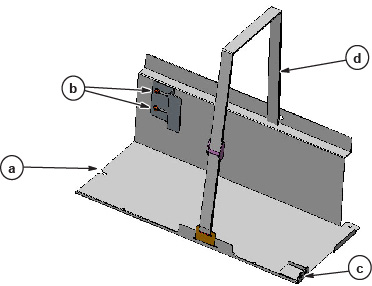
- Install the Dell T5810 PC as follows:
- Slide the Dell PC into place. Fasten it securely with the rear and side brackets and the strap.
- Install the HOST ID label as shown in the illustration below.
Figure 7. Dell T5810 PC Placement 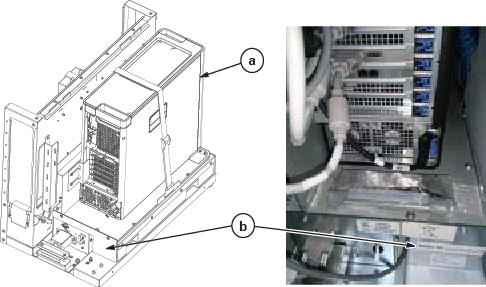
- Install the dust filter.
- Remove the Velcro strips from the back of dust filter and apply them to front of Dell PC as indicated.
- Press the dust filter into place. Make sure that the filter is tight to the curved corner.
Figure 8. Dust Filter 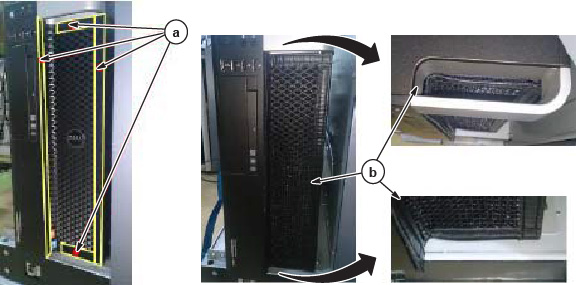
- Prepare the new GOC cover.
- Install the cover to the grill ground cable removed from the old cover.
- Install the ground cable removed from the rear of the old cover.
- Make sure that the teeth side of the washers are in contact with the cover sheet metal.
- Apply the three Earth labels next to the ground connections as shown.
Figure 9. GOC Cover for Dell T5810 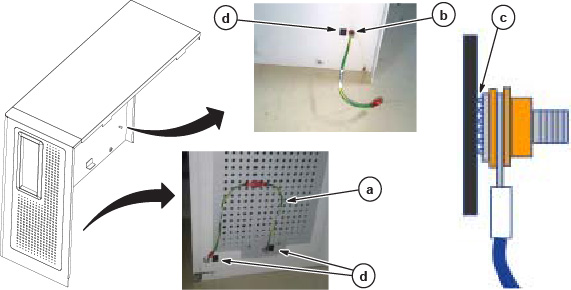
Install New Host Computer
Procedure
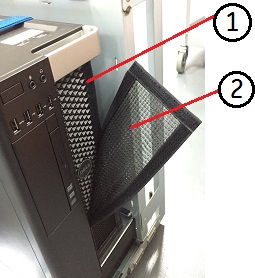
- Remove the dust filter (2) and Velcro strips (1) from the old
computer, and install them on the new computer. If the old filter
or Velcro strips are not reusable, install a new set.
Figure 10. Dust Filter