• Discovery MR750w and SIGNA™ Architect T 3.0T System Service Methods
  • 5690002-2EN Revision 4
  • Object ID: 00000018WHA307E62GYZ
  • Topic ID: id_2001477 Version: 7.0
  • Date: Feb 3, 2021 10:18:39 PM

Setting the time, time zone, and date

Set the time, time zone, and date in Guided Install.

Prerequisites

Personnel requirements
Required personsPreliminary requirementsProcedureFinalization
1-5 minutes-

About this task

Note: The Set Time/Date option is not set using the Configure button. This window has separate buttons for configuring the host computer time and date.

If available, NTP server configuration can be done to synchronize the MR Scanner date/time automatically with an NTP server on site. An NTP server and IP address are required. See Synchronizing NTP server time.

Procedure

  1. Launch Guided Install in FE Mode.
  2. At the password prompt, type operator.
    Note: It is possible that the customer changed the default password. If you cannot log in, contact the customer for the correct password.
  3. In the left navigation panel select Basic Configuration > Set Time/Date.
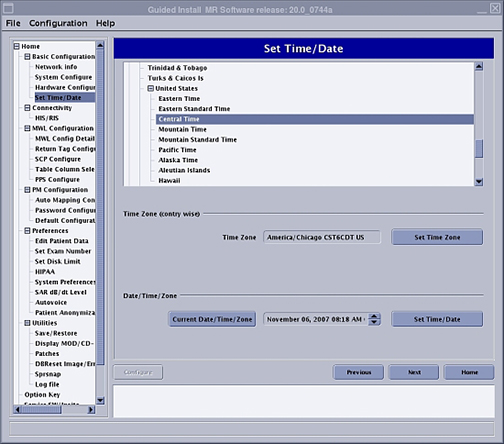
  4. On the Set Time/Date page, set the time, time zone, and date appropriately.
    Figure 1. Set time zone/date
  5. Restart the host computer. Changes will not take effect until the host computer restarts.
  6. Make sure that the date, time zone, and time are correct.
    1. Launch an xterm command line window.
      Note: The Shell window can only be launched when the EA3 user is included in the authorized EA3 group. Users not in this EA3 group will not have access to launch the Shell window. If you are not logged on as the proper logon user, log out and then log back on as the correct EA3 user with the authorized permissions.
    2. Type date and press Enter to see the current time, date, and time zone.