
- Discovery MR750w and SIGNA™ Architect T 3.0T System Service Methods
- 5690002-2EN Revision 4
- 00000018WIA30525880GYZ
- id_20349121.9
- Feb 8, 2022 8:44:18 AM
Calibrating the Eizo EV2430 24-inch monitor
Procedure
- Refer to the figure and table below for locations and descriptions of the Eizo monitor controls.
Figure 1. Front panel controls 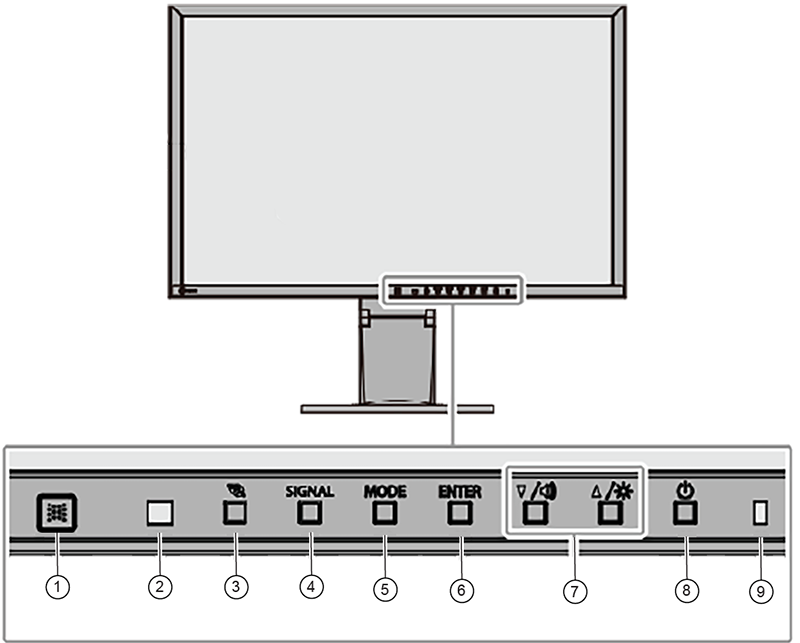
1 EcoView sense sensor Detects movement of a person in front of the monitor 2 Ambient light sensor Detects ambient brightness 3  button
Displays the power saving setting menu 4 SIGNAL button Switches input signals for display 5 MODE button Switches the color mode 6 ENTER button Displays the Settings menu, selects an item on the menu, and saves. 7 ▲ / [Volume icon], ▼/ [Brightness icon] - Controls navigation and adjusts settings
- ▲ / [Volume icon] : Displays the volume adjustment menu
- ▼ / [Brightness icon] : Displays the brightness adjustment menu
8  button
Turns power on or off 9 Power indicator Indicates Monitors operation status - White: Operating
- Orange: Power saving mode
- Off
Figure 2. Rear Panel Controls 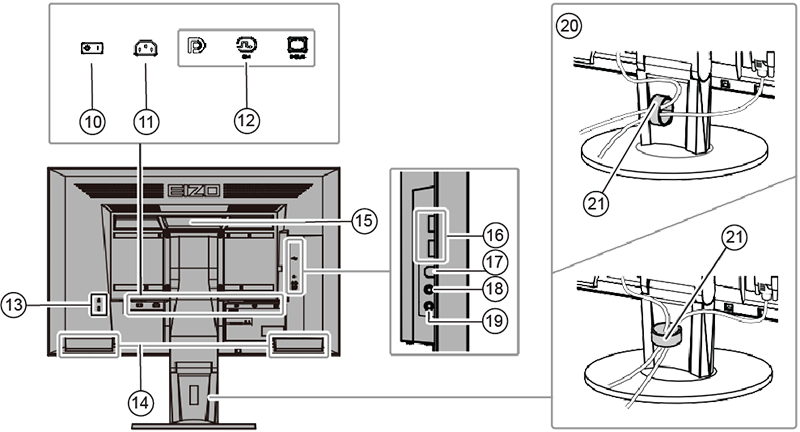
10 Main power switch Turns the main power on ( | ) or off ( O ). 11 Power connector Connects the power cord 12 Input signal connector Left: DisplayPort
Center: DVI-D
Right: D-Sub mini15-pin
13 Security lock slot Complies with Kensington’s MicroSaver security system 14 Speaker Outputs audio 15 Handle Handle used for transportation 16 USB downstream port Connects a peripheral USB device. 17 USB upstream port Connects the USB cable for using the USB Hub function 18 Headphone jack Connects the headphones 19 Analog audio input connector Outputs external audio from the monitor 20 Stand Adjusts the height and angle (tilt and swivel) of the monitor 21 Cable holder Manages cables - Display the settings menu.
- Press Enter to display the setting menu.
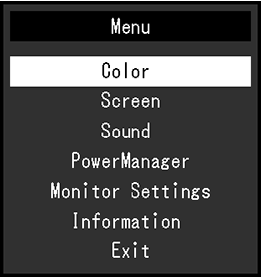
Note: Default display settings for Eizo EV2430Color sRGB Color Temperature 6500K Display Transfer function Gamma2.2 Brightness Preset at 80% - Press Enter to display the setting menu.
- Adjust settings
- Select a setting to adjust with ▲▼ and then press Enter. The setting submenu displays.
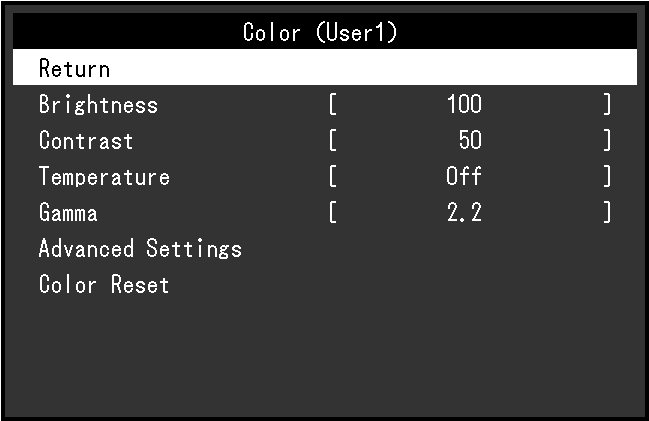
- On the submenu, select a setting to adjust with ▲▼ and then press Enter. The adjustment menu displays.
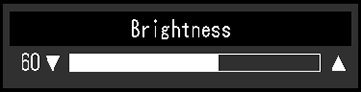
- Select a setting to adjust with ▲▼ and then press Enter. The setting submenu displays.