
- SIGNA MR355 / SIGNA MR360
- Service Manual
- 5856356-3EN Revision 5.0
- Basic Service Documentation. Copyright General Electric Company.
- 00000018WIA30D37E20GYZ
- id_131071003.0
- Aug 29, 2019 1:36:27 AM
Grafidy Manual Mode Procedure
Prerequisites
| Required persons | Preliminary requirements | Procedure | Finalization |
|---|---|---|---|
| 1 | - | - | - |
| Condition | Reference | Effectivity |
|---|---|---|
|
The Automatic Mode Should be Used for most proposes. Only use manual mode if required for touch up. | - | - |
|
System has bee configured and configuration tested in order to run Grafidy 3 | - | - |
Manual Mode
About this task
If for some reason the Auto Mode procedure does not bring one or more of the numeric output final values of your system completely into specification, you may continue adjusting the out-of-specification values using Manual Mode.
Procedure
- After the Auto Mode scanning is complete, choose the Manual Mode Tab.
See Figure 1.
Figure 1. Manual Mode Tab 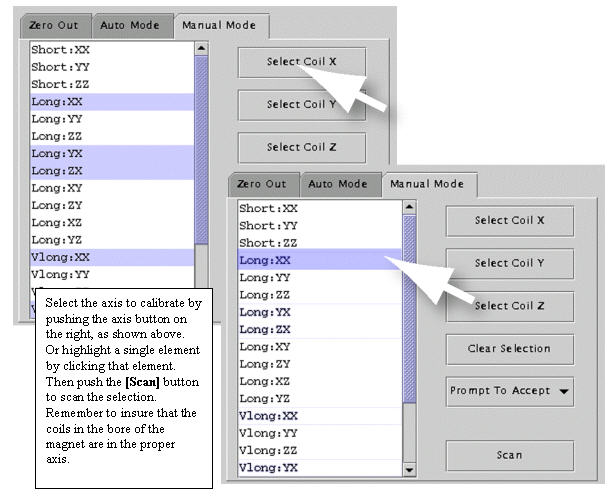
- After the scan is complete, a plot window will pop up that is similar
to the one in Figure 2. Notice
that there are two buttons that read Accept and Cancelin
the lower right corner.
Figure 2. Results Window with Accept/Cancel Buttons 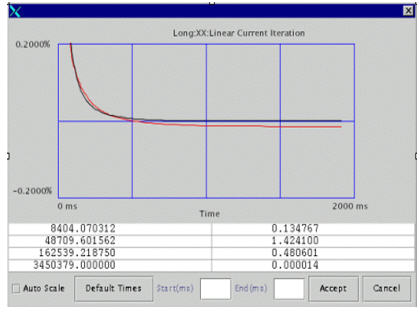
Examining a Fit
Procedure
- Refer to Figure 3. If the
two lines plotted appear to be similar in shape, the fit is probably good.
To get a closer look at any one plot, you can choose the “Auto-Scale”
function (the auto-scaled fit may appear to worsen as the display scale changes).
To focus on the front of the plot only, choose an End point (e.g., 100 ms). The default is 2000 ms.
Figure 3. Examining a Fit 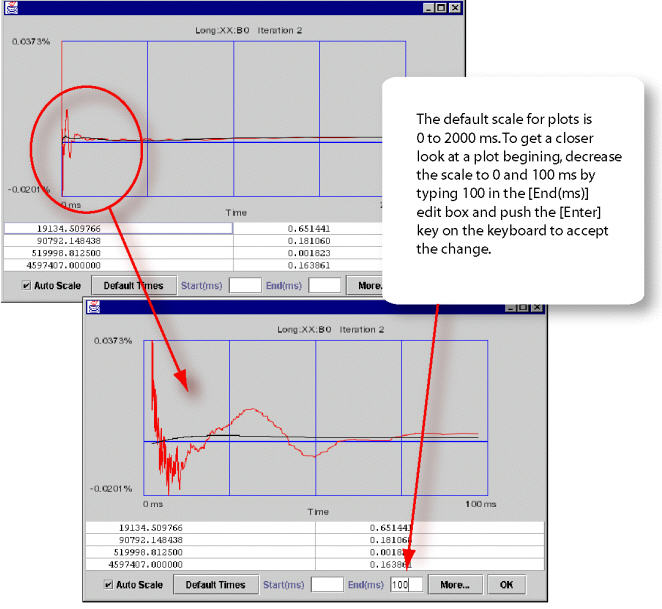
Figure 3 has the same plots except the first one uses default time scale (0 to 2000 ms) and the second one uses time scale of (0 to 100 ms) therefore enlarged the portion of 100 ms.
It is interesting to note that the measured curve (red) and fitted curve (black) in the Figure 3 example have very little in common (especially at the first 100 ms, where the fitted curve is cutting through the measured curve). So, it is very unlikely that any further iteration will improve eddy current compensation and get rid of the “oscillatory” behavior of the start portion of the plot. In this case, system limits have been reached. If the curve of the black line more closely matched that of the red, then another iteration would most likely improve eddy current compensation.
- To set the vertical scale in “non-auto scale mode” to a
set of values, in addition to the default value 0.2, by right clicking the
“drawing area” of the pop-up and then selecting the scale you
want. This is useful when you want to do a side-by-side comparison on the
same scale other than default. See Figure 4.
Figure 4. Setting Auto-Scale Mode 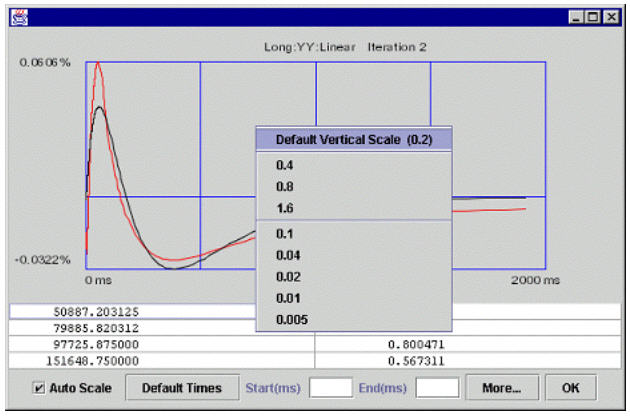
Accept Policies
Procedure
- There are 3 accept policies in manual mode: Prompt to Accept,
the default, or . See Figure 5
Figure 5. PROMPT TO ACCEPT 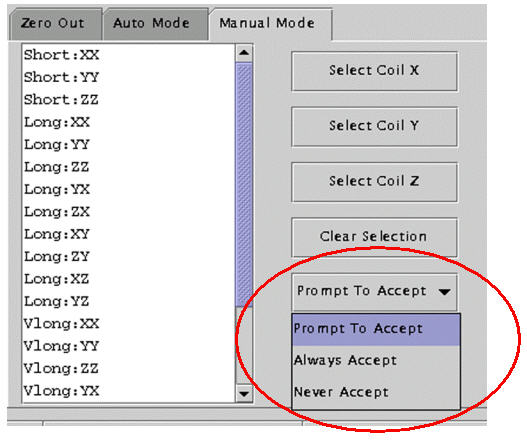
-
will show you what a fit looks like. Based on how good the fit looks, you can decided whether to accept or not.
-
will always accept the fitted cal values. New values are accepted automatically without further intervention.
-
will never accept the fitted cal values. This is useful when you're doing a “check only.”
-
Conditions Column
Procedure
- If a cell in the column “Conditions” is selected (long xx
linear in this example), and then you click the Show button,
you'll see a pop-up like the one shown in Figure 6 (along with the first iteration’s popup). The pop-up
lists:
Figure 6. CONDITIONS CELL [SHOW] EXAMPLE POPUP 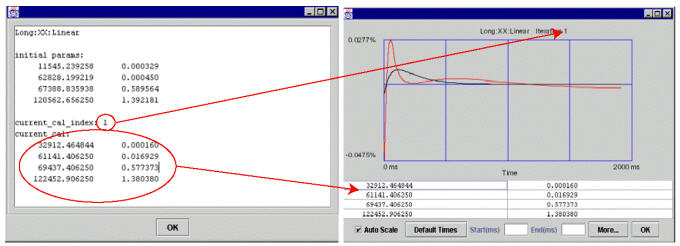
-
Initial cal values (initial parameters) of the component (long xx linear in this example) (the cal values of the component when Grafidy 3 was invoked). See Selecting Previous Interations for more information.
-
The current cal index = 1, which means that currently the cal values in the cal file (gafidyx.cal) and in the hardware/pre-emphasis were generated by iteration 1, and
-
The current cal values are also listed.
-
Finalization
Finalization
No finalization steps.