
- SIGNA MR355 / SIGNA MR360
- Service Manual
- 5856356-3EN Revision 5.0
- Basic Service Documentation. Copyright General Electric Company.
- 00000018WHA165FC0GYZ
- reference_qgr_wsm_cnb1.6
- Oct 22, 2020 6:27:46 PM
Troubleshooting tools
Learn which tools to use to resolve issues that arise during an IPM implementation.
This topic provides an overview of how to identify and resolve issues that arise during the course of an IPM implementation.
You will need to obtain information from the imaging device and provide them along with details of the problem to the or IPM Support Engineer, who will assist in resolving the issue.
In most instances, you will use one or more of the following methods on the imaging device to identify a problem. You will find the detailed information you need to resolve problems in the documentation for your imaging device. For details of device manuals, see topic Related documents.
Here is an overview of the typical methods for troubleshooting IPM-device issues.
Execute curl commands
- What:
- Client URL (cURL) is a command-line tool to transfer data between a client and a server using a network protocol. For the HTTPS protocol, cURL verifies the SSL certificate on the server. Command-line options specify the data to be transferred.
- Why:
- In an IPM implementation, you run cURL commands to check network connections between an imaging device and the IPM application on the cloud. The cURL commands simulate activities the IPM application will perform when communicating with the IPM servers on the , for example accessing the IPM configuration server.
- When:
- You typically run cURL commands during the Configuration phase of an IPM implementation. You may also run them during the Maintenance phase to troubleshoot a network issue.
- How:
- You run cURL commands from a command-line shell on an imaging device console. You also can request the customer's IT/network system administrator to run them from another computer on their network. For example, to check the DNS server connection between an imaging device and IPM:
curl —v —k https://apps.protocols.gehealthcloud.com/ipmcon_pmapi2/ipm/v2/deviceconfig - Where:
- In the documentation for your imaging device, search for curl to locate the appropriate cURL commands for your device. You can find a full list in this GE box folder: China Commercial URLs and cURL Commands.
Run diagnostics
- What:
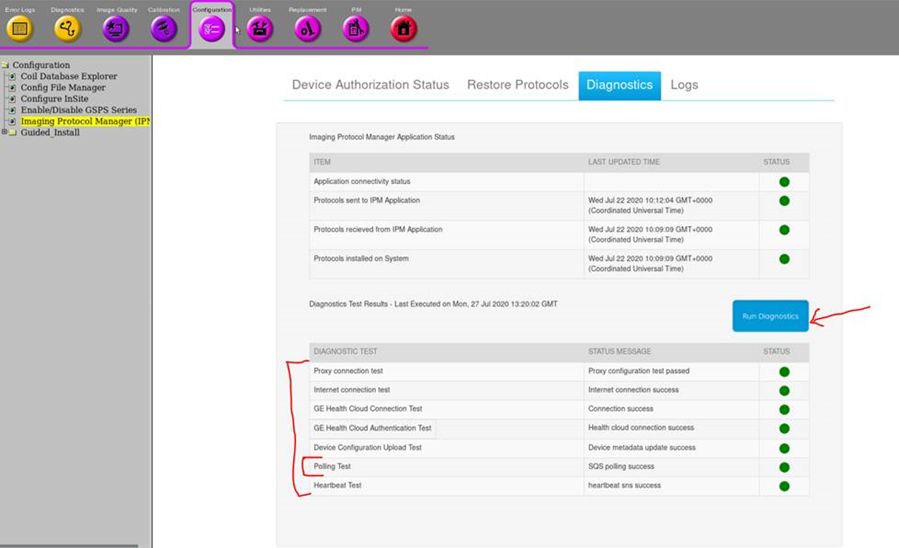
- Diagnostics determine the status of IPM-device connections as well as of protocol exchanges.
- Why:
- You run diagnostics to check connectivity status issues.
- When:
- You typically run diagnostics during the reinstallation or Maintenance phases of an IPM implementation.
- How:
- You run diagnostics from the imaging device. For example:
- Where:
- In the documentation for your imaging device, search for diagnostics to locate the appropriate diagnostics steps for your device.
View logs
- What:
- Logs record transactions between the imaging device and the IPM application on the cloud.
- Why:
- You view logs to check transaction issues.
- When:
- You typically run diagnostics during the Preinstallation or Maintenance phases of an IPM implementation.
- How:
- You view logs from Logs tab in the Service Browser on the imaging device.
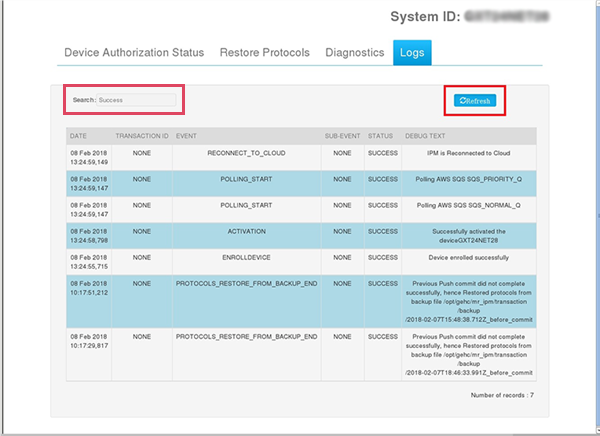 Use these controls at the top of the page to manage the logs displayed:
- Search: Enter text to locate a specific transaction. For example, enter PULL to display the logs related to completed PULL transactions. Enter Success to display the logs for transactions with a status of Success.
- Refresh: Click this button to update the display of logs on this page.
- Where:
- In the documentation for your imaging device, search for logs to locate the appropriate log information for your device.