- SIGNA MR355 / SIGNA MR360
- Service Manual
- 5856356-3EN Revision 5.0
- Basic Service Documentation. Copyright General Electric Company.
- 00000018WIA302EA940GYZ
- id_20160035.0
- Feb 21, 2021 9:00:57 PM
Troubleshooting the software load
Troubleshoot possible errors that may occur during the USB software load process.
Use the following table to troubleshoot possible errors that may occur during the USB software load process, along with the possible root cause and related actions. For any additional errors other than those listed in this table that may appear (low probability), re-try the software load.
| Error message | Action |
|---|---|
| Partition/volume group related errors | Possible root causes could be insufficient disk space or a problem with disk cleaning. Make sure the hard drives are properly seated and retry. If the error persists, try replacing HDD/SSDs. |
| Nvidia driver related errors | Make sure your hardware configuration (for example, graphics card) is compatible. |
| Failed during hard drive partitioning | Possible root causes could be insufficient disk space or a problem with disk cleaning. Make sure the hard drives are properly seated and retry. If the error persists, try replacing HDD/SSDs. |
| Failed LVM HDD Partitioning | Possible root causes could be insufficient disk space or a problem with disk cleaning. Make sure the hard drives are properly seated and retry. If the error persists, try replacing HDD/SSDs. |
| SaveInfo was incomplete, corrupted or missing | Retry SaveInfo if disc is available. If not, use Guided Install to manually configure and correct all failures in the Verification tab. |
| Failure to load restricted services | The SSA key not detected during install. Use Guided Install to manually load restricted services. |
| Failure to configure VRE | Use Guided Install to check your system configuration and manually configure the VRE. |
Blank (frozen) screen during software load
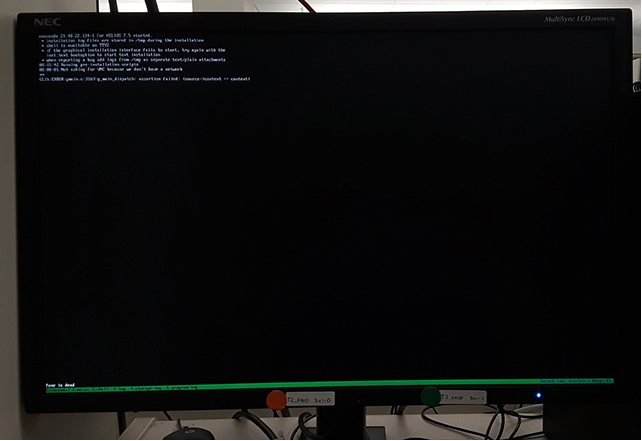
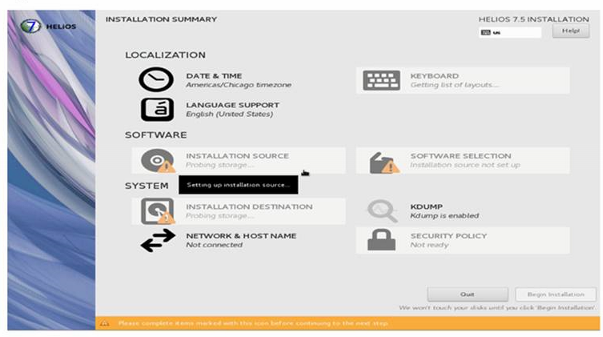
At times during the software load, the screen may freeze at either a black command prompt screen or at the installation summary screen due to a known Red Hat bug (bug ID 1432436). If this occurs, you must restart the software load from the beginning.
Pressing Ctrl + Alt + F2 brings up the Command prompt screen with the Pane is dead message as shown below.