
- SIGNA MR355 / SIGNA MR360
- Service Manual
- 5856356-3EN Revision 5.0
- Basic Service Documentation. Copyright General Electric Company.
- 00000018WIA30715E20GYZ
- id_131061612.6
- Nov 9, 2020 8:30:14 AM
Customer password management process
This document describes the process of how to manage the root password for those customers that are looking to improve the security level of their system. It also contains information on how to generate a more robust password to reduce the security risk which simple passwords present.
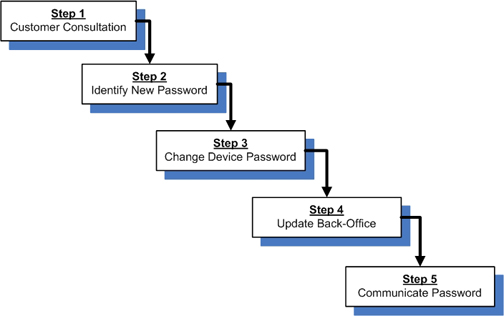
Customer consultation
When the customer or GE initiates this process, the GE FE is to coordinate a customer consultation to discuss password provisions. As a result of that meeting, the following process (Sections 2 through 5) must be followed to complete the password change accurately.
Identify new password(s)
The customer may request specific passwords. If this is the case, get the passwords from the customer and move on to Change device password(s).
If a new password is to be created, the FE should do so in the following ways:
- If required, use customer rules and guidelines for password creation.
- If the customer does not have a defined set of rules or guidelines, use the following guidelines to develop a strong password:
- Must be 8 characters minimum.
- Cannot be blank or left as the default.
- Should contain a mix of numbers, alpha, and special characters.
- Must not be made up solely of dictionary words.
- May contain the system ID with at least 1 more character.
- Should not be the same value at different sites.
Each account on a single system should have a unique password. For example, the "root" and "insite" accounts should have different password values from each other. Using the same password for multiple accounts on a system will remove roll-based access and decrease the level of security on a system.
For productivity, the same password value for a single account can be used on multiple systems at a site or customer. For example, the "insite" user could have the same non-default password value on 3 different systems in a hospital. However, make sure not to use the same value over multiple sites or across a region, because that would essentially duplicate the original default value problem this service note attempts to resolve.
| Good password examples | Bad password examples |
| !414555MR5 4$42CTAW #big996622LS16 | 414555MR5 operator 123456789a |
Change device password(s)
After the password is identified, the FE should make the password changes on the device following the detailed instructions for either the LINUX Operating System (For linux operating systems) or the IRIX Operating System (For IRIX operating systems).
For linux operating systems
For root owner level
- Open a ShellNote: The Shell window can only be launched when the EA3 user is included in the authorized EA3 group. Users not in this EA3 group will not have access to launch the Shell window. If you are not logged in as the proper logon user, log out and then log back on as the correct EA3 user with the authorized permissions.
- Login as root owner
- Type: su<Enter>
- Type: root password<Enter>Note: It is possible that the customer changed the default password. If you cannot log in, contact the customer for the correct password.
- Type: passwd<Enter>
- New LINUX account password: Password Identified in Section 2<Enter>
- Retype new LINUX account password: Password Identified in Section 2<Enter>
- Type: exit<Enter> (To exit root level)
- Type: exit<Enter> (To close the shell)
- Continue to change sdc or signa password or proceed to Update Password(s) in Connectivity Database.
For sdc or signa owner level
-
Open a ShellNote: The Shell window can only be launched when the EA3 user is included in the authorized EA3 group. Users not in this EA3 group will not have access to launch the Shell window. If you are not logged in as the proper logon user, log out and then log back on as the correct EA3 user with the authorized permissions.
- Login as sdc or signa
- Type: sdc or signa<Enter>
- Type: sdc/signa password<Enter>
- Type: passwd<Enter>
- New LINUX account password: Password Identified in Section 2<Enter>
- Retype new LINUX account password Password Identified in Section 2<Enter>
- Type: Exit (To exit sdc or signa level)
- Type: Exit (To close the shell)
- Proceed to Update Password(s) in Connectivity Database. (Or continue to change insite password)
For insite owner level
- Open a Shell and Login as insite:Note: The Shell window can only be launched when the EA3 user is included in the authorized EA3 group. Users not in this EA3 group will not have access to launch the Shell window. If you are not logged in as the proper logon user, log out and then log back on as the correct EA3 user with the authorized permissions.
- Type: insite<Enter>
- Type: insite password<Enter>
- Type: passwd<Enter>
- New LINUX account password: Password Identified in Section 2<Enter>
- Retype new LINUX account password: Password Identified in Section 2<Enter>
- Type: exit<Enter> (To exit insite level)
- Type: exit<Enter> (To close the shell)
- Proceed to Update Password(s) in Connectivity Database.
For IRIX operating systems
- Type: su<Enter>
- Type: current root password<Enter>
- For sdc or signa Owner Level:
- Type: passwd sdc<Enter> or passwd signa<Enter>
- Type the new IRIX account password: Password Identified in Section 2<Enter>
- Retype new IRIX account password Password Identified in Section 2<Enter>
- Type: exit<Enter> (To exit root level)
- Type: exit<Enter> (To close the shell)
- Continue to change root password or proceed to Update Password(s) in Connectivity Database.
- Type: passwd sdc<Enter> or passwd signa<Enter>
-
For root Owner Level:
- Type: passwd<Enter>
- Type the new IRIX account password: Password Identified in Section 2<Enter>
- Retype new IRIX account password Password Identified in Section 2<Enter>
- Type: exit<Enter> (To exit root level)
- Type: exit<Enter> (To close the shell)
- Continue to change insite password or proceed to Update Password(s) in Connectivity Database
- Type: passwd<Enter>
- For insite Owner Level:
- Type: passwd insite<Enter>
- Type the new IRIX account password: Password Identified in Section 2<Enter>
- Retype new IRIX account password Password Identified in Section 2<Enter>
- Type: exit<Enter> (To exit root level)
- Type: exit<Enter> (To close the shell)
-
Proceed to Update Password(s) in Connectivity Database.
- Type: passwd insite<Enter>
Update Password(s) in Connectivity Database
To checkout the system password follow the this procedure:
- To re-checkout the system password, select the most appropriate procedure for your region:
Region Contact Info AMERICAS (US, Canada and LatAm) USCAN toll-free Connectivity Support/Checkout direct number: 877-842-1132 EU and EMEA Connectivity Support (OLC support line): +33 1 30 83 13 00 Then select from menu: Connectivity, and Broadband & checkout. APAC Japan - Connectivity Support: 0120-596-919 ROA – contact OLE or connectivity champion for re-checkout for that area. China You can reach at 800-810-8188 /400 812-8188 to get either connectivity team support on connectivity issue or OLE for system checkout/re-checkout. India You can reach at 1800 102 7750 (India Call Center) ext 4 for support or for system checkout/re-checkout. - Inform the technician you are making password changes. Provide the System ID, and ask them to do a checkout with all the new password values.
- The checkout technician will verify the system ID and new password values. To reduce miscommunication of the password verbally, consider using the phonetic alphabet. shown in Table 1.
- The technician will run a checkout and password verification procedure to update the password(s) and inform you when the process is complete.
| A - Alpha | B - Bravo | C - Charlie | D - Delta |
| E - Echo | F - Foxtrot | G - Golf | H - Hotel |
| I - India | J - Juliet | K - Kilo | L - Lima |
| M - Mike | N - November | O - Oscar | P - Peter |
| Q - Quebec | R - Robert | S - Sierra |
T - Tango |
| U - Umbrella | V - Victor | W - Whiskey | X - X-Ray |
| Y - Yankee | Z - Zulu |
Communicate new password(s)
After completing the checkout, follow your customer’s guidelines for password communication and storage. Inform the customer of the new passwords with the exception of those used for remote service only (e.g. insite). If the customer approves, write down the new passwords and store them in a secure location on site. Sample password log form to place in a logbook or tape inside a cabinet. In the situation where a customer wants to know more about what GE does with passwords, escalate to the service security team (http://supportcentral.ge.com/products/sup_products.asp?prod_id=24038)
Deviations
In the case where a customer directly calls the OLC requesting a password update, the online engineer should follow the same steps outlined in this document. Some online engineers have access to make password changes in the back office databases, so they may execute Update Password(s) in Connectivity Database themselves without calling the checkout team.