
- 00000018WIA308A3360GYZ
- id_20302482.0
- Feb 24, 2021 2:43:42 AM
Observing system tray status icons
The system tray status icons provide information on the status of the Remote Software Download (RSD).
About this task
| Icon | Status |
|---|---|
 |
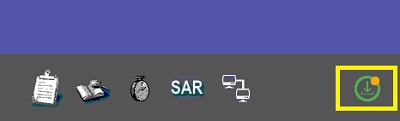
The Download icon displays when a software is available for download ( Click the icon to see an information screen about the Service Pack. Click Close to close the information screen. After you start the download, the icon updates as the download progresses, for example:
|
 |
The Resume icon displays if you have paused an install by clicking the Pause Download icon. You can toggle between the Pause Download and Resume icons. 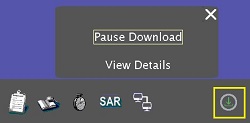 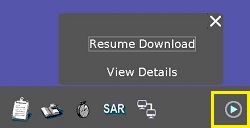 |
 |
The Install icon displays when a Service Pack has been successfully installed. The icon automatically turns off 20 seconds after it is displayed. |
 |
The Fail icon displays when a Service Pack has failed to install. The icon automatically turns off 20 seconds after it is displayed. |
 |
The Backoffice icon displays when the MR system is connected to Backoffice. The frequency at which the system checks Backoffice for software updates is every 24 hours. |
 25% completion
 50% completion
 75% completion
 100% completion