- Topic ID: id_15460198
- Version: 6.0
- Date: Dec 28, 2021 10:09:22 PM
Planned Maintenance Schedule C
1 Schedule C Overview
Complete Schedule C one third of every year. This schedule includes a general cleaning and inspection of the Gantry, Console and Table. In addition, you will inspect any Options installed at the customer site. The tools, test equipment, and consumables listed here are needed to complete Schedule C.
Every site must maintain a site log. It can be a GE Site Log, or a notebook or binder that you create. A System Service History also is available through iCenter or ISD tools.
When reviewing the error logs, or during the course of the PM, if you find anything that you determine is critical to quality or to the operation of the system, then you should record it on the PM Report Form, and schedule additional time for specific corrective action.
You will need to open the PM Report form that corresponds to this PM Schedule. (The form is located on the CD/DVD under Planned Maintenancee and Tasks>PM Data Reports folder.) Fill in the Report form as you complete the PM Schedule. Print one copy for your Site Log. You may need to print a second copy for the customer, if requested.
2 Personnel and Time Requirements
3 Tools and Test Equipment
4 Consumables
5 Preliminary Requirements
You may do any of the following remotely, if possible.
-
Before beginning this PM Schedule, verify that the last PM Schedule completed was Schedule B.
-
Determine if any PM tasks were completed earlier as part of a service action.
note:If you changed a tube within the last 12 months, you do not need to do the following PM procedures:
-
Gantry Verification (including HV Tank Feedback Resistor Verification and Meter Verification).
-
HHS Scans
-
-
Inspect the console error logs:
-
Check GEsys*.log for Application Stops and Starting.
egrep "System Software|20000234|200520024|200002380|Software Initialization" gesys_*.log|more;
-
Check /var/log/messages for Linux reboots and shutdowns, and how long since the last reboot.
cd /var/log;egrep "restart|shutdown" messages; w;
-
-
Record the number of gantry revolutions on the PM Report Form. To find the number of revolutions:
-
Open a Unix shell.
-
Type: RTSViewer -D
-
6 Initial Procedures
6.1 General Gantry Inspection
Perform the following tasks in the General Gantry Inspection.)
-
Test Display Lights and E-stop Buttons
-
Test Patient Tilt Sensors
6.2 System Options
If your site has any of the following options, complete an inspection of each. (For procedures, see Options Inspection.)
-
Cardiac Option Inspection
6.3 Phantom
Verify there is no crack and no damage on QA phantom.
7 Gantry Power Off (Covers Off)
7.1 General Tasks
-
Move the table to lowest position.
-
Move the gantry to zero degrees.
-
Power down the system (For procedures, see Section 2.1 of Safety-Equipment Service-Lockout-Tagout-PPE) and apply LOTO (for procedures, see Safety-Equipment Service-Lockout-Tagout-PPE).
note: If your system has an Emergency OFF switch on the wall, use it rather than the A1 Off switch to verify that the Emergency Off switch is working properly. -
If installed, confirm that the UPS power is disconnected when the Emergency Off device is pushed.
-
Remove side, top, front, and rear gantry covers. (For procedures see, Replacement → Gantry → Enclosure → Cover Procedures.)
-
Inspect the gantry cover cables and confirm that all cable keepers are in place. Check that cable keepers are securely attached to the covers.
7.2 General Console Cleaning & Inspection
Complete the General Console Cleaning and Inspection. (For procedures, see General Console Cleaning and Inspection.)
7.3 Slip Ring & Brush Block Inspection and Maintenance
Inspect the Brush Block, Brushes, and Remove Slip Ring Brush Debris. (For procedures, see Inspect Brush Block and Brushes and Remove Slip Ring Debris.)
7.4 CT Belt Tension & Adjustment
Complete an Axial Belt Tension Inspection.
7.5 Gantry Filter Cleaning
Complete a Gantry Filter Cleaning and Rotational Checks, including the following: (For procedures, see Gantry Filter Cleaning and Rotational Checks.)
-
Clean DAS Detector Plenum Filter
-
Clean Gantry Heater Filter
-
Clean the top cover fans
-
Clean Detector Face Plate
-
Complete Rotating Path Components and Cables Inspection
8 Gantry Power On (Covers Off)
8.1 General Tasks
-
Remove LOTO (for procedures, see Safety - Equipment Service-Lockout-Tagout-PPE) and power up the system (for procedures, see Section 2.2 of Safety - Equipment Service-Lockout-Tagout-PPE).
-
Start up the UPS, if present. (For procedures, see Three Phase Partial UPS Installation Manual, Direction 5272751-1EN.)
-
Turn the 120VAC power ON at the gantry service panel. (For procedures, see Safety-Equipment Service-Gantry)
-
Check that all five (5) of the Plenum Fans are operating properly. Use a piece of paper to make sure the fans are pulling air INTO the plenum.
note: A fan that is not running can still have the fan blades moving as air is pushed back out of the plenum though that fan port. -
Check/Grease the gantry main bearing.
-
Check the number of gantry revolutions since the gantry bearing was last greased.
-
If the number of revolutions is 2,000,000 or more, grease the gantry main bearing. (For procedures, see Grease Main Bearing)
-
If the number of revolutions is less than 2,000,000, indicate on the PM Report Form that grease is not required at this time.
-
8.2 Tube Heat Exchanger & Pump
Complete a Tube Heat Exchanger inspection. (For procedures, see Clean Tube Heat Exchanger and Heat Exchanger Pump Inspection.)
8.3 Gantry Verifications (If required)
-
Turn OFF the Axial and HV switches at the gantry service switch panel.
-
Complete the following Gantry Verification procedures:
-
GSI Meter Verification (For systems with GSI option installed.)
-
Turn ON the Axial and HV switches at the gantry service switch panel.
-
Complete the HHS Scans. (For procedures, see HHS Scans.)
9 Gantry Power On (Covers On)
9.1 General Tasks
-
Turn the 120 VAC, HV and Axial power OFF at the gantry service switch panel. (For procedures, see Safety-Equipment Service-Gantry)
-
Reinstall front, rear, and top covers to the gantry. (For procedures see, Replacement → Gantry → Enclosure → Cover Procedures.)
-
Install and inspect the Scan Window. (For installation procedures, see Replacement-Gantry Enclosure-Gantry Scan Window Removal and Re-install.)
-
Inspect the scan window for physical damage.
-
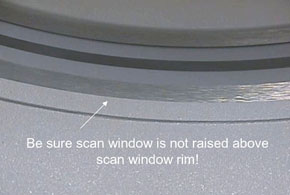
Check that the scan window is not raised higher than the front or rear cover at any location on the circle, and that the window is not wrinkled (see Figure 1).
Figure 1. Scan Window
-
Replace the scan window if it is damaged. (If you need to replace the scan window, follow the procedures in Replacement-Gantry Enclosure-Gantry Scan Window Removal and Re-install to remove the old window and install a new one.)
-
-
Turn the 120 VAC power ON at the gantry service switch panel. (For procedures, see Safety-Equipment Service-Gantry.)
-
Rotate the gantry by hand and inspect rotational clearances.
-
Power up the system (for procedures, see Section 2.2 of Safety-Equipment Service-Lockout-Tagout-PPE).
-
Start Save System State (For procedures, see Section 1 in System State Save Restore.)
-
Confirm Save System State completed successfully.
-
Turn on the Axial Enable and HVDC switches at the gantry service switch panel. (For procedures, see Safety-Equipment Service-Gantry)
-
Install the gantry side covers. (For installation procedures, see Replacement → Gantry → Enclosure → Cover Procedures.)
9.2 General Table Cleaning & Inspection
Complete the Table and Gantry Tilt Functional Checks (For procedures, see Section 13 in General Table PM)
10 Finalization
10.1 System Scanning Test
Complete the System Scanning Test. (For procedures, see System Scanning Test.) While completing the test, do the following verifications (Step 1 and Step 2 in General Tasks) and record them on the PM Report Form:
10.2 General Tasks
-
Verify that the following X-ray On indicators light up:
-
SCIM/GSCB
-
Gantry Front
-
Gantry Rear (To avoid walking into the room during a scan, you may want to use a mirror to check this X-ray indicator.)
-
Room Warning Light
-
-
Verify that the following scan control push-button are operational:
-
Start scan (and keypad lights).
-
Stop scan (and keypad lights).
-
Pause scan.
-
Advance to scan.
-
Stop table.
-
-
Complete the Quality Assurance Test. (For procedures, see Quality Assurance Test)
-
Update the site logs. (For procedures, see Update Site Logs.)
-
Complete all required PM paperwork.