
- Discovery MR750 3.0T System Service Methods
- 5690009-2EN Revision 4
- 00000018WIA3091FE20GYZ
- id_131065523.8
- Nov 30, 2021 2:00:13 PM
System Gain Calibration (for systems DV26 or earlier)
Body system gain calibration.
Prerequisites
| Required persons | Preliminary requirements | Procedure | Finalization |
|---|---|---|---|
| 1 | 5 minutes | 10 minutes | 2 minutes |
| Item | Quantity | Effectivity | Part number | Manufacturer |
|---|---|---|---|---|
| Foam Support for ECMT and Phantom | 1 | - |
5554839 | - |
| Condition | Reference | Effectivity |
|---|---|---|
|
No required conditions. | - | - |
About this task
System gain calibration is performed to determine the body recon scale factors that will achieve a known level of image intensity when using the body coil with a known phantom solution and protocol. The goal is that when the same solution or tissue is scanned in either the standard body coil with the same protocol, those tissues will have approximately the same image intensity level on a given system and between systems of like type.
This calibration accounts for differences in body receive coil sensitivity, preamp gains, cable loss, receiver gain, and other factors. The calibration must be done on body at least once to calibrate those paths.
Preliminary Setup
Procedure
Calibration
Procedure
- At the System Gain Calibration Test Modes menu, click Start button. The calibration begins.
Figure 1. Starting System Gain Calibration Tool 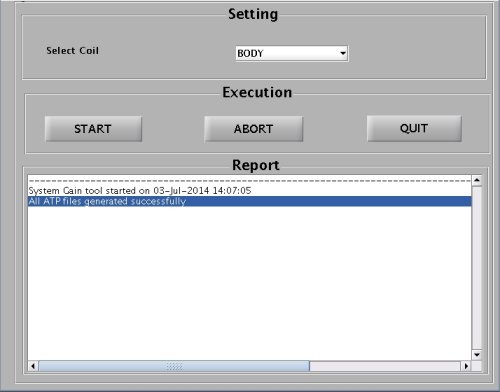
- The calibration results display on the screen. If adjustments are required, the system asks, Do you want to save the recon scale factor. Type Y and press Enter to save the recon scale factor.
Figure 2. Calibration Output 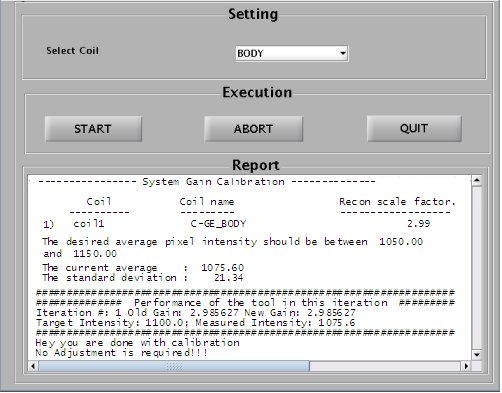
Finalization
Procedure
- Remove all phantoms and service tools from the patient table.
- If you are performing this calibration during an installation, continue with the required calibrations. Otherwise, perform a SaveInfo to save the new ReconScale values.