- id_15667656
- Version: 1.7
- Date: Jul 5, 2019 5:47:15 PM
Logging in as Root
Most service functionality can be performed with operator-level privileges. However, you may need to perform some administrator-level functions that require root access. This document describes logging in as the root user and accessing options from the root desktop menu.
Because root privileges allow you to make changes that can do irreparable damage to the system, it is advisable to log in as an operator-level user (for example, sdc ).
Logging in as the Root User
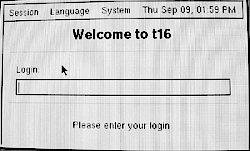
When you power up the host computer and see the welcome login screen, log in with the user name: root and password: operator.
It is possible that the customer changed the default password. If you cannot log in, contact the customer for the correct password.
Figure 1. Welcome Login Screen
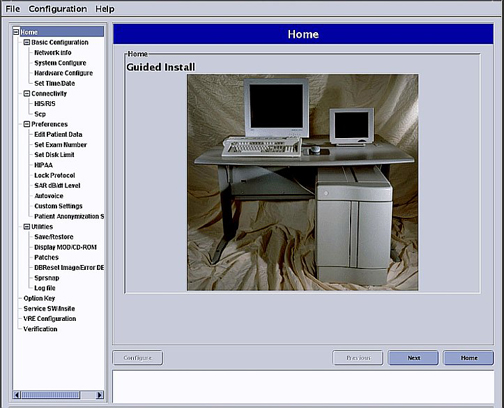
Logging in as the root user automatically displays the Linux desktop and launches the Guided Install Starter window. Click Yes to invoke the Guided Install interface.
Figure 2. Guided Install Interface
Restarting the System
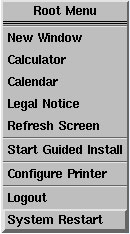
To restart the host computer, right-click on the Linux desktop to access the Root Menu and then select .
Figure 3. Linux Right-click Root Menu
Switching to Operator-level User
You can switch from a root user to an operator without shutting down the system. Right-click on the desktop to access the Root Menu and select . Once you confirm that you want to log out, the welcome log in screen displays.
Accessing a C Shell
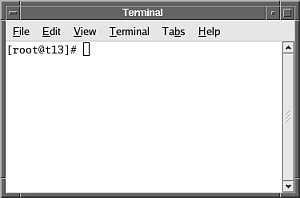
To access a C shell (Terminal) from the Linux desktop, right-click the desktop and select . A Terminal window opens as shown below.
Figure 4. C Shell Terminal Window
Shutting Down the System
Open a C shell terminal window as described in Accessing a C Shell. At the prompt, type shutdown -h 0. The shutdown process begins immediately.
Accessing Guided Install
You can access the Guided Install from the desktop at any time. To access the Guided Install from the Root Menu, right-click on the desktop and select .