- 00000018WIA30E08030GYZ
- id_123737141.4
- Jan 20, 2021 10:19:48 PM
Login Screens (DV25.1 and later)
Login Screen
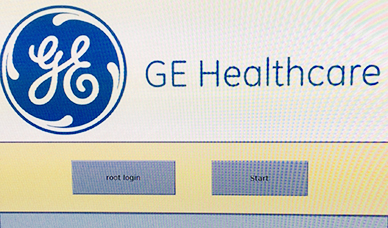
To login as a root user, click on the root login button.
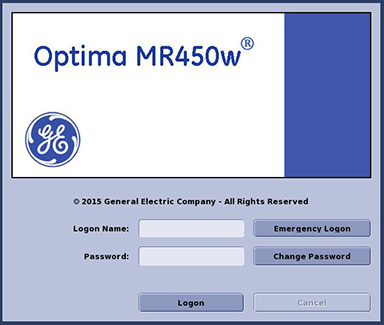
After you click the Start button, the HIPAA Login screen (example shown below) will show:
| Field | Description |
|---|---|
| Logon Name | Text field for your system Login Name. Your administrator can set-up a unique Logon Name for you through your hospital Enterprise system. |
| Password | Text field for your password. A password is assigned to you by the system administrator. |
| Logon | Initiates logon to access the system. |
| Cancel | Stops the login and access to the system. |
| Emergency Logon | Launches the Emergency Logon screen. It does not require an ID or password filed on your Enterprise system. |
| Your Name | On the Emergency Logon screen, enter your name and then click Logon to begin the startup procedure or Cancel to stop the startup procedure. |
The Emergency Logon button is only functional if the Site Administrator has enabled it in User Account Management. In that case, a user can log into the system without a password.
An existing user can change his password by clicking on the Change Password button.
It is possible that the customer changed the default password. If you cannot log in, contact the customer for the correct password.
The previous method of logging in with sdc is no longer functional if the Site Administrator has disabled it in User Account Management.
Security
For sites that choose the high security setting, the FE must change to a complex password for the root login. We also recommend that the customer changes their user password.
If the typical security level setting is selected (Security Levels), it is highly recommended to change the default password when logging in with root login.
If no one at the site can log into the system as root/guided-install, refer to the Customer Password Management Process to update password(s) in the connectivity database.
Autostart
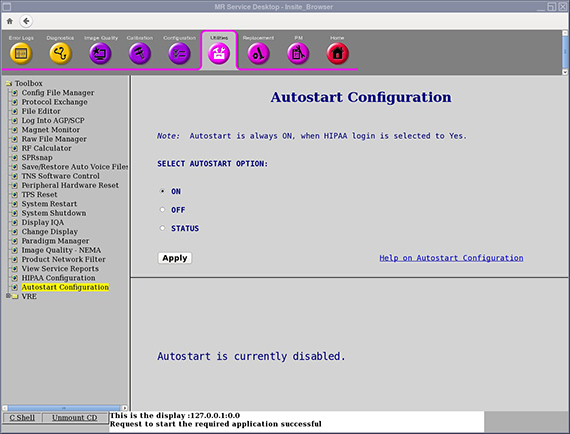
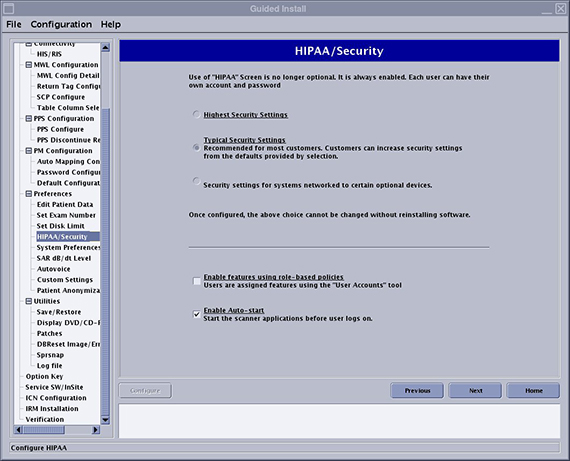
If Autostart is enabled, the system will automatically execute the Start button after 30 seconds. Autostart Configuration is available on the Common Service Desktop (CSD). You can also configure Autostart from the HIPAA/Security page in Guided Install.