
- Optima MR450w BASE 1.5T System Service Methods
- 5690012-2EN Revision 3
- 00000018WIA309B0940GYZ
- id_20157763.3
- Apr 23, 2020 8:56:37 PM
Setting the boot sequence - Dell T5820 (MR28 or later)
Specifies the order of host computer boot devices.
Prerequisites
| Personnel requirements | |||
|---|---|---|---|
| Required persons | Preliminary requirements | Procedure | Finalization |
| 1 | - | 5 minutes | - |
About this task
Procedure
- Select the Boot Sequence option.
Figure 1. Boot sequence setup 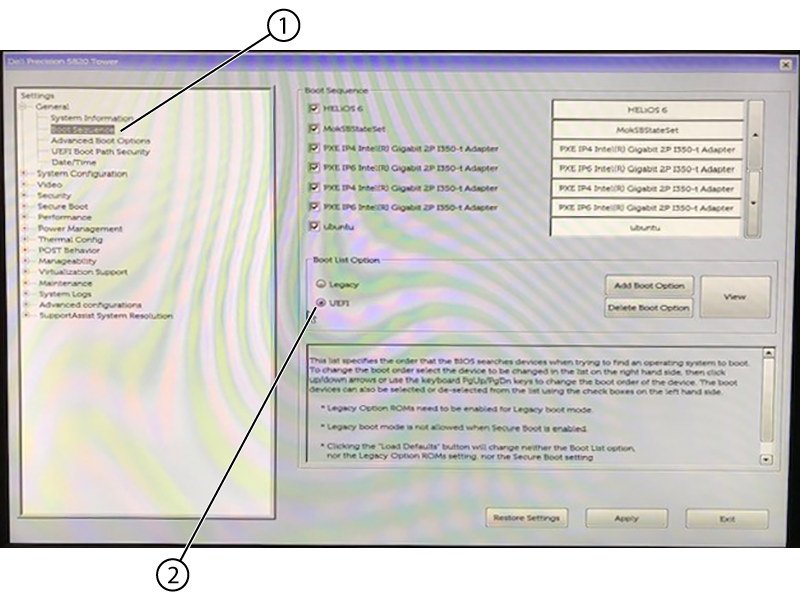
1 Boot sequence 2 UEFI - In the Boot Sequence pane, make sure that only the hard drive is checked.Note: The hardware name may change to match the operating system name.
Figure 2. Boot sequence selection 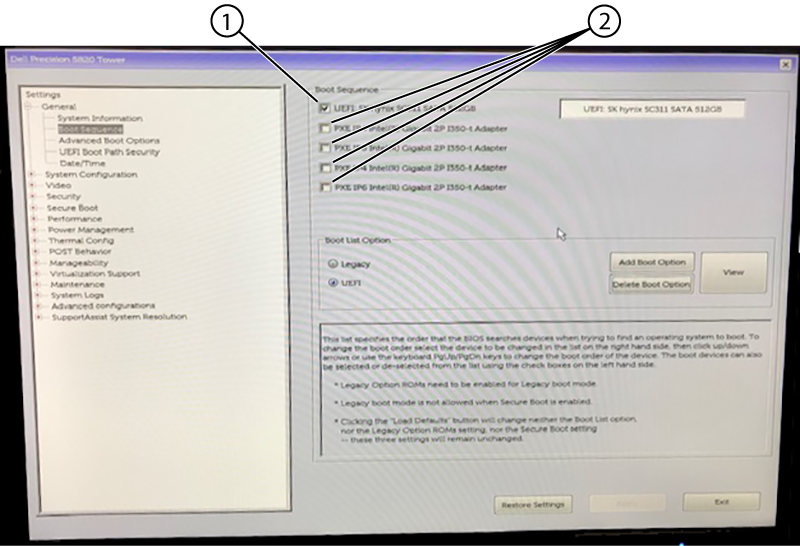
1 Checked 2 Clear - In the Advanced Boot Options pane, select Enable Legacy Option ROMs.
Figure 3. Advanced boot options 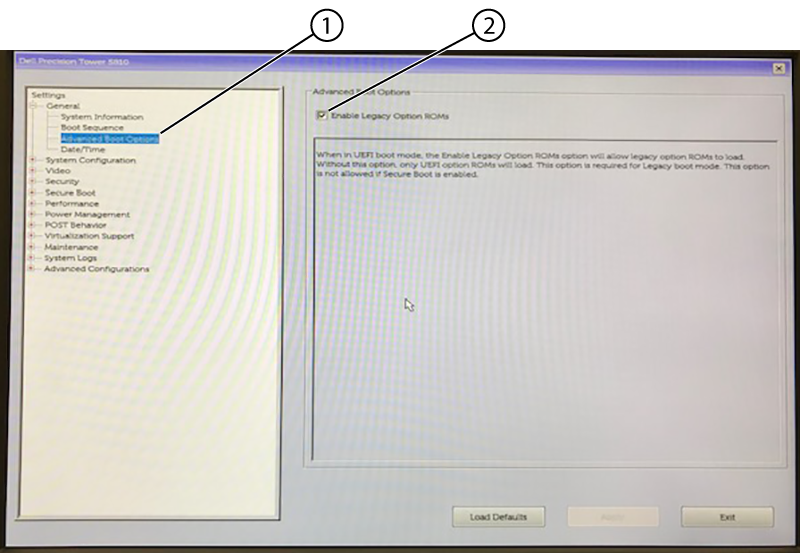
1 Advanced boot options 2 Enable legacy option ROMs