
- SIGNA™ Hero 3.0T Service Methods
- 5852800-8EN Revision 1.0
- 00000018WIA3075FE20GYZ
- id_131064053.2
- Jul 13, 2021 7:04:33 PM
VRE Reconfiguration
Prerequisites
| Required persons | Preliminary requirements | Procedure | Finalization |
|---|---|---|---|
| 1 | 10 minutes | 30 minutes | 5 minutes |
| Item | Quantity | Effectivity | Part number | Manufacturer |
|---|---|---|---|---|
| MR VRE Linux OS DVD (for configuration) | 1 | - | - | - |
| SSA class M hard key (for PX26.1 and later) | 1 | - | - | - |
| ||||

About this task
VRE is an acronym for volume recon engine, and ICN is an acronym for image compute mode. These terms are used interchangeably.
VRE configuration copies the VRE operating system onto the host computer during first-time software loads onto new ICNs.
VRE reconfiguration reinstalls the software onto the ICN. This procedure is needed after Replacing the ICN .
VRE Configuration — During Host PC Software Load
Procedure
ICN Reconfiguration
Procedure
(For PX26.0, PX26.1 and later) Insert the SSA class M hard key.Notice 
- On the left sidebar, select ICN Configuration.
Figure 1. Guided Install - ICN Configuration 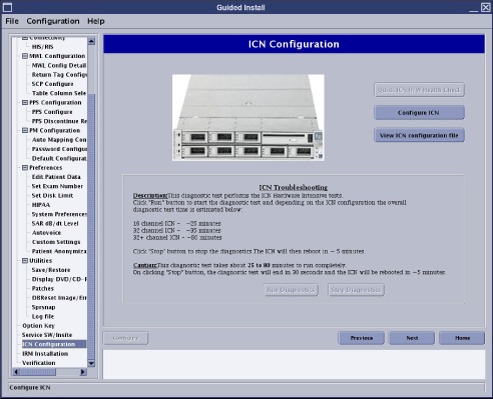
- ICN configuration progress and details appear in a separate window. At the end of ICN configuration, another popup is displayed with ICN configuration success or failure message. If ICN configuration fails, review the popup message and details in the separate window to determine next steps.
Figure 2. ICN Progress Details 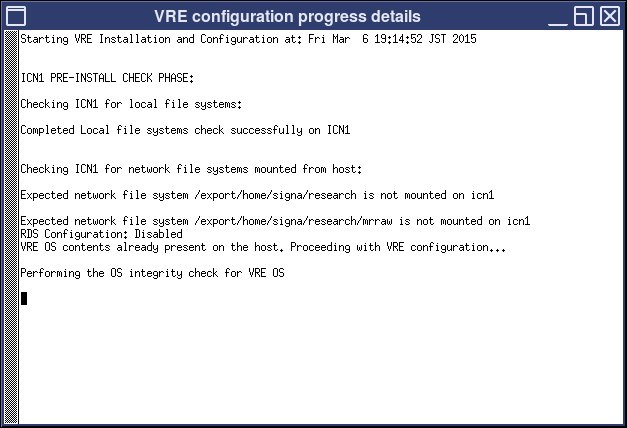
Finalization
Finalization
-
If this procedure was performed as part of a software reload, return to the software installation procedure and proceed with the next steps.
-
If this procedure was not performed as part of a software reload:
-
Perform a system restart. This is required after configuration for the changes to take effect.
-
Perform a test scan to verify that the system is working properly.
-
Perform SaveInfo.
-