- SIGNA™ Hero 3.0T Service Methods
- 5852800-8EN Revision 1.0
- 00000018WIA30E81640GYZ
- id_20140455.1
- Jul 13, 2021 4:05:23 PM
Configuring the Remote Service Platform (RSvP)
Configures Remote Service Platform (RSvP) for operational use.
About this task
Procedure
- If applicable, enable and configure DNS information in the Network Info tab.
Figure 1. Guided install network info 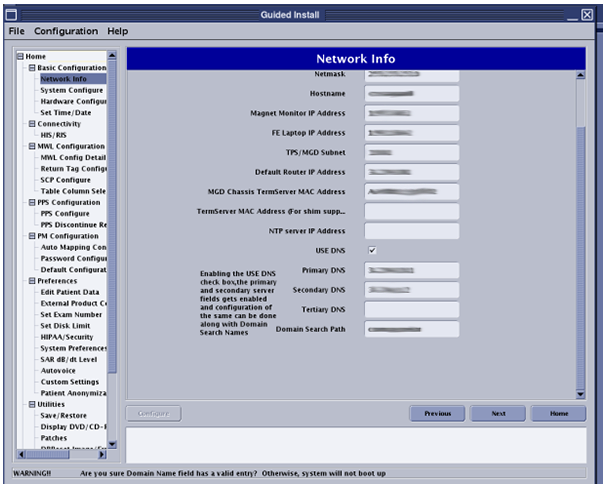
- Configure the System ID and Service ID in the System Configure tab of Guided Install to the same system ID. Both fields are used interchangeably across various remote features and should be configured to be the same as the system ID of the MR system.
Figure 2. System ID and Service ID 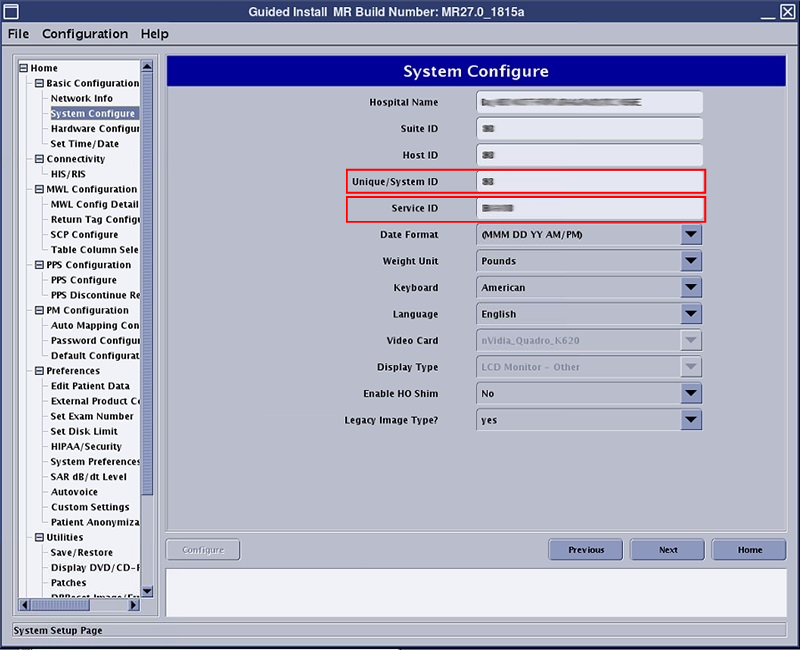
- Navigate to the Service SW Insite window and click Configure Insite/IIP.
Figure 3. Service SW Insite 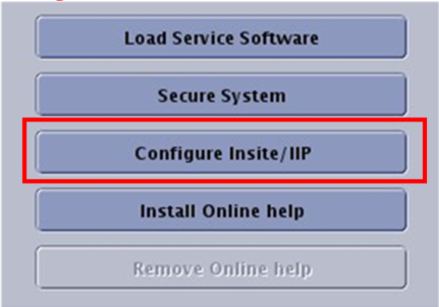
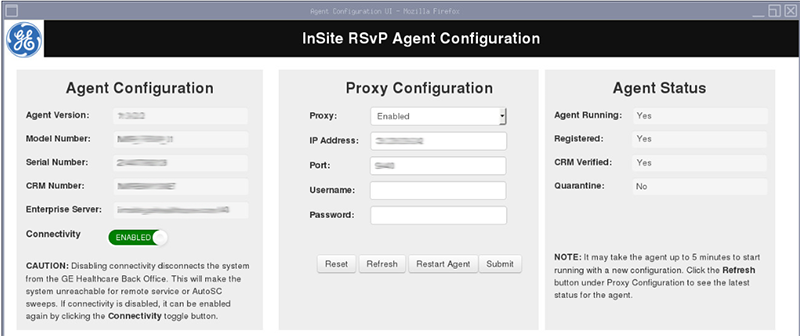
- If the site is connecting through a proxy server, enable proxy configuration and provide the IP address/proxy information from the site.
Figure 4. Proxy configuration 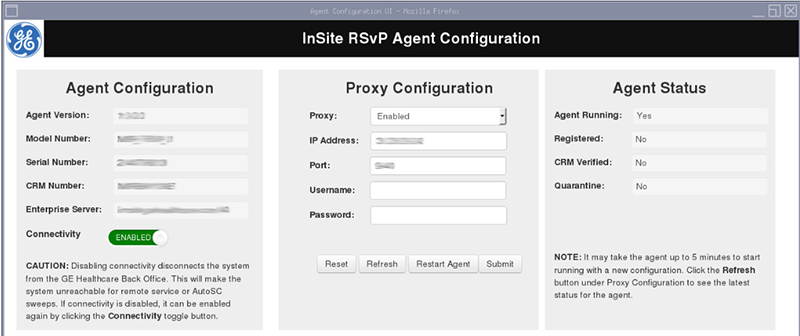 Note: If a customer insists on using GE InSite Proxy server IP address, then obtain approval for this form of connectivity from the local connectivity team and configure the GE Proxy IP in this UI. This Proxy Server IP address is typically 150.2.1.251 with Port: 8002. Confirm this IP address and port# with your local connectivity team.Note: In certain sites, the site VPN router could be on a different subnet as that of the default gateway at site. In such cases, the MR system cannot directly connect to the GE Proxy. A route should be added in the system network configuration to enable this connection. This route does not carry over across software loads through restore info; therefore, this procedure needs to be repeated in case of a software reload.
 - Click Submit. A few minutes later (approximately 4 minutes) Registered will change to Yes. Click Refresh multiple times as needed.
Figure 5. Registered 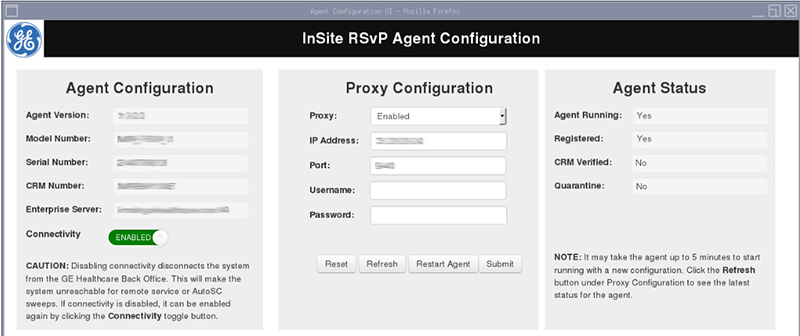
- A few minutes later (approximately 4 minutes) CRM Verified will change to Yes. Click Refresh multiple times as needed.
Figure 6. CRM verified