
- SIGNA™ Hero 3.0T Service Methods
- 5852800-8EN Revision 1.0
- 00000018WIA30215E20GYZ
- id_131062762.5
- Jul 13, 2021 6:15:19 PM
Remote software download
Overview
Remote Software Download (RSD) is an installer application that helps to install new updates from Service Packs whenever they are released. Users can install, decline or skip the updates.
User access for RSD
A root user can set who will have access to install updates. By default, only root users and EA3 authorized users can install updates. Users who do not have access will see the window below.
If you do not have access, click Change User to let an authorized user log in to install the update.
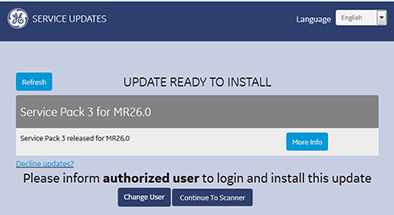
Installing updates via root login
At root login, the user interface shown below always launches at system startup, even if there is no update available. It shows the new update and a history of updates.
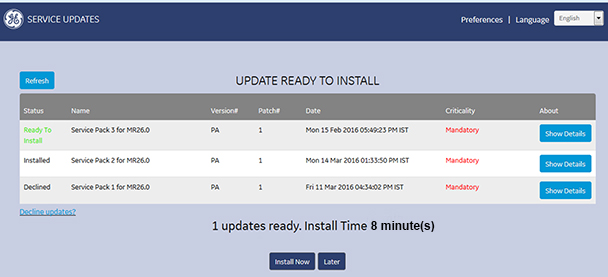
Click Preferences on the RSD user interface to set system update install options and user access for update installation:
- Install updates automatically on restart: Installation starts automatically (for all users) after 30 seconds, unless the user skips or declines the update.
- Allow all users to install updates: enables all users to acknowledge and install a new service pack. The user can choose to install, skip or decline the update.
- Only allow authorized users to install updates: This is the default preference. It allows only root users and also EA3 authorized users (role-based authorization) to install a new service pack. The Go to User Administration Tool link launches the EA3 user interface where you can change authorization for individual EA3 users. (Refer to Data Privacy for more information.)
Click Save & Close to close Preferences.
Click Install Now to install the update. An installation confirmation will show when the update is complete.
- Later: This skips the update for the current session, and it starts the scanner. The system will prompt to install the updates at the next system startup.
-
Decline Updates? If you click this link, the Decline System Update form will show. You must enter your name, role and reason for declining the update. Click Decline Update to submit the form. A decline confirmation will show.
You can install a declined update later as long as it has not been superseded by a newer update.
Installing Updates for Authorized EA3 Users
At Signa login, RSD only launches if there is a new update available, and only the new update shows. You can click More Info to see details from the Read Me file contained in the service pack.
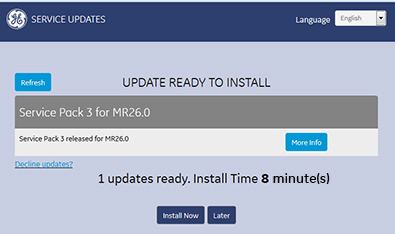
Authorized users can click Install Now to install the update. An installation confirmation will show when the update is complete.
If you do not want to install the update, you can choose the following options:
-
Later: This skips the update for the current session, and it starts the scanner. The system will prompt to install the updates at the next system startup.
-
Decline Updates? If you click this link, the Decline System Update form will show. You must enter your name, role and reason for declining the update. Click Decline Update to submit the form. A decline confirmation will show.
System Tray Status Icons
After the scanner starts, the status system tray show the availability of software updates and/or connectivity status. To install a new update, you can install them manually, or restart the system to install from RSD.
| Icon | Status |
|---|---|

| A new service pack is available. If you click the icon, information about the service pack shows. You cannot install or decline the update from the system tray interface. |

| The service pack installed successfully. After 20 seconds, this notification will no longer show. |

| The service pack installation failed. After 20 seconds, this
notification will no longer show. Note: If the update fails to install, rollback occurs. |

| There are no updates available. The server connectivity icon shows when the system is connected to the Backoffice. The system checks the connection to the Backoffice every 5 days. |
Finalization
Follow actions as recommended in the Read Me file information.